
Before you start
- Get CourseBuilder+ from the Microsoft Store, then open it from the Start menu.
- Add an AI key if you want the AI to draft for you. It is your own key from an AI company — Claude, Gemini, OpenAI, Mistral or xAI — paid to that company as you use it, and not the same as a ChatGPT or Claude chat subscription. AI keys: what they are and how to get one. Everything can also be typed by hand, without AI.
- You always see what is sent. Every window that uses the AI shows you the exact prompt first, and you can cancel.
- Your work stays on your computer, as ordinary files in Documents\PreseMaker\Courses — see Where your course files are kept.
Start here
A course in CourseBuilder+ is a list of modules (a week, a chapter, a unit). Each module has topics and learning outcomes, and everything in it is made from those. So the path is always the same — Getting started walks through it once, with a picture of each window:
- Create the courseName it and describe it; the AI proposes the modules and you choose them.
- Open a moduleA module is one unit — a week, a chapter. Everything you make belongs to one.
- Give it topics and outcomesThe AI proposes them from the module's description and your material; you review them.
- Make its contentPresentations, documents, quizzes, assignments, notes, games — each made from the topics you tick.
- Publish the course websiteBuild it on your computer, check it, then put it online if you want.
In CourseBuilder+ itself, Help (or F1) on most windows opens the same help as these pages, for that window.
1. Getting started
The whole path once, from a new course to a website, and the AI key it needs.
- Getting started — The whole path once: create a course, open a module, give it topics and outcomes, make its content, publish the website.
- AI keys — What an AI key is, whether you need one, what it costs, and how to add it.
2. Creating a course
Start a course, let the AI propose its modules, and find your way around.
- The Course Manager — The first window: pick a course, see its modules, and open everything else.
- Create a new course — Name the course, point the AI at a description, syllabus, web page or deck, and choose the modules it proposes.
- Where your course files are kept — Every course is ordinary folders and files in Documents\PreseMaker\Courses — what lives where, and what to leave to the program.
- Course Files (syllabus and course-wide material) — A place for material that belongs to the whole course, not one module: the syllabus, schedule, policies, course-wide links.
- Course Status and the Course Topic Report — A summary of the whole course: course outcomes, alignment, accessibility, course files, and a one-page report of every module's topics and subtopics.
3. Building modules
Give each module its topics and learning outcomes — the foundation everything else is built from.
- The Module Manager — Where one module is built, in three steps: name and description, topics and outcomes, then content.
- Topics and outcomes — Have the AI propose a module's topics, subtopics and learning outcomes, then review and edit them.
- The Module Index — One list of everything made in a module, with a viewer, a description and actions for each item.
4. Generating content
Make presentations, documents, quizzes, assignments, notes, games and more from a module's topics.
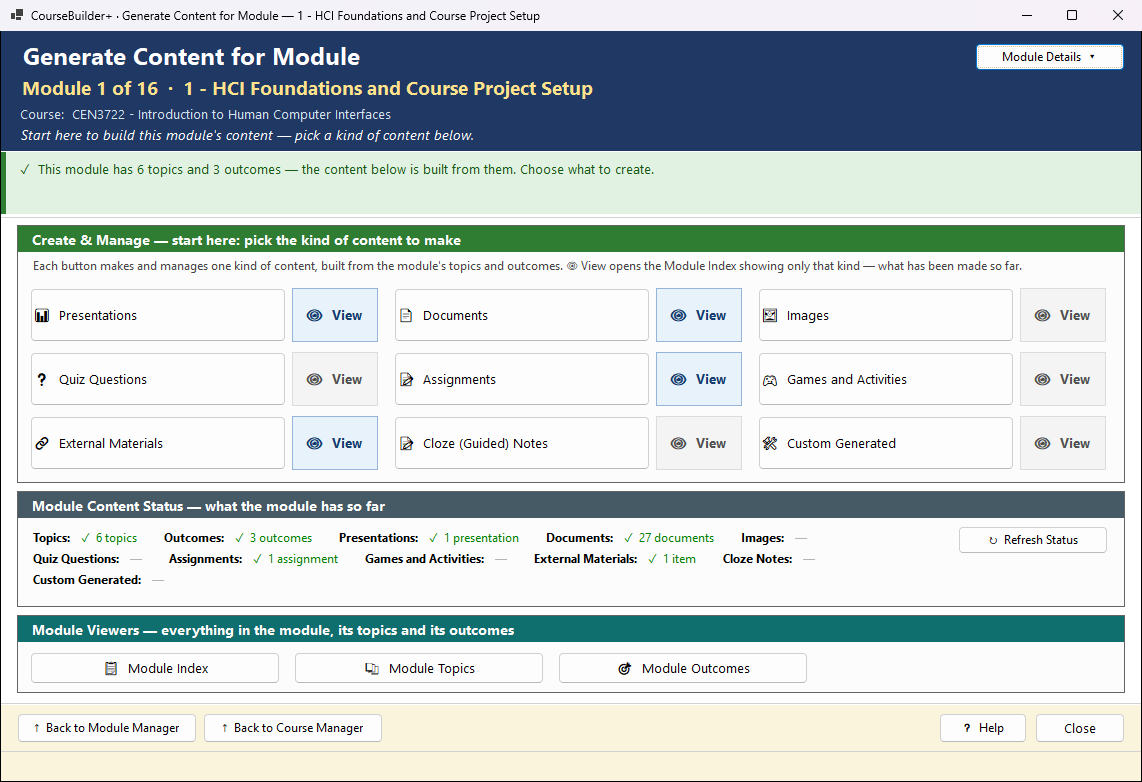
- Generate Content for Module — The starting point for all of a module's content, and how every Generate window works.
- Presentations — PowerPoint decks from the module's topics — one per topic, merged if you like — then narration and audio in Presentation Tools.
- Documents — Lesson plans, topic overviews and details, example problems, study guides, pages with YouTube videos — as web pages, Word, PDF or Markdown.
- Quiz Questions — Questions of seven types, written per topic into the module's question bank — the one bank every quiz export uses.
- Assignments — One assignment per topic — a case study, project, problem set or your own type — with instructions and a rubric.
- Cloze (Guided) Notes — Fill-in-the-blank notes for students to follow in a lecture, at three levels, each with an instructor key.
- Games and Activities — An interactive web activity — flashcards, matching, drag and drop, a simulation — built from one topic.
- Custom Generated — Anything you can describe — a checklist, a handout, a worked example, or a playable HTML game.
- External Materials — Add a file, web page, YouTube video or playlist you did not make; the AI describes it for students.
- Images — Free-to-use pictures for the module's topics and outcomes — found by search, or drawn by the AI — kept in the module's image library.
5. Publishing and exporting
Put the course on a website, into your LMS, into a backup, or on GitHub.
- Publish the course website — Turn the course into a website on your computer, then — if you want — put it online with GitHub Pages and a Google search box.
- Export to your LMS (Common Cartridge) — Package the course as an .imscc file that Canvas, Brightspace, Moodle, Blackboard and other LMSs import.
- Export as SCORM 1.2 — The course website as a SCORM package that reports completion and quiz scores to an LMS.
- Course archive (backup) — The whole course as one .zip — a backup, or a way to move the course to another computer.
- iFrame embed code — Wrap any web page address in an iFrame, to paste into an LMS content page.
- Publish to a course repository — Share modules and materials on a course repository such as floridacourserepo.com.
- Git and GitHub: commit and push — Keep the course's history in Git and copy it to GitHub.
6. Importing
Bring in a course from your LMS, your old files, a backup, a course repository or GitHub.
- Import from your LMS (Common Cartridge) — Bring a course exported from Brightspace, Canvas, Moodle, Blackboard or Schoology into CourseBuilder+.
- Import and Classify Content — Bring in your old files, a whole folder or web links; the AI suggests where each one belongs and you check the list.
- Import a course archive — Restore a course from a course archive (.zip) made on this or another computer.
- Import from a course repository — Download modules and materials shared on a course repository such as floridacourserepo.com.
- Clone or pull from GitHub — Take a course from GitHub onto this computer, or bring in changes made on another computer.
7. Batch actions
Do one job for many modules at once.
- Topics and outcomes for every module — Batch Actions → Generate Module Topics and Outcomes: the AI makes topics and outcomes for all the modules, or only those missing them.
- Content for several modules at once — Batch Actions → Generate Content: one kind of content for every module you choose, in one run.