
1. Develop New Course
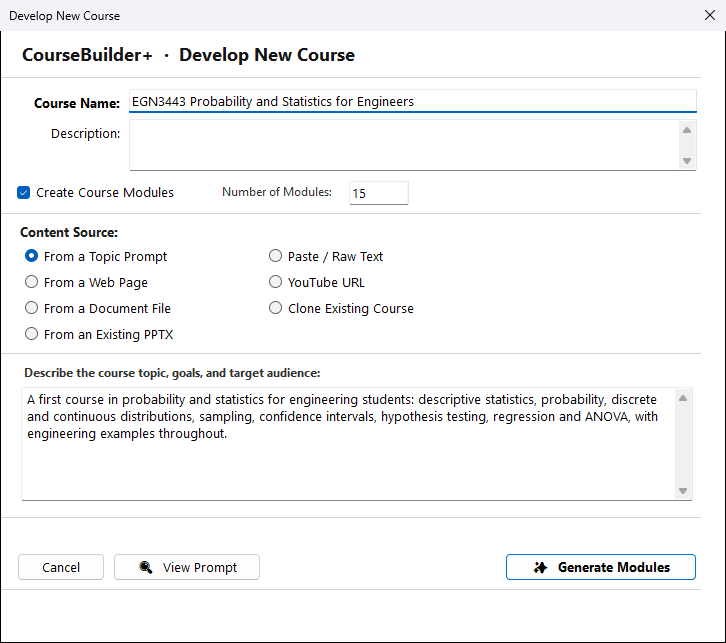
This window starts a new course. You give it a name, say where its content comes from, and the AI proposes a list of modules. Nothing is created yet — the next window, Select Course Modules, is where you choose and rename the modules and then click Create Course.
Step by step
- Course Name — a name you will recognise, for example EGN3443 Probability and Statistics. It must differ from your other courses. It also becomes the course's folder name.
- Description (optional) — a sentence or two about the course. Left empty, the AI writes one.
- Create Course Modules — leave it ticked to have the AI propose modules. Untick it to create a course with only a description; you add modules later.
- Number of Modules (optional) — how many you want, such as 15 for a 15-week course. Leave it empty and the AI decides.
- Choose the source the AI works from:
| Source | Use it when |
|---|---|
| Topic prompt | You describe the course in your own words: subject, level, audience, goals |
| Web page | A public page describes the course (a catalogue entry, a syllabus page) |
| Document | You have a syllabus or outline as a .docx or .txt file |
| Existing PowerPoint | You have a deck; its slide titles, bullets and notes are used |
| Paste / raw text | You copy text from anywhere and paste it in |
| YouTube | A video covers the course; pasting its transcript usually works better |
| Clone an existing course | You want a copy of one of your courses — its module list only, or all its files |
Then click Generate Modules (it reads Generate Course when Create Course Modules is unticked). You first see the exact prompt that will go to the AI, and you may change it. The AI's proposal then opens in Select Course Modules.
View Prompt shows that prompt without sending anything.
What it uses
Generating uses your AI key once, for the module list (or once for the description, when Create Course Modules is unticked). Cloning uses no AI.
Module numbers
On the next window, Number the modules (ticked by default) names each module Module 1: … and starts its folder with the number (01_…), so the modules also appear in order in File Explorer.
2. Select Course Modules
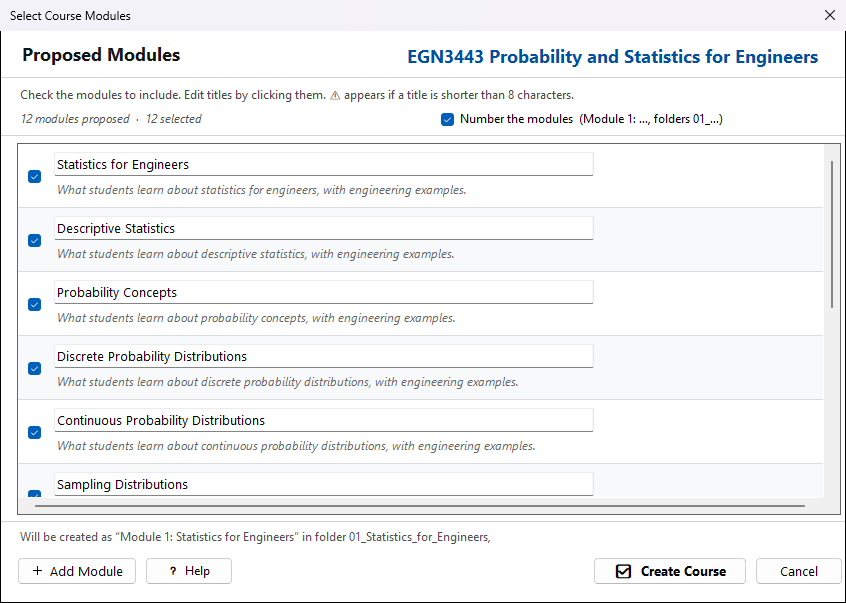
These are the modules proposed for your new course. Nothing is saved yet — the course and its folders are made when you click Create Course.
What you can do here
- Tick or untick a module to include it or leave it out.
- Click a title to change it. A ⚠ appears when a title is very short; a descriptive title gives better results when you later generate content for the module.
- + Add Module adds a module of your own to the end of the list.
- Number the modules (ticked by default, and remembered for next time): each module is named with its number — Module 1: Introduction — and its folder starts with the number — 01_Introduction — so File Explorer lists the module folders in course order. A number the AI already put in a title (Module 3 – …, 3. …) is replaced, not repeated. The numbers follow the ticked modules, top to bottom. Untick it if you do not want numbers.
When you click Create Course
CourseBuilder+ makes the course folder in Documents\PreseMaker\Courses, one folder per module inside its Modules folder, and a course file (course.json) listing the modules in this order. When you cloned a course with all its files, those files are copied too. You are then back in the Course Manager with the new course: double-click a module to start building it.
If something goes wrong part-way, everything made so far is removed, so you can simply try again.
Numbers are given once, when the course is made. A module you add or move later keeps the name and folder it has.