
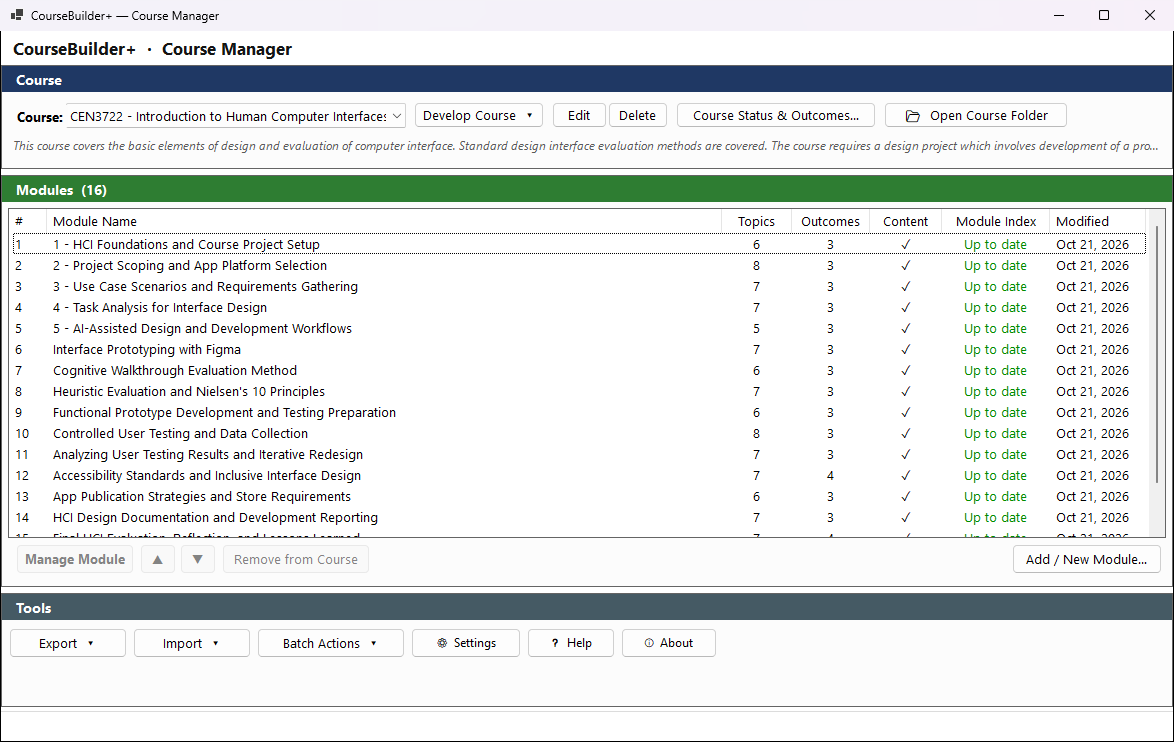
This is the first window of CourseBuilder+. From here you pick a course, see its modules, and open everything else.
Getting started
- Add an AI key if the yellow bar at the top asks for one. The AI features use your own key from an AI company (Claude, Gemini, OpenAI …). Click Open AI Settings on the yellow bar (or Settings, then AI Settings…) to add it.
- Pick a course in the Course list, or make one with Develop Course ▾ → Create New Course….
- Open a module: double-click it in the Modules list, or select it and click Manage Module. A module is one unit of the course (a week, a chapter, a topic). Everything you make — presentations, text lessons, quizzes, assignments, activities — belongs to a module.
The Modules list
Each row shows the module's topics, outcomes, whether it has content, and its Module Index:
- Up to date: every item in the module has a description. The course website shows these descriptions on the module's page.
- Needs desc.: some items are new, changed, or have no description yet.
Right-click a module for quick actions:
| Menu item | What it does |
|---|---|
| Manage Module | Opens the module |
| Generate Module Topics and Outcomes / Browse Module Topics | Make or look at the module's topics |
| Update Descriptions… | The AI describes every item that is new, changed or has no description. You see the prompt first; it uses your AI key |
| Open Module Index | The list of everything in the module, where you can check, edit or rewrite any description |
The Course row
| Button | What it does |
|---|---|
| Develop Course ▾ | Create a new course (from a topic, a document, a web page, a PowerPoint, pasted text, or a copy of another course), or import one from a course repository |
| Edit | Change the course's name and description |
| Delete | Remove the course from the list (you are asked first). Its folder and files stay on disk; its course file is renamed course.deleted.json — rename it back to course.json to restore the course |
| Course Status & Outcomes… | A summary of the whole course, and where you enter the course outcomes, map the outcome alignment and check the course's accessibility |
| Open Course Folder | Opens the course's folder in File Explorer — see Your course files below |
The Tools row
Export ▾ (Common Cartridge for your LMS, SCORM, a course website, a course archive), Import ▾, Batch Actions ▾ (run one action over many modules: Generate Module Topics and Outcomes, or Generate Content…, which makes presentations, quiz questions, documents, assignments or cloze notes for the modules you choose), Settings, Help and About.
The course outcomes, outcome alignment and the accessibility check of this course are in Course Status & Outcomes… — each has its own row and button there. To check a course exported from an LMS (.imscc), use Assessment+, on the Microsoft Store (softwareplus.ai/assessment).
Hover over any button: the line at the bottom of the window says what it does.
If a notice says "Some course folders could not be loaded"
A folder in your Courses folder could not be opened as a course — most often because OneDrive is still bringing it over from another computer, sometimes because it is an empty folder left behind. Click More Information… on the notice to see which folders, what is in them, and what to do.
Your course files
Everything is saved on your computer in Documents\PreseMaker\Courses (the folder kept the program's old name, PreseMaker). Each course is one folder; each module is one folder inside its Modules folder. You can work in these folders directly with File Explorer, PowerPoint, an editor or Git.
In short:
- course.json in a course folder is what makes it a course; it lists the modules in order.
- In each module folder: module.json (name, description), hierarchy.json (Module Topics), presentations (your .pptx decks), materials (sources you added), output (everything CourseBuilder+ made: pages, narration, audio, activities), quiz_questions.json and assignments.json (the quiz and assignment banks).
- Edit decks and pages in their own programs freely. Rename or delete modules, courses and decks inside CourseBuilder+, so the records that point at them stay right.
The full guide is the help page Where your course files are kept — open it with the button at the bottom of this window.