
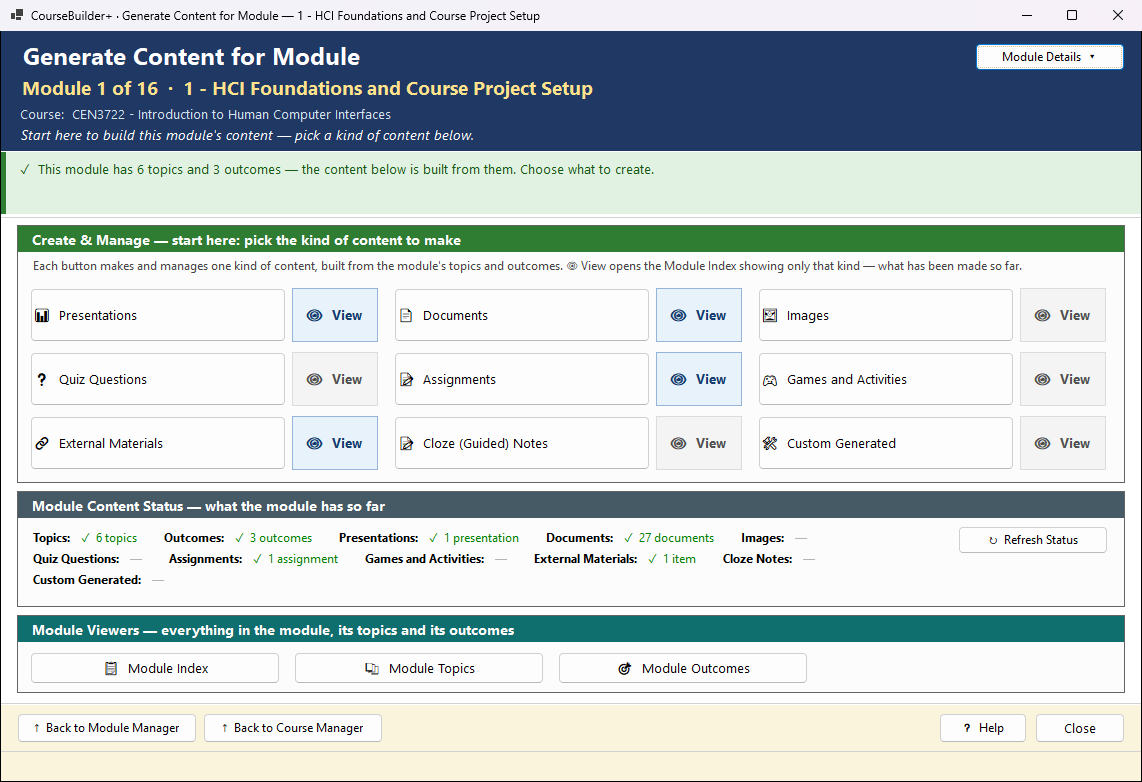
This is where you start whenever you build content for a module — presentations, documents, quizzes, assignments, activities and more. It is the Module Manager's Step 3. The header names the module you are working on (and its place in the course: Module 3 of 15); Module Details shows its description.
First: topics and outcomes
Everything here is built from the module's topics (with their subtopics) and its learning outcomes. The bar at the top shows where the module stands. When something is missing it is yellow and says what, with one button to make it:
- Create Topics & Outcomes… — no topics yet: opens the Topic & Outcome Generator.
- Add Outcomes… — topics but no outcomes: opens the outcome editor. Outcomes are recommended rather than required, but quizzes, assignments and activities are aimed at them.
When both exist the bar is green and shows how many there are.
Create & Manage (green)
Pick the kind of content to make. Each large button makes and manages one kind; the 👁 View button beside it opens the Module Index showing only that kind — what has been made so far (for Quiz Questions, the module's question bank). The Module Index is one list of everything in the module; its Type filter narrows it, and you can change the filter there. A View button is grey until the module has something of that kind.
Presentations opens Generate Presentations (one presentation per topic, or import the PowerPoint files you already have); its 👁 View button opens Presentation Tools — the module's presentations, generated and imported, with import, narration and audio — instead of the Module Index. That View button is always on, because Presentation Tools can import presentations even when the module has none yet. The image library and the question bank open with the Images and Quiz Questions buttons.
| Button | What it makes |
|---|---|
| Presentations | PowerPoint decks generated from the topics; then Presentation Tools for narration, audio and importing your own |
| Documents | text lessons as web pages (HTML), Word, PDF or Markdown |
| Images | the module's image library, with descriptions |
| Quiz Questions | questions for the module's question bank, exportable to your LMS |
| Assignments | assignments with instructions and rubrics |
| Games and Activities | interactive web activities for students |
| External Materials | links, files and videos from elsewhere, described for students |
| Cloze (Guided) Notes | fill-in-the-blank notes, with an instructor key |
| Custom Generated | anything else you describe — including a game |
Each of them lets you pick which topics and/or outcomes it is built from, and shows you the prompt before anything is sent to the AI.
Module Content Status (slate)
How much of each kind the module has — topics, outcomes, presentations, documents, quiz questions and so on. Refresh Status looks at the module's folder again (after you change files in File Explorer).
Module Viewers (teal)
Module Index lists everything made in the module, with a viewer for each; Module Topics and Module Outcomes open the editors.
How the Generate windows work
Presentations, Documents, Quiz Questions, Assignments, Cloze Notes, Games and Activities, Custom Generated, External Materials and Images are all made in windows laid out the same way. Once you know one, you know them all.
- ① Choose — the topics the content is about (left), with the module's learning outcomes beside them (right). The box under the outcomes adds a short Alignment with Learning Outcomes note, or tags quiz questions with the outcomes they support.
- ② Options — what kind, how many, which format.
- ③ Generate — a green line says exactly what will happen before you click.
- ④ See what was made — where it was saved, with View in Module Index, Open File and Show in Folder. (Quiz questions are the exception: you review them first, and nothing is saved until you click Save to Question Bank.)
The steps open and close. Each coloured bar is a step. The window opens with only step ① open; the others show a one-line summary of what is chosen in them. ▾ Close / ▸ Open on a bar (or a click on the bar) closes or opens that step, and the room goes to the steps that are open. Next ▸ closes this step and opens the next one. ◀ current step marks the step you are on; a filled (gold) Next ▸ means this step is done — go on. Step ③ opens by itself when the AI starts working, and the step that shows the result when something has been made. With the keyboard, Tab reaches the bar's buttons; Space or Enter presses them.
Estimated tokens, at the bottom right of step ① (beside Edit Topics…), says how large the request will be before anything is sent — green is focused, amber moderate, red extensive. After a run it shows the tokens really used.
You always see the prompt first. Before anything goes to the AI, the exact prompt opens; you can read it, often change it, or cancel and nothing is sent. It goes with your own AI key, and your AI provider charges for it; Settings → AI Usage and Cost shows what each request cost.
■ Stop ends a run. What was already made is kept, and nothing is ever written over without asking: when something already exists you choose to skip it, keep both, or replace it.