
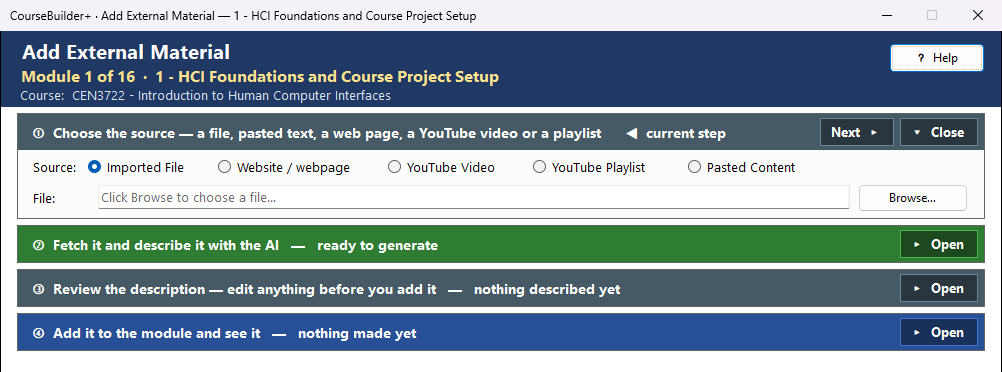
This window adds a resource you did not make to the module — a file from your computer, text you paste, a web page, a YouTube video, or every video of a YouTube playlist. The AI writes a short description of it (title, author, summary, why it matters to the module, and how it supports the module's learning outcomes); you check the description, and a description page is added to the module. It works in four steps, top to bottom; the step you are on is marked ◀ current step, and its button is the coloured one.
The coloured bars are steps that open and close — see How the Generate windows work.
① Choose the source
| Source | What you give | What the module gets |
|---|---|---|
| Imported File | a file (PDF, Word, PowerPoint, text, Markdown, HTML) — Browse… | the file, copied into the module, and a page that links to it |
| Website / webpage | its address (https://…) | a page that links out to the site |
| YouTube Video | the video's address | a page that plays the video |
| YouTube Playlist | the playlist's address | one page per video you choose |
| Pasted Content | Paste… opens a window to paste into | the pasted material, saved as its own file, and a page about it |
If you paste a web or YouTube address while Imported File is chosen, the source switches to the matching kind for you. A typed or pasted address is kept when you switch between the web sources.
② Fetch it and describe it with the AI
The green line says exactly what will happen before you click.
- What comes from the internet: for a YouTube video, CourseBuilder+ reads the video's title, channel and description from its YouTube page; for a playlist, the list of its videos (you then choose which ones, and each video's page is read). This reading is done by CourseBuilder+ itself — no AI. A web page is not downloaded: the AI describes it from its address. A file or pasted text is read on your computer.
- What is sent to the AI: the address, the video's details, or the file's or pasted text (up to 8,000 characters), with the module's name, description and learning outcomes, using your own AI key — one request, or one per video for a playlist. Each request is charged by your AI provider (Settings → AI Usage and Cost shows it). You see the exact prompt first and can edit it or cancel.
■ Stop ends the reading or the request at once; nothing is added. Clicking Fetch and Analyze again after a description is made asks first, because it replaces the description and your edits.
🔍 View Prompt (beside Fetch and Analyze) shows exactly what it would send to the AI for your current choices (a page, video or file is read only when you click it, so its place in the request is marked) — read-only, and nothing is sent. It works whether or not Show the prompt before each AI call is on in Settings.
③ Review the description
The AI's title, author, summary, relevance and teaching purpose appear here. Change anything you like — what you see is what the page will say. (A playlist skips this step: each video's page is added straight away.)
The page shows — tick what the description page includes: title, summary, author or site, and the note on its relevance to the module. A box the page will not show is greyed. (The title always names the material in the Module Index.)
If you change the source in ① after the description is made, you are asked first: the description is cleared (so a description of one source is never added under another), or the source is put back.
④ Add it to the module and see it
➕ Add to Module Index writes the description page into the module's output folder (and copies the file, or saves the pasted material, beside it). Nothing is saved until you click it; if you close the window first, you are asked before the description is thrown away. After it is added, the description stays on screen (greyed) until you choose the next source.
It is listed in the Module Index as a Web Page, Reference File or Video — together, External Materials. Nothing is overwritten: every description page has its own name, and a copied file whose name is already in the module is not replaced (the page links to the one already there).
| Button | What it does |
|---|---|
| Add to Module Index | add the checked description (the coloured button after ②) |
| View in Module Index | every external material in this module, in one list |
| Open Its Page | the description page just added, in your browser |
| Show in Folder | File Explorer, with the page selected (before that, the output folder) |