
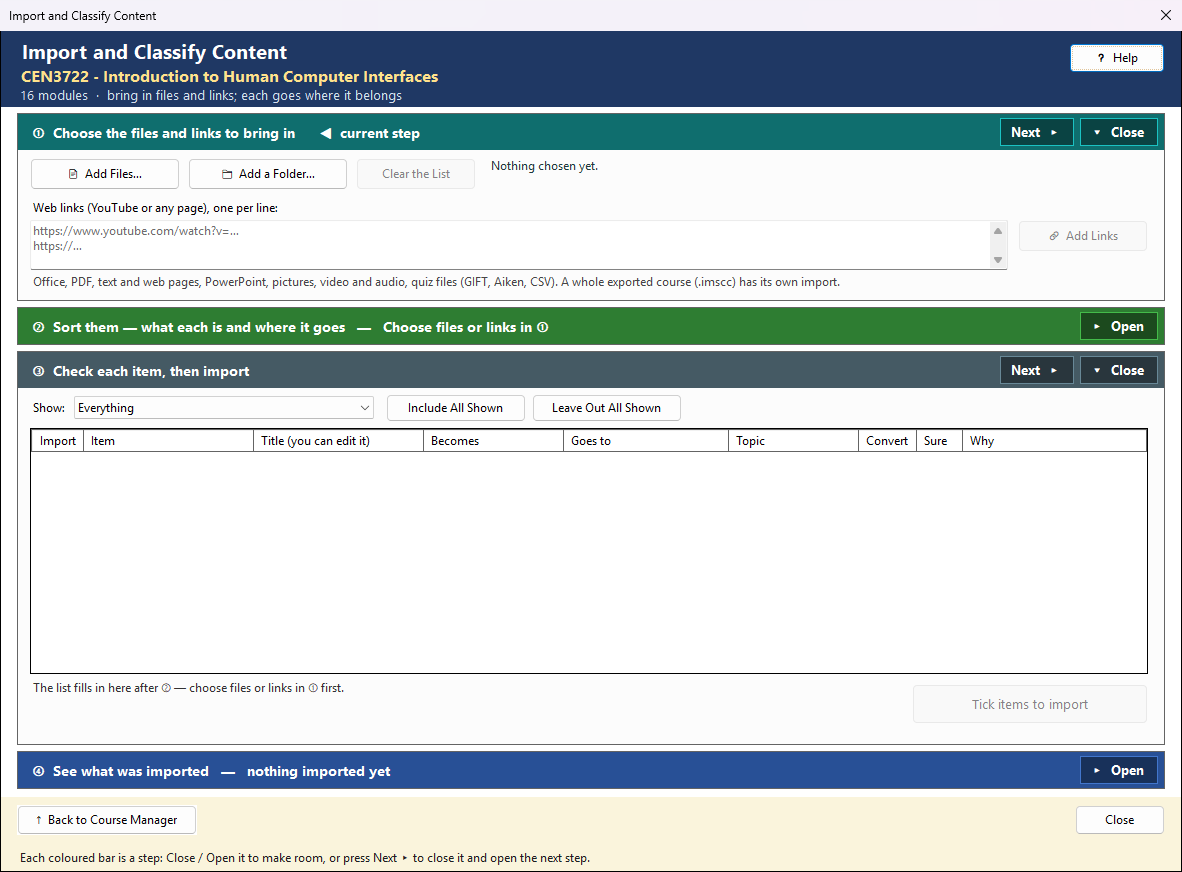
Import ▾ → Import and Classify Content… in the Course Manager brings files, whole folders and web links into the course, and finds each one's place: what it is (a presentation, a reading, an assignment, quiz questions …) and where it goes (a module and its topic, or the whole course). You check everything in a list before anything is imported. The window works in four steps, top to bottom; the step you are on is marked ◀ current step.
① Choose the files and links
- 📄 Add Files… — one or more files.
- 📁 Add a Folder… — every file in a folder and its subfolders.
- Web links — paste addresses, one per line (YouTube or any page), and press 🔗 Add Links.
The line beside the buttons says what you have chosen. Some files are known by their type and need no AI to say what they are: PowerPoint files are presentations, pictures are images, video and audio are media, and GIFT, Aiken or CSV files whose questions can be read are quiz questions. A whole exported course (.imscc) is left out — use Import ▾ → Import IMS Common Cartridge for that.
② Sort them
✨ Sort with AI reads the start of each item (about 1,200 characters of its text, or a deck's slide titles) and sends it, with the names of your modules and topics, to your AI provider, six items per request. The AI suggests what each item is, which module and topic it belongs to (or the whole course, for a syllabus or a schedule), a clear title, a one-line description, and how sure it is. Each request is charged by your provider. Nothing is imported yet.
Place Them Myself (no AI) skips the AI: the list opens with every item at (choose a place), and you choose each place yourself. An item with no place — after Place Them Myself, a Stop, or an answer the AI gave that could not be read — is shaded and is not imported until you choose where it goes.
🔍 View Prompt (beside Sort with AI) shows exactly what Sort with AI would send to the AI for your current choices (one request per few items; each item's opening text is read when you sort) — read-only, and nothing is sent. It works whether or not Show the prompt before each AI call is on in Settings.
③ Check each item, then import
The list is where you decide, and it also works as a filter:
| Column | What it means |
|---|---|
| Import | ticked items are brought in; untick to leave one out |
| Title | the name it will have in the Module Index or Course Files — the AI suggests one; click to change it |
| Becomes | what the item is in the course — change it if the AI got it wrong; Not course material (skip) leaves it out |
| Goes to | the module, or The whole course (Course Files) |
| Topic | the module topic it covers (optional). It is shown with the item in the Module Index, and quiz questions and assignments are tagged with it |
| Convert | for an assignment or a quiz inside a document (Word, PDF, text, web page): the AI turns it into an editable assignment, or into quiz-bank questions. Unticked, the document is kept as a file. One AI request per item. Where the document does not say which answer is right, the AI picks one and the question's title starts [check answer] — check those in the Quiz Bank before students use them |
| Sure | how sure the AI was — below 60% is shaded; check those |
| Why | the reason for the suggestion (hover for the description) |
Show: narrows the list — only what will be imported, only what needs checking (the AI was unsure, or no place yet), only course-level items, only what is left out, or only one kind. Include All Shown and Leave Out All Shown tick or untick every row the list shows.
⬇ Import brings in the ticked items. Files are copied; your originals are not changed.
What each kind becomes
| Becomes | In a module |
|---|---|
| Presentation | a deck in the Presentation Manager (never over another one) |
| Reading | a web page (from a web page, Markdown or text) listed as Text Content; a Word or PDF document is kept as a file |
| Assignment | converted: an assignment in the module's assignments. Not converted: a web page, Markdown or text file becomes an assignment as written; any other file is kept as it is |
| Quiz questions | a quiz file's questions, or the converted questions, go into the module's quiz bank |
| Interactive activity | an activity page (a Gamify+ game or another web page with its own script) |
| Image | the module's image library |
| Video or audio, Reference file | kept as a file in the module |
| Web link | an External Material page (YouTube or website) |
Sent to the whole course, a file or link goes to Course Files.
④ See what was imported
One row per item: where it went, what it became, and ✓ Imported or ✗ with the reason. 🗂 View in Module Index (or a double-click) opens the item's module; 📚 Course Files opens the course-wide items. What was imported leaves the list in ③, so pressing Import again cannot bring it in twice; what was left out stays there, should you want it after all.
↺ Import Another (at the bottom, beside Close, once something has been imported) starts again at ① with an empty list, so you can bring in more without closing the window. What was imported stays in the course. If items are still ticked in ③ and not imported, it asks first.