
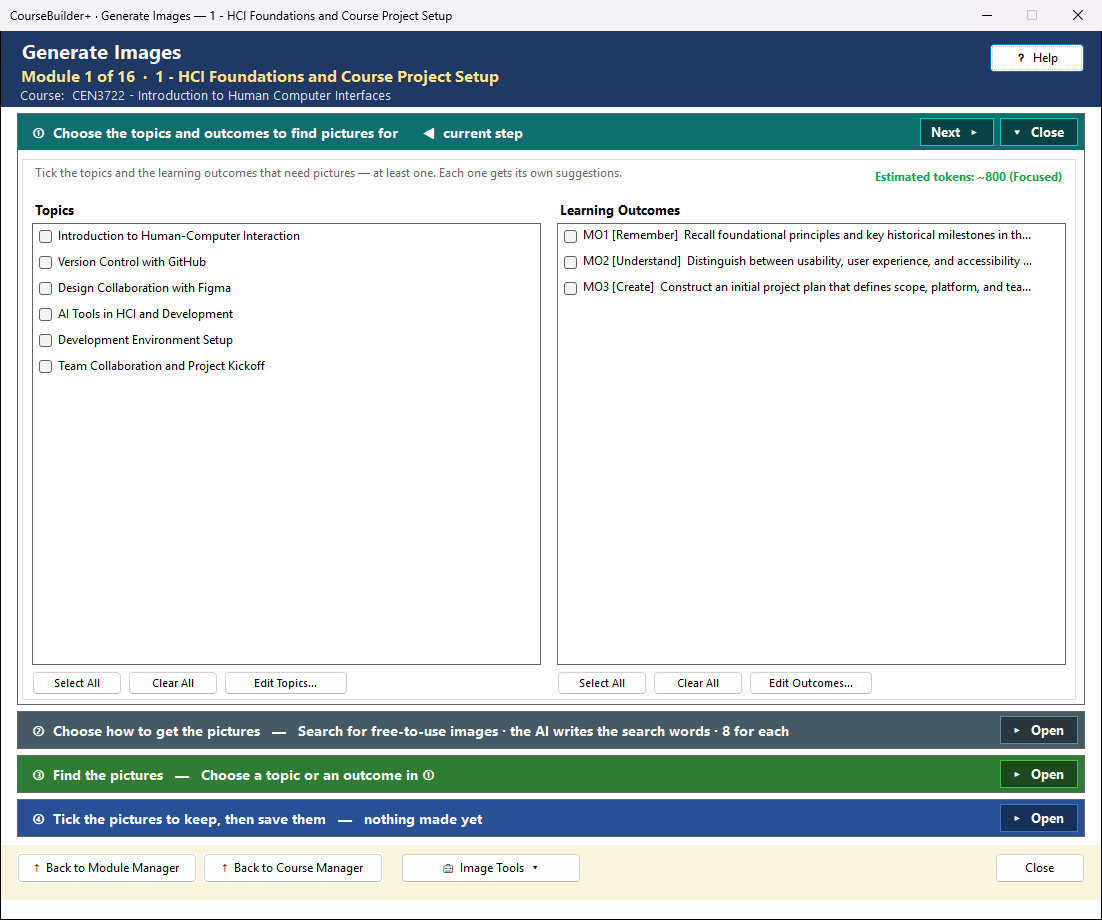
Generate Images gets pictures for the module's topics and learning outcomes in one of two ways: it searches for pictures that are free to use (no copyright, no royalty, no credit line needed), or the AI draws one for each. You tick the ones you want, and they go into the module's image library (the images folder in its output folder), each remembered against its topic or outcome.
It works like the other Generate windows: the coloured bars are steps, from top to bottom.
① Choose the topics and outcomes
Tick the topics and learning outcomes that need pictures. You need at least one. Each one gets its own suggestions.
② Choose how to get the pictures
- Search for Images: searches Openverse (openverse.org), a public search of museum, archive, government, Wikimedia and Flickr images, for CC0 and Public Domain Mark pictures only. Other Creative Commons licences ask for a credit line or forbid some uses, so they are left out.
- Generate with AI: the AI draws one picture for each topic and outcome. See Generate with AI below: what it costs, which AI can draw, and what to check.
- Let the AI write the search words: one request. The AI reads the titles (and subtopics) and writes common single words that pictures are tagged with, such as "thinking", "robot" or "brain". 🔍 View Prompt (in ③, beside Find Images) shows exactly what is sent. Without it, the words come from the titles.
- Pictures for each: how many suggestions each topic and outcome gets.
③ Find the pictures
Find Images first gets the search words (if the AI box is ticked). Then it makes a few searches for all of them at once, about one per different word, at most 10. A word several topics share is searched once. Openverse allows 20 searches a minute and 200 a day from one computer, so the searches are spaced out, and the status line says how many are left today. Only the search words are sent to Openverse.
Each picture is matched to every topic and outcome by the words its source tagged it with. So a picture found for one topic can be suggested for another that it also fits; hover over it to see "Also suits".
④ Tick the pictures to keep, then save them
The suggestions are grouped by topic and outcome, and the best one for each is already ticked (pictures the AI made start unticked: check each first). Change the ticks, then Save Ticked Images to the Library. A picture ticked for two topics is downloaded once and linked to both. Select a picture and click Source Page to see where it comes from. If you change ① after a search, the pictures shown can still be saved; Find Images again gets pictures for the new choices. Openverse is slow (up to 30 seconds a search), so a search for many topics can take a few minutes; Stop keeps what was found.
| Button | What it does |
|---|---|
| Save Ticked Images to the Library | downloads the ticked pictures with their licence, and records which topic or outcome each is for |
| View Images | the library: preview, description (alt text), licence, and Used in (where each picture is used) |
| Open Images Folder | the images folder in File Explorer |
| View in Module Index | the module's images beside everything else it holds |
Check the source page if a picture shows a person, a logo or a trademark: the free licence covers the photograph, not those.
Generate with AI
Choose Generate with AI in ②, then:
| Option | What it means |
|---|---|
| Style | how the pictures look. The note under it says what each style is for. (suggested) marks the style that suits most of the topics and outcomes you ticked: a simple diagram for "explain" or "compare", a photograph for "apply", a flat illustration otherwise. It never changes your choice |
| Shape | Slide (16:9) for PowerPoint, Page (3:2) for a picture in a page of text, or Square |
| Quality | Draft is cheapest and quickest; Best costs the most. Standard suits slides |
| Let the AI describe each picture first | one request to your text AI (Claude is fine; a small charge), which reads the subtopics and writes what each picture should show. Without it, each request uses the title and its subtopics. The descriptions are remembered for the course and used again next time |
| 🔍 View Prompt (in ③) | every request exactly as it will be sent, one tab per picture, with who draws them and the cost |
③ Generate Pictures sends one request for each topic and outcome, one picture each, at most 10 in a run. If you ticked more, the first 10 are drawn and the rest are listed in ④ as "Not drawn yet". Click Generate Pictures again: it draws only the topics and outcomes that have no picture in ④, so you never pay twice for the same one. Stop keeps the pictures already drawn. The pictures start unticked: nothing is saved until you tick them in ④ and click Save.
In ④, hover over a picture to see what was asked for. Make Another: select a picture, or a "Not drawn" row, and click it to draw one more for that topic or outcome. The cost is shown first.
What it costs, and who pays
Each picture costs a few cents (about $0.04 at standard quality with OpenAI). Your own key is charged: CourseBuilder+ provides no AI credit. ③ gives the estimate before anything is sent (and View Prompt shows it too), and AI Manager's usage window shows what was spent. The cost is spent whether or not you keep the pictures, so closing the window with pictures you have not saved asks first.
Which AI can draw
Only OpenAI, Gemini (Google) and xAI can draw pictures; Claude and Mistral cannot. The line at the bottom of ② says which one will draw and why. To choose another, or to add a key, click AI Settings… and use Provider for pictures. Your text AI and your picture AI can be different.
Copyright, in two sentences
Pictures the AI makes are generally free for you to use in your course, under the provider's terms, but in many countries nobody holds a copyright in them, so others may reuse them too. On the course website each one is captioned "Picture made with AI", so students are never misled.
Why there are no words in the pictures
AI pictures misspell words and invent labels, so every request asks for no words, letters or numbers. If an idea needs labels, ④ says so: put them on the slide yourself (Insert ▸ Text Box).
Check each picture
Check each picture for accuracy before you tick it: AI can invent details, such as the wrong number of parts, arrows the wrong way, or unsafe equipment. If the AI suggests no picture for a place ("it would only decorate"), you can still make one with Make Another.
Where the pictures go
Saved pictures go into the image library as {topic}-ai-1.png (never over another file), linked
to their topic or outcome, with a record of the AI, the model, the exact request, the date and the
cost. View Images marks them · AI, shows the request (Show the AI Request), and lets you
mark one decorative so screen readers skip it. Each picture's first description is written from
the request, not from the picture: View Images ▸ Actions ▸ Describe (AI) looks at the picture
and replaces it.
Nothing from your students is ever sent: only the module's own titles and subtopics, with any e-mail addresses and phone numbers taken out.
🧰 Image Tools
The menu at the bottom has the other ways to add images:
| Tool | What it does | What is sent where |
|---|---|---|
| Extract Images from PowerPoint | copies every picture embedded in the module's PowerPoint (the one named in the menu) into the library. Slides the AI writes contain no pictures, so it finds none in them | nothing leaves your computer |
| Find Images for Each Slide of a Presentation… | opens Find Images for that PowerPoint: pictures suggested for every slide at once | the search words go to Openverse |
| Search by Description… | type what you want and import openly licensed pictures (this search also shows licences that ask for credit) | your words go to Openverse |
| Search Images in This Course… | reuse pictures from the course's other modules, matched by their descriptions | nothing is sent |
| View Images · Open Images Folder · View in Module Index | as in ④ |
Not for slides directly: the pictures are not put into a presentation for you. To put one on a slide, use Find Images (it copies the picture for pasting) or open the presentation in PowerPoint.