
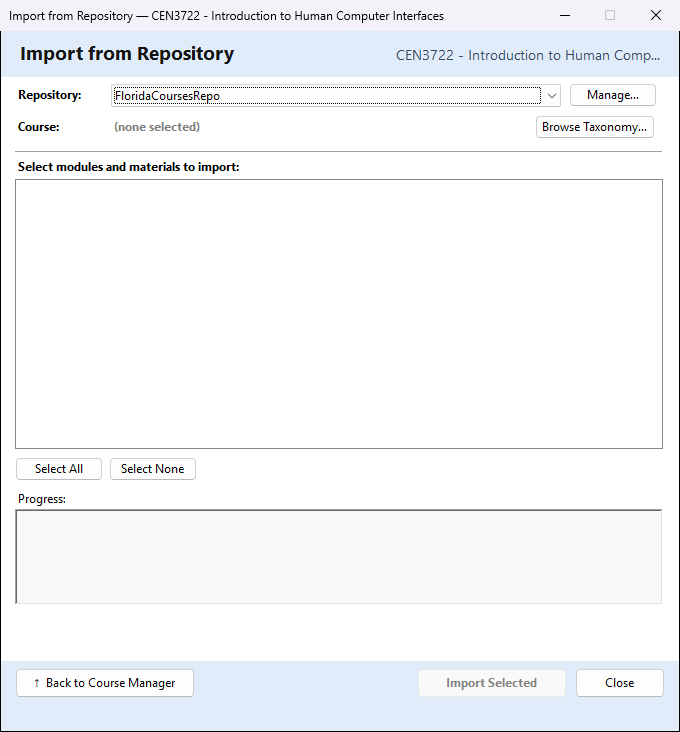
Develop Course ▾ → Import from Repository… in the Course Manager downloads modules and their materials from a course repository into a course: a new course it makes for you, or the course that is open. A course repository is a website where teachers share course materials; floridacourserepo.com is one. You choose a course in the repository, tick the modules and materials you want, and CourseBuilder+ saves them as modules of your course. No AI is used.
Choose the repository
Repository: lists the course repositories you have set up; the first one is chosen at first.
Manage… opens Manage Course Repositories, where you add one before your first import (the same list is used to publish to a repository):
| In Manage Course Repositories | What it is for |
|---|---|
| Add New / Remove | add a repository, or delete the selected one from the list |
| Display Name | a name for the repository, shown in the Repository: list |
| Repository URL | the address of the repository's website |
| Email / Password | your account on that repository (the password is kept encrypted on this computer) |
| Test Connection | checks that the address and your account work |
| Save | saves the details |
Choose the course in the repository
Browse Taxonomy… opens Browse Repository Taxonomy. A repository sorts its courses into categories (its "taxonomy"):
- Open the categories in the tree and click a course. Its Course ID is filled in. You can also type a Course ID you know.
- Validate checks the Course ID with the repository and shows the course's details.
- Select This Course uses it and closes the window (Cancel closes it without choosing).
Back in the import window, Course: shows the course's ID and title, and its modules are listed.
Import into
| Choice | What it does |
|---|---|
| A new course named: | chosen at first, even when a course is open. The import makes a new course with this name. The name starts as the repository course's title; you can change it. If a course with that name already exists, CourseBuilder+ asks whether to add the modules to it. A folder of that name that is not a readable course (still syncing from OneDrive, or a deleted course) is never written over; choose another name |
| This course: | adds the modules to the course open in the Course Manager. It is greyed out when no course is open |
Select modules and materials to import
Each module is listed with how many materials it has, and every module is ticked at first. Open a module (click its arrow) to see its materials, each with its type and size, and untick any you do not want.
| Button | What it does |
|---|---|
| Select All | ticks every module and every material shown |
| Select None | unticks them all |
| Import Selected | makes the course if it is new, then downloads the ticked materials and adds each module to the course |
- Only ticked modules are imported. Unticking a module unticks its materials.
- For a module you have not opened, all of its materials are downloaded.
- For a module you have opened, only its ticked materials are downloaded.
Import Selected
If a module folder with the same name is already in the course, CourseBuilder+ lists those modules and asks first (Overwrite Existing Content?): files with the same name are replaced by the downloaded copies. Answer No to stop.
Each file is downloaded in turn, and the Progress: box lists it with ✓ (downloaded) or ✗ (download failed), and + Added to the course as a module for each module the course did not have. At the end a message says how many files were downloaded (or how many failed) and how many modules were added. Close the window, and the Course Manager shows the course with its new modules.
Where the files go
Each module's materials go into a module folder named after the module, in the course's folder under Documents\PreseMaker\Courses:
| Material | Saved in |
|---|---|
| The module's Module Topics file and its quiz questions file | the module folder itself |
| PowerPoint (.pptx) | the module's presentations folder |
| Markdown (.md) | the module's assignments folder |
| Anything else | the module's output folder |
Each module gets the repository module's title and description. A module the course already had keeps its own name and details.
| Button | What it does |
|---|---|
| ↑ Back to Course Manager / Close | close the window and return to the Course Manager |