
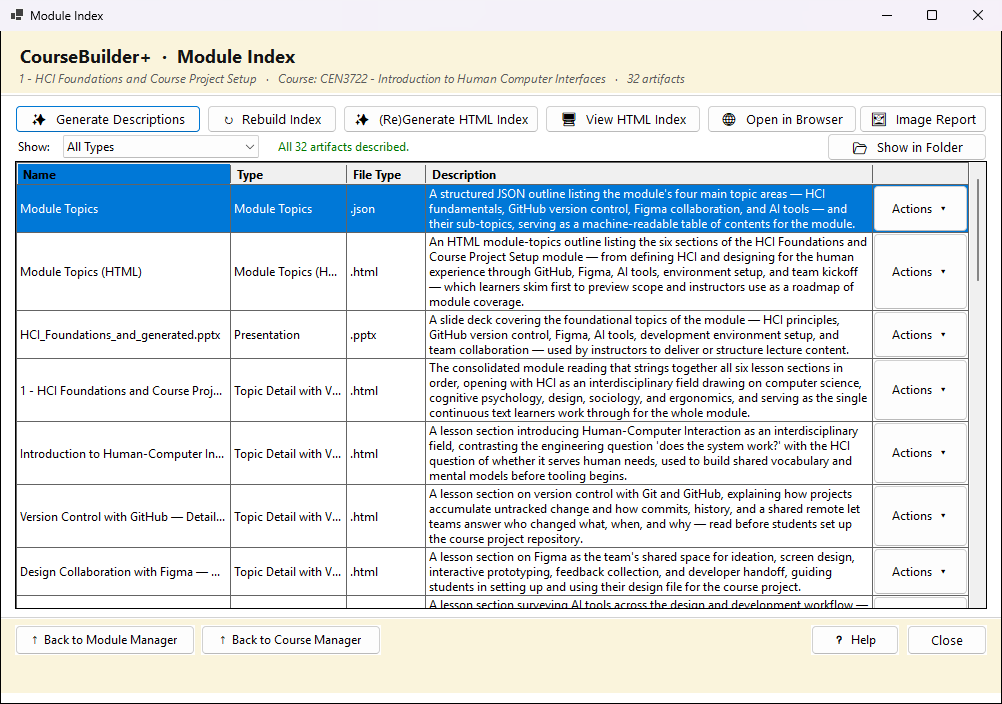
The Module Index is one list of everything in a module — presentations, documents, question bank, assignments, games and activities, cloze notes, custom materials, external materials, images, topics and outcomes. Each row is one artifact: its name, its type, its file type and a short description.
Finding what you want
- Show: narrows the list to one kind. Some choices gather several types at once: Presentations (plain and narrated decks), Images (slide images and the images-to-insert lists) and External Materials (web pages, reference files and videos). The View buttons on Generate Content for Module open this list already filtered to their kind.
- File type: beside it narrows the list to items saved as one kind of file — for example .html web pages, .md Markdown, .json data files, .pptx presentations. Each choice shows how many items it has, such as .html (12); (no file) gathers rows with no file of their own, such as links. The two work together: Show: Presentations with File type: .pptx lists only the PowerPoint decks. All file types shows every kind again.
- Rebuild Index looks at the module's folders again — use it after changing files in File Explorer.
Doing something with an artifact
Double-click a row to open it in its viewer. The Actions ▾ button on each row — or a right-click on the row — offers:
| Action | What it does |
|---|---|
| View Artifact | open it in CourseBuilder+'s viewer for its kind |
| Edit Artifact | open it to edit: web pages, Markdown and text files in your external editor (Settings → External HTML Editor), or Windows' default program when none is set; anything else (PowerPoint, Word, PDF …) in its own program |
| 📂 Show in Folder | open File Explorer with the file selected, so you can copy, attach or back it up |
| 🔗 Merge With Other Documents… | (web pages and Markdown documents) combine it with others of the same kind and file type into one new document — you tick them, set the order and the title; the title becomes the top heading and each document a section under it. No AI is used, and the documents merged are kept |
| Rename (display name)… | change the name shown here and on the website (the file keeps its name) |
| ✨ Describe Artifact (AI) | have the AI write its description |
| ✨ Build New Artifact From… (AI) | make a new artifact based on this one |
| 🔗 Append Artifact… | add another artifact's content to this one |
| 🖼 Find Images… (free to use) | find pictures with no copyright or royalty for each slide, figure or heading of this artifact, and keep a record of which picture goes where — see Find Images |
| 🎯 Edit Outcomes… / 🏷 Edit Topics… | (assignments only) choose which outcomes and topics it covers |
| Exclude from Website Build | keep it out of the course website — this lasts, and rows left out of the website are shown in yellow |
| Remove from Index | (external artifacts only — files outside the module that you added) take it off the list; the file itself is kept |
| Delete Artifact | delete the file and take it off the list — asked first. A presentation takes its narration, audio and narrated copy with it (they are listed first) |
📂 Show in Folder above the list does the same for the selected row; when the list is empty (a new module, or a filter with nothing in it) it opens the module's output folder.
The module's web page
✨ (Re)Generate HTML Index has the AI write module_index.html, a web page of the whole
module to open on your computer; View HTML Index and Open in Browser show it. (A published
course website does not use this page: it builds each module's page itself — description, topics,
then one card per item — so every module looks the same.) ✨ Generate Descriptions has the AI
describe every artifact that has no description yet (it uses your AI key); those descriptions and
the names in this list are what the website's module pages show, so a name changed here changes
the card's title there.