
The Topic & Outcome Generator
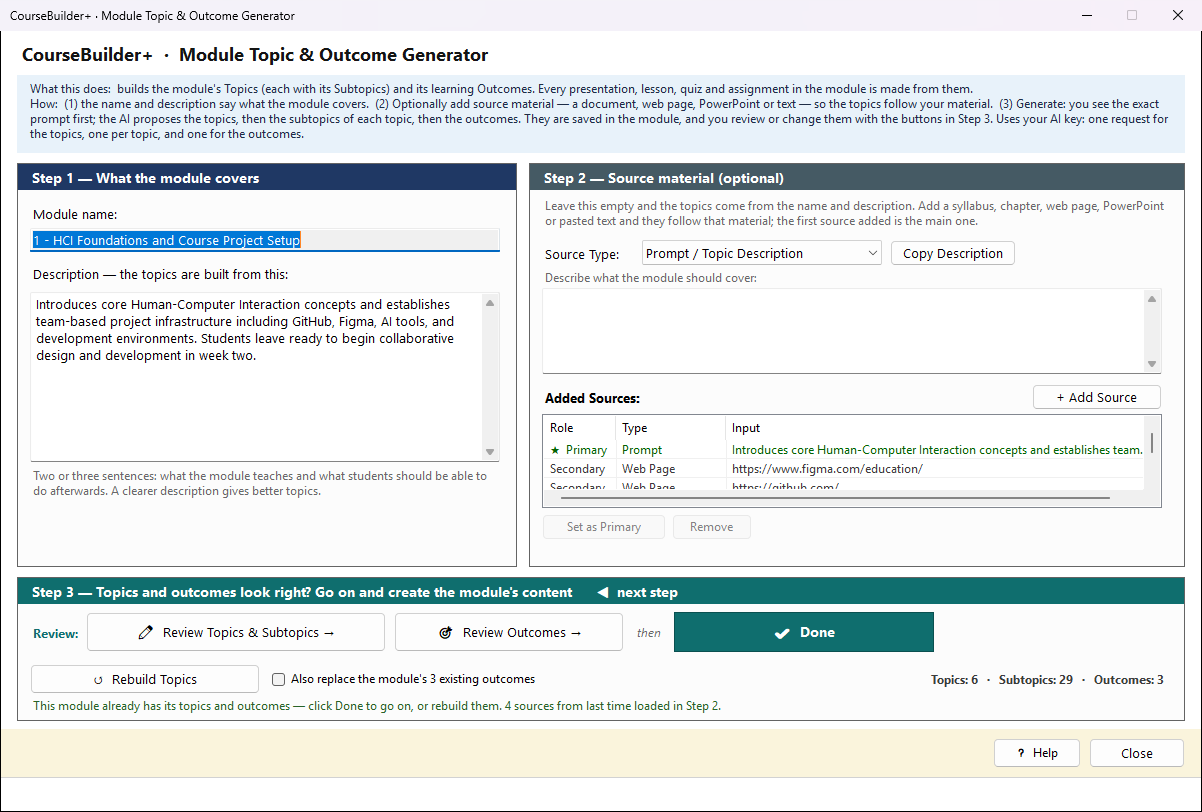
This window builds a module's Topics (each with its Subtopics) and its learning Outcomes with AI. They are the foundation of the module: every presentation, lesson, quiz and assignment is made from them. You do not have to use AI — the Module Manager's Step 2 also lets you add them by hand — but this is the quickest start, and you can edit everything afterwards.
Step 1 — What the module covers
- Module name — what the module is called.
- Description — two or three sentences on what the module teaches and what students should be able to do afterwards. This is what the AI builds the topics from, so it is required. Suggest with AI writes one from the name; change it as you like.
For a module that already exists, the name is changed in the Module Manager's Step 1; the description can be changed here, and it is saved to the module when you generate (closing without generating asks whether to save it).
Step 2 — Source material (optional)
Leave it empty and the topics come from the name and description alone. To make the topics follow your material, add one or more sources:
| Source (as the list names it) | Use it for |
|---|---|
| Prompt / Topic Description | a few paragraphs of your own on what to cover |
| Existing PPTX File | a deck you already teach from — its slide text and notes are read, and the file is copied into the module's presentations folder |
| Document File | a syllabus, chapter or notes (.txt, .docx, .md, .pdf, .html) — also copied into the module's materials folder |
| Web Page URL | a public page with the content |
| Paste / Raw Text | anything copied from elsewhere |
| YouTube URL | a video's transcript |
Choose the kind of source, choose the file (or type the address or text), then click + Add This Source to the List — only the sources in the list are used. If you click Generate with one chosen but not added, you are asked whether to add it. The first source you add is the main one; others add detail. The sources are remembered, so the next time you open this window for the module they are still there.
Step 3 — Generate, then review
- Click Generate Topics & Outcomes. First you see the exact prompt that will be sent to the AI; you may change it, then click OK (or cancel — nothing is sent to the AI). For a new module, the module itself is created at this point, so it stays in the course even if you cancel.
- The AI works in three parts, and the status line says which it is on: the topics, then the subtopics of each topic, then the outcomes from those topics.
- Everything is saved into the module. The counts on the right show how many were made.
- Review them: Review Topics & Subtopics → opens the Topics Editor, Review Outcomes → the outcome editor (it reads Add Outcomes → when the module has none). Change, add or delete anything. The highlighted button is always the next one to press.
- When both look right, click Done. Once you have opened both editors (and the module has outcomes), Done is the highlighted button. What it does depends on where you came from: - from the Module Manager it reads Done — Create Content →: this window closes and the module's content tools open (the Module Manager's Step 3); - from the content tools it reads Done — Back to Content → and returns you there; - from anywhere else it reads Done and closes; then open the module in the Module Manager and use Step 3.
Opening this window for a module that already has its topics and outcomes starts with Done highlighted — you can go straight on, or rebuild.
While it runs, Close reads ■ Stop: it stops after the request in progress.
Outcomes the module already has are kept — whether the AI or you wrote them — and the button then reads Generate Topics / Rebuild Topics. Tick Also replace the module's existing outcomes to have new ones written from the new topics. Rebuilding replaces the topics and subtopics, including any you changed by hand; you are asked first.
Without AI
For a new module, Create the Module Without AI creates it from the name and description only. The Module Manager then opens it, and you add topics, subtopics and outcomes by hand in its Step 2.
What it costs
It uses your AI key: one request for the topics, one for each topic's subtopics, and one for the outcomes. Settings → AI Usage and Cost… shows what the requests cost.
The Topics editor
Opened with Topics & Subtopics (add or edit by hand) in the Module Manager, or Review Topics & Subtopics → in the generator. The module's topics are on the left, each with its subtopics under it; select one to see and change it on the right.
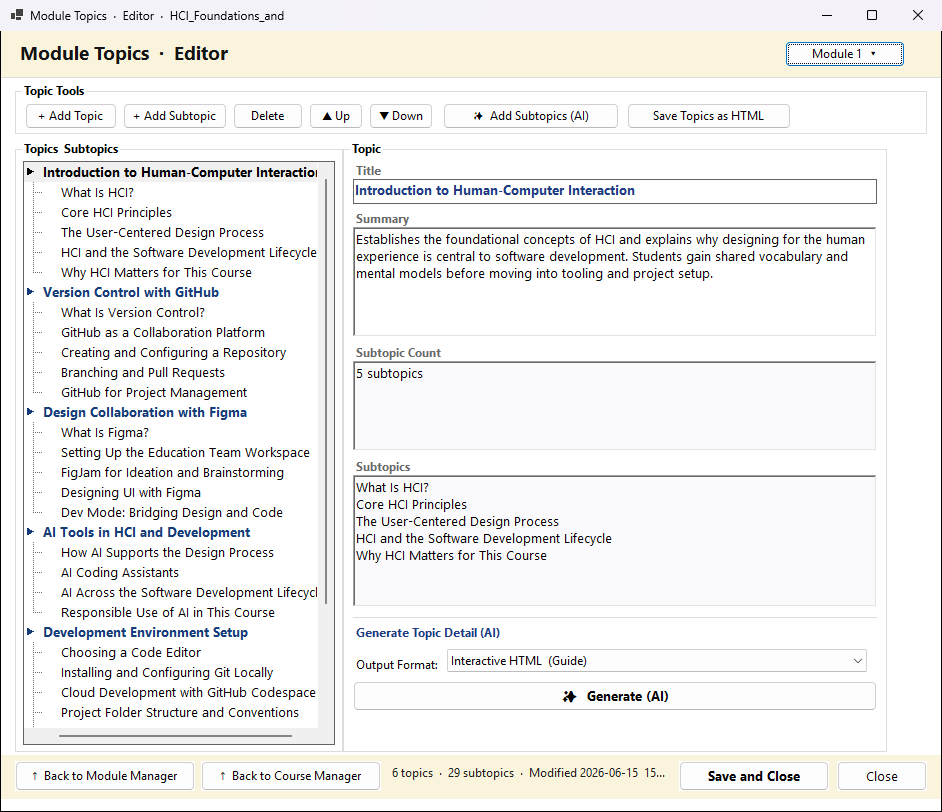
| Button | What it does |
|---|---|
| + Add Topic / + Add Subtopic | add a topic to the module, or a subtopic to the selected topic |
| Delete, ▲ Up, ▼ Down | remove or move the selected topic or subtopic |
| ✨ Add Subtopics (AI) | the AI proposes more subtopics for the selected topic and adds them for you to review. You see the prompt first; it uses your AI key |
| Save Topics as HTML | writes a web page of the topic list (module_topics.html) — no AI |
| Generate (AI) under Generate Topic Detail | writes a Topic Detail document for the selected topic in the format you choose, the same as Generate Documents does for one topic |
| Save and Close | saves the topics and closes; Close asks first if something has changed |
The outcome editor
Opened with Outcomes (add or edit by hand) in the Module Manager, or Review Outcomes → in the generator. It lists the module's learning outcomes — "By the end of this module, students will be able to…" — each with its code, Bloom's level, type, source and the course outcome it is mapped to. The course's own outcomes are shown underneath.
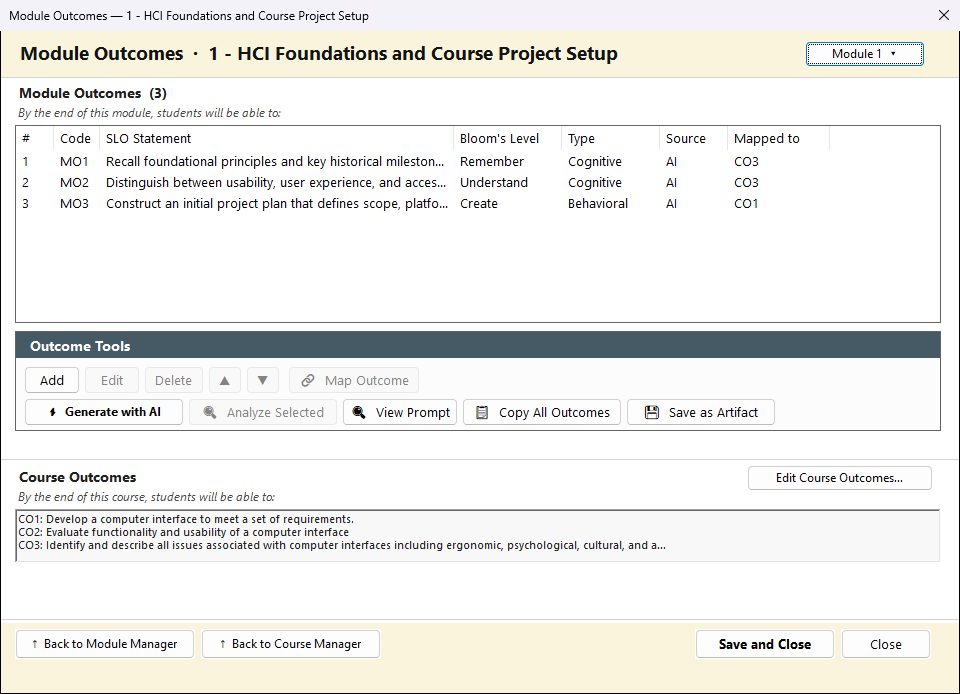
| Button | What it does |
|---|---|
| Add / Edit / Delete, ▲ ▼ | write a new outcome; change the selected one's statement, Bloom's level and type; remove or move it |
| Map Outcome | align the selected outcome to a course outcome |
| Generate with AI | the AI writes module outcomes from the module's topics (View Prompt shows what is sent) |
| Analyze Selected | the AI classifies each outcome's Bloom's level and type |
| Copy All Outcomes / Save as Artifact | copy the outcomes to the clipboard, or save the list as an item in the Module Index |
| Edit Course Outcomes… | opens the course-level outcomes |
| Save and Close | saves the outcomes and goes back; Close leaves without saving |