
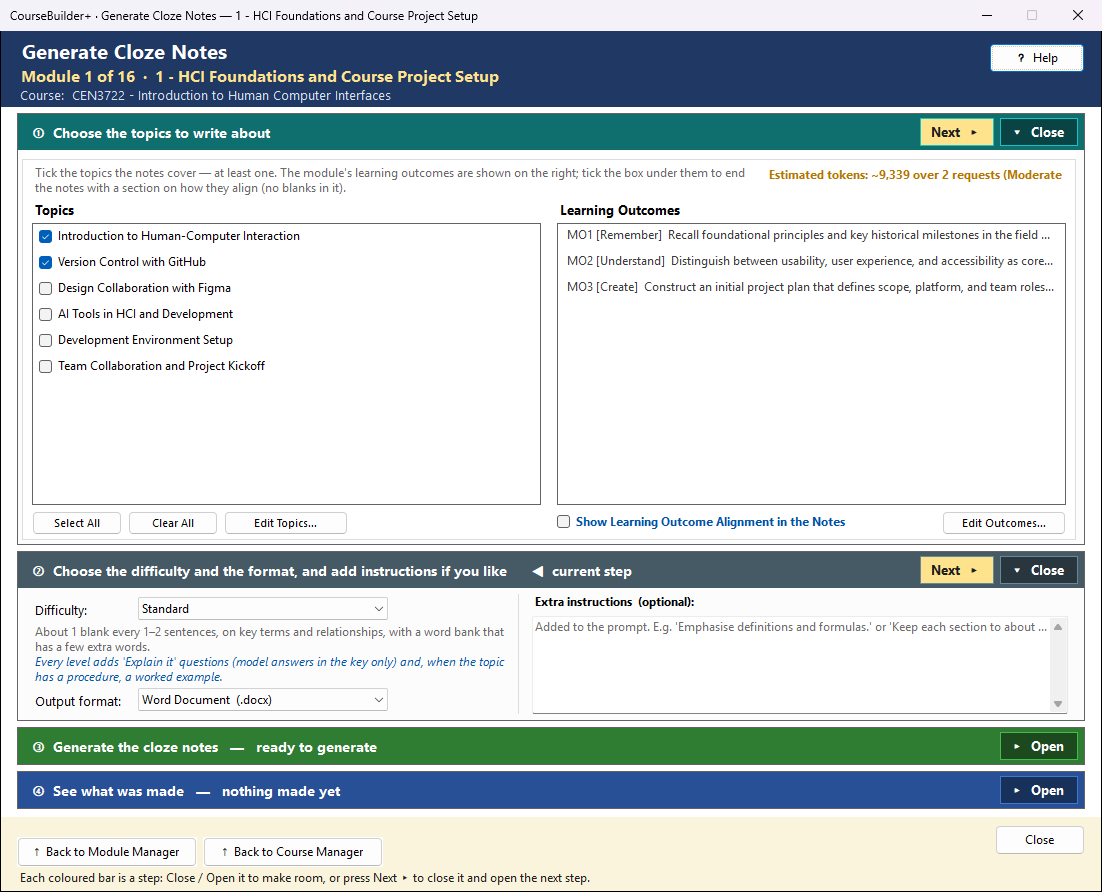
This window makes cloze notes (also called guided notes) for the module: a handout students follow during the lecture, filling in the words left blank. Cloze notes work best focused on one topic, so every ticked topic gets its own set — a student version with numbered blanks and an instructor key with the answers. With several topics they can also be merged into one set, organized by topic. It works in four steps, top to bottom; the step you are on is marked ◀ current step, and its button is the coloured one.
The coloured bars are steps that open and close — see How the Generate windows work.
① Choose the topics to write about
Tick the topics (left) — at least one. Each topic's notes are written from that topic's material (its subtopics and notes).
The module's learning outcomes are listed on the right so you can see them; they are not written about and are not ticked one by one. Tick Show Learning Outcome Alignment in the Notes (under the list) and each set ends with a short "Alignment with Learning Outcomes" section that names each outcome by its code and says how the notes support it — or that they do not address it. That section has no blanks, so it reads the same in the student version and the key.
Estimated tokens (at the bottom right of step ①, beside Edit Topics…) is an estimate before anything is sent — the chosen content, the instructions sent with each request and the answer — green = focused, amber = moderate, red = extensive (with one request per topic it judges the largest one). After Generate it changes to Tokens used: the input and output tokens the run really used, as your AI provider counted them — usually a little higher than the estimate (it returns to the estimate when you change the selection). Edit Outcomes… / Edit Topics… open the editors if something is missing.
② Choose the difficulty and the format, and add instructions if you like
Difficulty sets the cognitive load — how much the student has to fill in, and how much thinking each blank asks for. The line under the box says what the chosen level does:
| Level | Blanks | What is blanked | Word bank |
|---|---|---|---|
| Introductory | about 1 every 2–3 sentences | key terms only | yes — the answers |
| Standard (the usual) | about 1 every 1–2 sentences | key terms and relationships | yes — the answers and a few extra words |
| Challenging | about 1 per sentence | mostly relationships, causes, conditions and comparisons (the reasoning words) | none |
At every level the notes also promote deeper learning:
- Explain it — each content section ends with 2–3 short self-explanation questions ("Explain why …", "How does … connect to …"). The student version leaves room to write the answer — three lines on paper (Word, PDF), an answer box in printable HTML (a screen reader names it "Your answer", and a student can type in it on screen); only the instructor key holds the model answers. As a last check, a student version that still contains a model answer is not saved.
- Blanks with one answer — each blank has one defensible answer; at the higher levels the blank is the cause, effect or condition itself, not a connective word like "because" on its own. The word bank (when there is one) is right under the title.
-
Worked example — when the topic has a procedure or calculation, one example is worked step by step with some of the steps left blank for the student to complete (a faded example). Topics without one skip it.
-
Output format — Word (DOCX), PDF or printable HTML. Both documents use it. In printable HTML the blanks are drawn so a screen reader says "blank to fill in" instead of spelling out underscores.
- Extra instructions (optional) — added to every request, e.g. "Emphasise definitions and formulas."
③ Generate the cloze notes
The green line says exactly what will happen before you click — how many sets, at what difficulty, and how many requests:
- One request per topic. Each ticked topic's material — and the outcomes, when the alignment box is ticked — is sent to the AI with your own AI key, charged by your AI provider (Settings → AI Usage and Cost shows it).
- With Show the prompt before each AI call on in Settings (the usual setting), you see the prompt first: with one topic you can edit it, and your edited version is what is sent; with several topics each topic's prompt is shown on its own tab, read-only. Cancel and nothing is sent.
- Each set is saved as soon as it is written — student version and key — so nothing is lost if a later topic fails or you stop.
- Several topics ticked — a box appears beside Generate: Merge the topic notes into a single set of notes (ticked by default). After every topic's notes are made, one more student version and one more key are put together from them — the module as the title and one section per topic, the blanks numbered straight through. No AI, nothing more to pay; each topic's notes are kept.
Names. Each topic's notes are named from its place in Module Topics and its title — C2 Probability Basics (Student).docx and C2 Probability Basics (Key).docx — and the merged set {module} (merged) (Student) and (Key). A source file for each format (… (source).docx.md) is kept beside them; it is what a later merge is built from, and a Word run never touches the PDF set's source. Moving or renaming a topic gives its notes a new name. In the Module Index the name also says the level — Probability Basics (Introductory) — Student / — Key.
Notes already there. Before anything is sent to the AI, each topic whose notes (in this format) already exist is named — with the level and date they were made at, and (you chose …) when your new level is different — and you choose:
| Choice | What happens |
|---|---|
| Skip it and merge it | no new notes; the existing ones go into the merged notes (only when merging; notes made before 2026-09-28 have no source file and cannot be merged) |
| Skip it and do not merge it (Skip it when not merging) | no new notes, and the existing ones are left out of the merge |
| Generate new notes and keep the old ones | the new ones are saved beside them as "… (2)" |
| Replace the old notes | the new student version and key are written over the old ones — the old text cannot be recovered |
| Cancel | nothing is sent or changed |
Tick Do the same for the other … topics to answer once for all of them.
Older notes (made before 2026-09-28, named like C001_Probability_student.pdf) are recognised too when they were made for exactly that topic in this format. They cannot be merged (they kept no source), so Skip it and merge it is greyed out and the reason is given; Replace removes the older files and the new notes take the topic's name; keep the old ones leaves both. If a merge mixes levels (some topics' notes skipped at another level), the result line says which topics are at which level. Replacing one topic's notes without merging leaves a merged set that still holds the earlier version — the result line says so; Generate with the merge box ticked to update it. If the merged notes are already there too, you are asked about them at the same time — and told which topics the new merged notes will hold (to keep every topic in them, tick all the topics and choose Skip it and merge it for the ones you keep).
■ Stop cancels while the AI is working — the sets already made are kept (the Close button reads ■ Stop then, too). If one topic fails, the others are kept and ④ names it: tick only that topic and Generate again, or Generate again and choose Skip for the others.
If writing the documents fails (for example, an older copy is open in Word), the AI's answer is kept: ④ says what went wrong and 💾 Try Saving Again saves it — no new AI request, no new charge. Closing the window before then asks whether to try again or discard it.
🔍 View Prompt (beside Generate) shows exactly what Generate would send to the AI for your current choices (one tab per topic) — read-only, and nothing is sent. It works whether or not Show the prompt before each AI call is on in Settings.
④ See what was made
When the run is over the heading reads Cloze Notes Complete — See What Was Made. Every set is in the module's cloze_notes folder and listed in the Module Index under Cloze Notes — one row for the student version ("… — Student") and one for the instructor key ("… — Key").
| Button | What it does |
|---|---|
| View in Module Index | every set of cloze notes in this module (the highlighted next step after generating) |
| Open Student Version | the student document just made — the merged one, when there is one |
| Show in Folder | File Explorer at the cloze_notes folder, with that student document selected |
| Open Instructor Key | its answer key |