
Each section below is the help that screen shows in Assessment+ itself, on its ℹ Help & Information tab (or F1), so it matches what you see on screen.
Academic Years
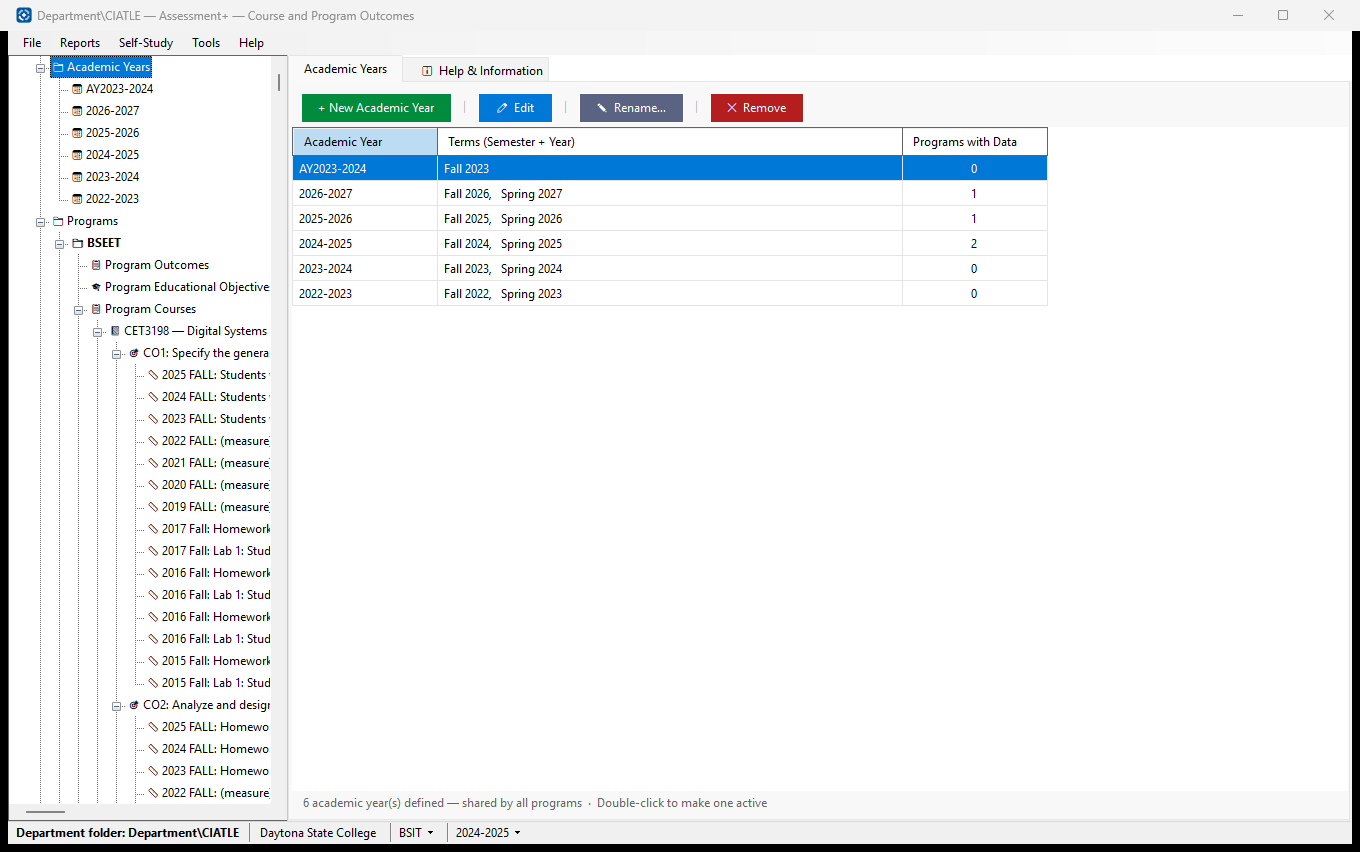
The academic years programs are assessed in. An academic year is a list of terms (e.g. Fall 2025, Spring 2026, Summer 2026); every program uses the same list.
How to use it
- Click + New Academic Year, type the fall year and click Quick Fill (or add terms one by one), then OK.
- Double-click a year to make it the active year in the drop-down in the status bar at the bottom of the window.
- Select a year and click ✏ Edit to change its terms, or ✎ Rename… to change its label.
What it means, and what to watch for
- A course offering counts in a year when its semester and year match one of the year's terms. "Fall 2025" also covers Fall A and Fall B 2025.
- Programs with Data — how many programs have assessment data recorded for that year.
- Rename keeps all the year's data. ✕ Remove takes out the year and every program's data for it (imported submissions included); the confirmation names each program and what it holds.
- Before a year is removed, a copy of all of it is kept in the department folder's backups\Removed academic years folder — if the copy cannot be written, nothing is removed. ♻ Removed Academic Years… (shown once a year has been removed) brings it back, unless a year with the same label has been defined again.
- A term should belong to only one year; Assessment+ warns when two years overlap.
See also
- Programs ▸ a program ▸ Reports — reports for the year chosen in the status bar.
One academic year
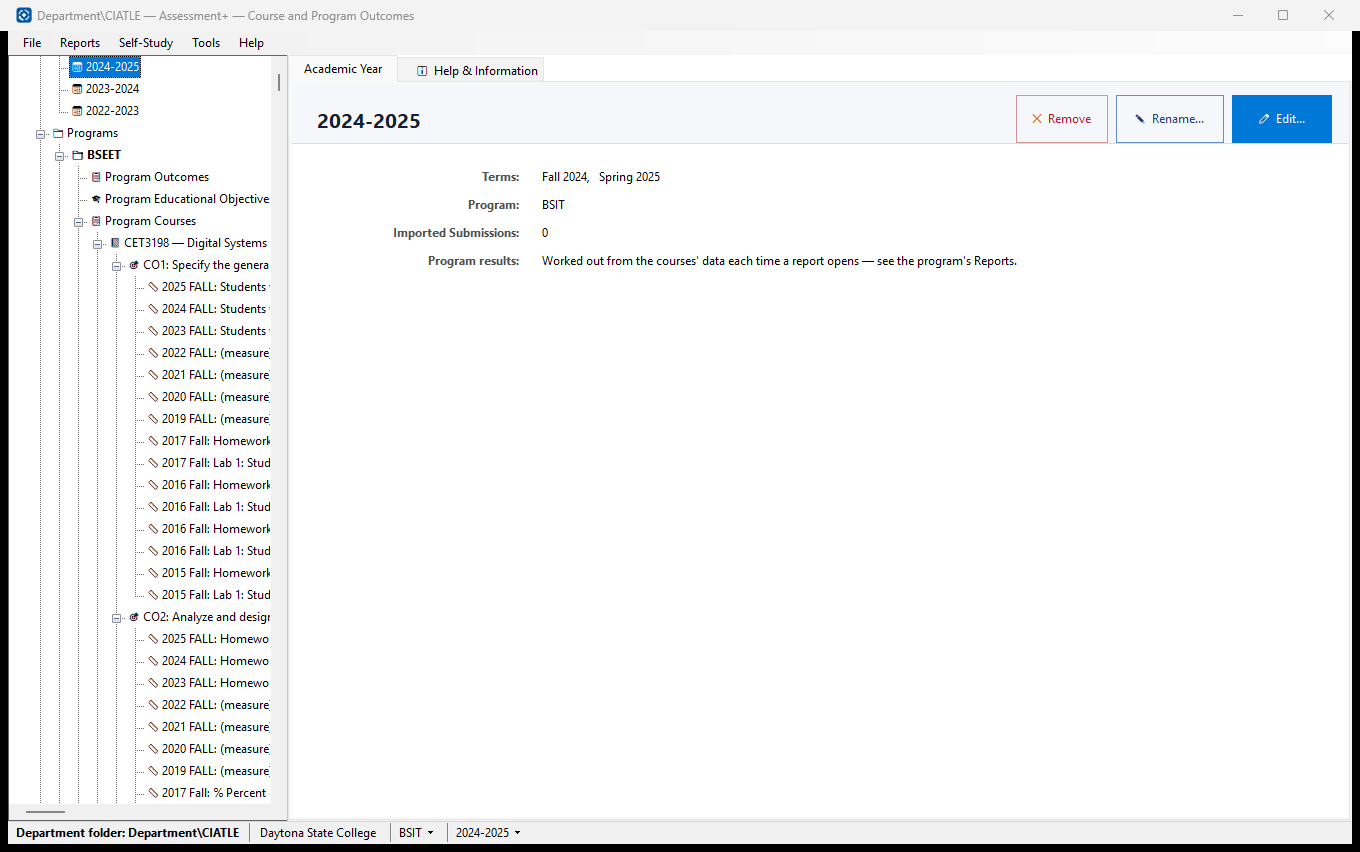
One academic year: the terms it covers, and how many submissions the program chosen in the status bar has imported into it.
How to use it
- Check the Terms. Click ✏ Edit... to add or remove terms.
- Choose a program in the drop-down in the status bar at the bottom of the window to see its data for this year.
- Use ✎ Rename... to change the label, or ✕ Remove to remove the year.
What it means, and what to watch for
- Imported Submissions — .ciasub files imported for the program into this year.
- The program's reports (Outcome Summary, Course-PO Matrix and the others) work their numbers out from the courses' data each time they open, so there is nothing to recalculate here.
- Remove takes out the year and every program's data for it. A copy of all of it is kept first in the department folder's backups\Removed academic years folder, and Academic Years ▸ ♻ Removed Academic Years… brings it back.
See also
- Programs ▸ a program ▸ Submissions and Imports.
- Programs ▸ a program ▸ Reports.
Editing a year's terms
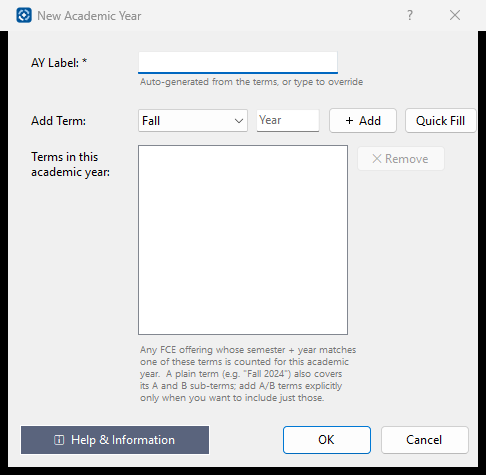
The terms that make up one academic year, so course offerings in those terms are counted in it.
How to use it
- Type the fall year in the Year box and click Quick Fill for Fall, Spring and Summer — or choose a semester, type its year and click + Add.
- Remove a term by selecting it and clicking ✕ Remove.
- Check the AY Label (made from the terms; you can type your own when creating the year).
- Click OK.
What it means, and what to watch for
- A plain term such as Fall 2025 also covers Fall A and Fall B 2025. Add an A or B term only to include just that part.
- The label cannot be changed here once the year exists; use ✎ Rename… on the Academic Years screen.
- Assessment+ warns if a term is already in another year, because its offerings would count twice.
See also
- Academic Years (in the tree).