
Each section below is the help that screen shows in Assessment+ itself, on its ℹ Help & Information tab (or F1), so it matches what you see on screen.
Course Outcomes
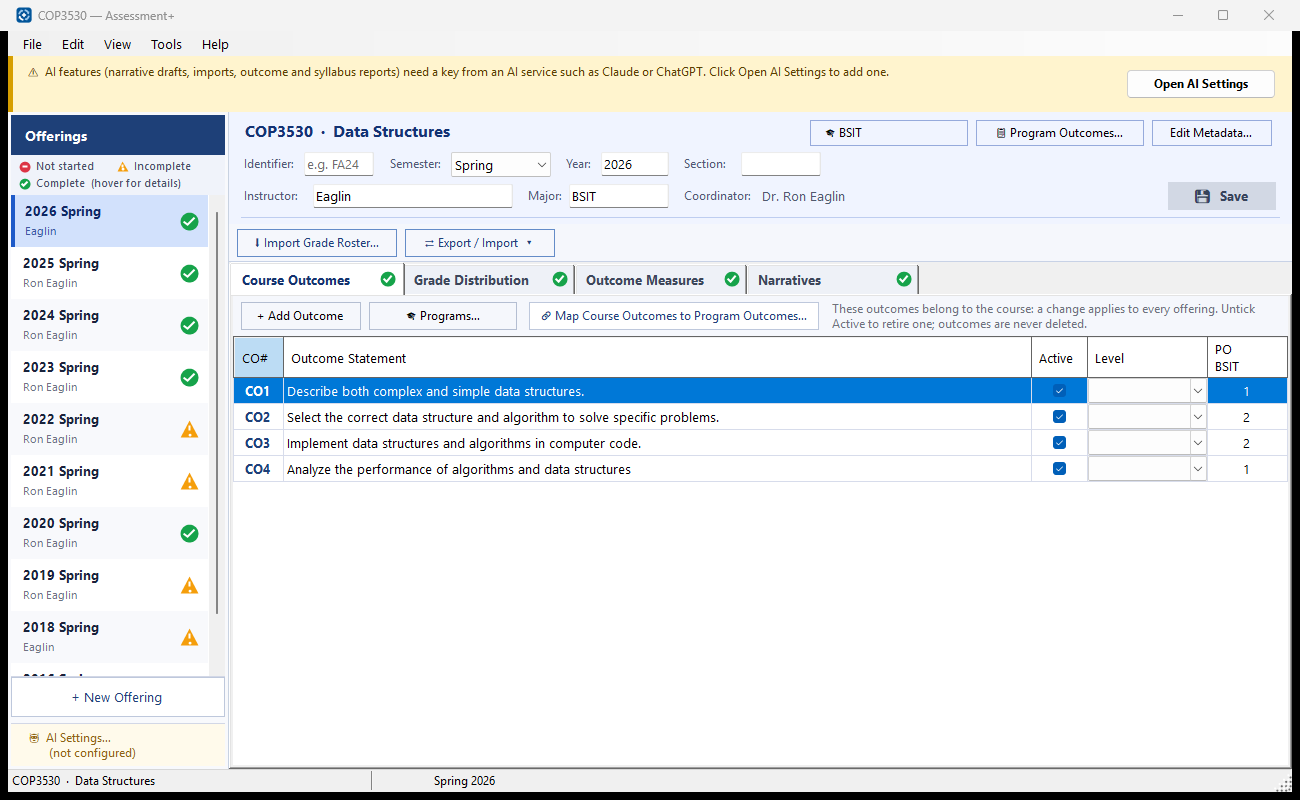
The course outcomes (CO1, CO2 …) — what students should be able to do by the end of the course — and the program outcome (PO) each one supports. They belong to the course, so a change here applies to every offering.
How to use it
- Click + Add Outcome and type the outcome statement in the new row.
- Set Level if your program tracks it: Introduced, Developed or Mastered.
- Click 🎓 Programs… to choose the programs this course is assessed under. Each program adds a PO column.
- Click 🔗 Map Course Outcomes to Program Outcomes… to choose, from each program's list, the PO each course outcome supports. You can also type the PO number in that program's column.
- Click 💾 Save in the header.
What it means, and what to watch for
- CO# — the outcome's number. It is never reused or renumbered, because the measures in every offering point at an outcome by its number.
- Active — untick to retire an outcome. It stays in past offerings, but is left out of the Outcome Measures tab and of new offerings. Outcomes are never deleted.
- Changing an outcome's wording changes it for every past offering too. If the outcome itself has changed, retire the old one and add a new one.
- Level — how far this course takes the outcome: Introduced, Developed or Mastered.
- PO column — the number of the program outcome (PO) this course outcome is assessed under, one column per program. Only the numbers of that program's POs are accepted; leave it blank if it supports none.
- A course outcome with no PO contributes nothing to that program's reports.
See also
- 📋 Program Outcomes… in the header — see, enter or import the program's PO statements.
- Outcome Measures tab — record how each outcome was measured this semester.
Map Course Outcomes to Program Outcomes
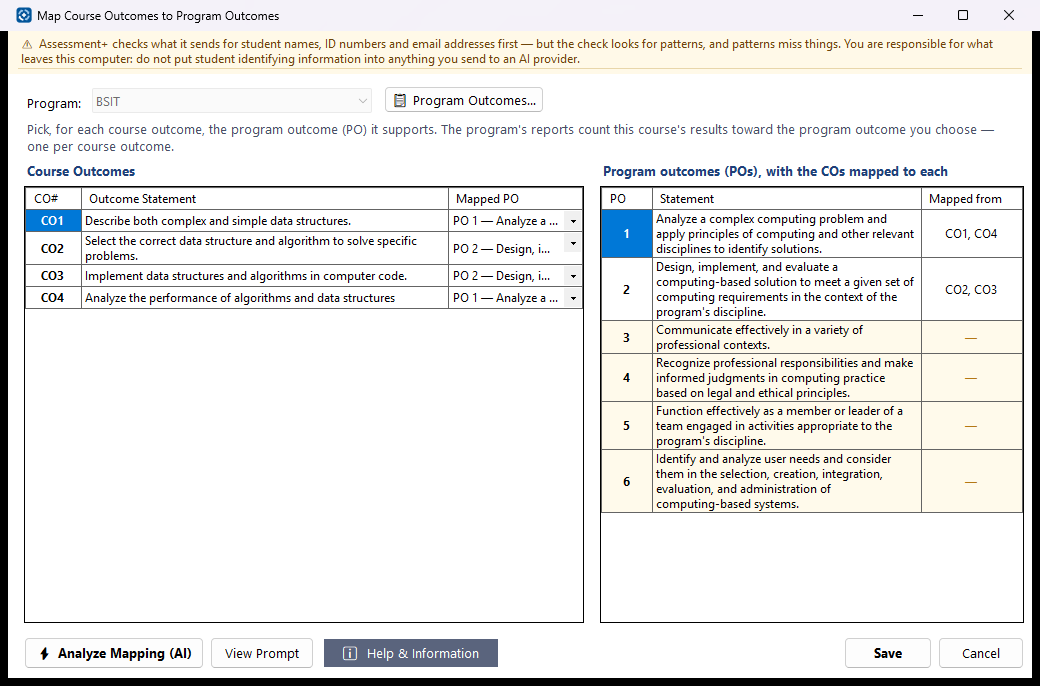
Records which program outcome each course outcome supports, for one program. The program's reports count this course's results toward the program outcome chosen here.
How to use it
- Choose the Program at the top (the list can be changed only when the course serves more than one program).
- For each course outcome on the left, pick a program outcome in the Mapped PO column, or — to leave it unmapped.
- Check the list on the right: each program outcome shows the course outcomes mapped to it; highlighted rows have none.
- Optionally click ⚡ Analyze Mapping (AI) for an Outcome Alignment Review — a second opinion on the mapping as it stands on screen, saved or not. If one was made before for this program you are offered it first.
- Click Save. Opened from the course editor, then click 💾 Save there to write the course file; opened from Courses, Save writes the course file straight away.
What it means, and what to watch for
- Course outcome (CO) — what a student should be able to do after this course. Program outcome (PO; some programs call it an SLO, student learning outcome) — what a graduate of the program should be able to do.
- Each course outcome maps to one program outcome per program.
- (inactive) — an outcome no longer used for new offerings; its mapping is kept for its history.
- No program outcomes listed? Click 📋 Program Outcomes… to enter or import them. A program added there appears in the Program list here.
- Cancel (or closing the window) discards the changes made in this window; you are asked first.
- What the analysis sends: the course code and title, the program's name and outcomes, and the course outcomes with their mapping — no student data.
- The review is kept: it opens in the report viewer (Save as PDF or Word there), and it is listed under Courses ▸ this course ▸ 📊 Reports ▸ Outcome Alignment Review with the program and the mapping it was asked about, and any copy you save under it.
- View Prompt shows the exact request; nothing is sent from there.
See also
- 📋 Program Outcomes… — the program's outcomes, edited or imported.
- Courses ▸ this course ▸ 📊 Reports ▸ Outcome Alignment Review — every review made, newest first.
- Courses ▸ this course ▸ 📊 Reports ▸ Recommended Outcome Alignment — an AI-proposed mapping from scratch, which is kept.
- Course Outcomes tab in the course editor — the same mapping, as PO numbers, one column per program.
Program Outcomes — Edit or Import
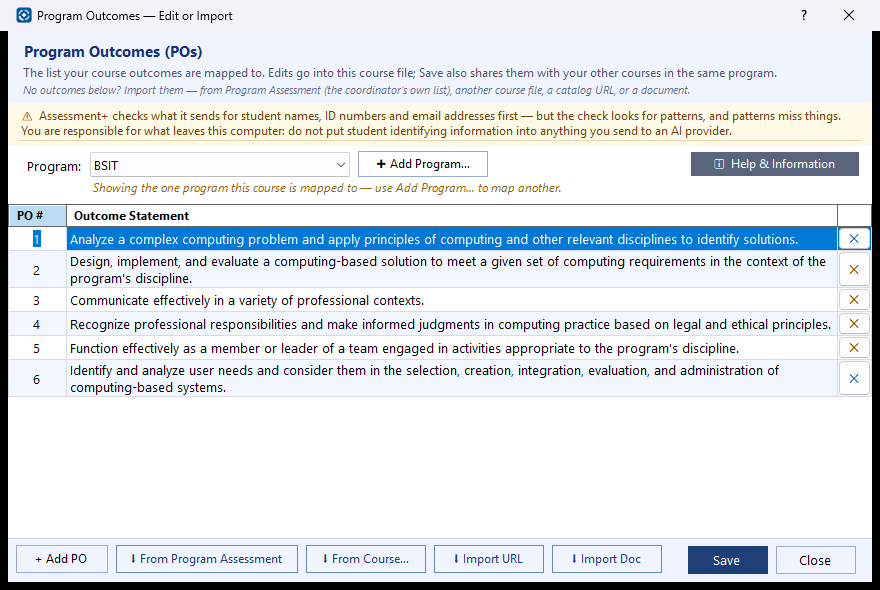
The program outcomes of each program this course serves — the list its course outcomes are mapped to. Edit them here, or import them.
How to use it
- Choose the Program. To add another program this course serves, click ➕ Add Program….
- Import the outcomes: ⬇ From Program Assessment copies the coordinator's list (no AI); ⬇ From Course… copies them from another course file (no AI); ⬇ Import URL reads a catalog web page and ⬇ Import Doc reads a document (both use your AI provider).
- Or click + Add PO and type the statement. Click a cell to edit it; ✕ removes a row.
- Click Save to share the list with your other courses in this program, then save the course file.
What it means, and what to watch for
- SLO (student learning outcome) and PO (program outcome) mean the same thing here: what a graduate of the program should be able to do.
- PO # — the number course outcomes are mapped to. Changing or removing a number leaves any course outcome mapped to it unmapped; you are told which ones first.
- From Program Assessment is the coordinator's official list and the one the program's reports count against; use it when it exists.
- Shared list — kept in the department folder and offered to your other course files for the same program.
- Edits are part of this course file as soon as you make them. On switching program or closing you are asked whether to share them with the shared list too.
- Import URL and Import Doc send the page or document text to your AI provider after checking it for student information.
See also
- 🔗 Map Course Outcomes to Program Outcomes… (Course Outcomes tab) — map each course outcome to one of these.
- Programs ▸ a program ▸ Program Outcomes — the coordinator's list in Program Assessment.
Import Program Outcomes — Preview & Select
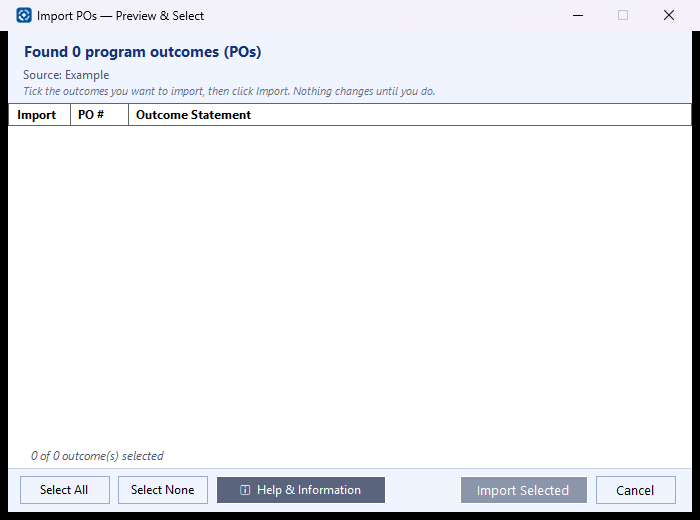
Shows the program outcomes found in the source you chose, so you can pick which ones to bring in before anything changes.
How to use it
- Read each outcome and its number. Untick anything that is not a program outcome — a heading, a course outcome, or a duplicate.
- Select All or Select None ticks or clears the whole list.
- Click Import n PO(s). If the program already has outcomes you are asked to replace them all (Yes), merge (No — the same number is updated and new ones are added), or keep them (Cancel).
What it means, and what to watch for
- SLO (student learning outcome) and PO (program outcome) mean the same thing here: what a graduate of the program should be able to do.
- PO # — the number course outcomes are mapped to. Keep the numbers the same as in the program's official list.
- Source — where the list came from: a web page, a document, another course file, or Program Assessment.
- Outcomes read by the AI from a web page or document can be wrong or incomplete; check them against the catalog.
See also
- 📋 Program Outcomes… — where the outcomes are edited and shared with your other courses.
- 🎓 Map Outcomes to a Program… — map each course outcome to one of these.