
Each section below is the help that screen shows in Assessment+ itself, on its ℹ Help & Information tab (or F1), so it matches what you see on screen.
Export Offering
Saves this one semester's assessment as a .ciaoff file to send to your course coordinator or program assessor, who imports it into their copy of the course.
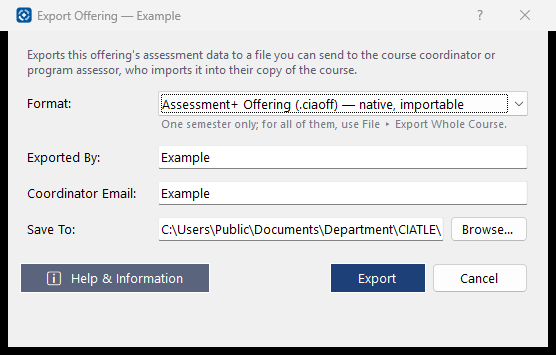
How to use it
- Check Exported By — your name, shown to whoever imports the file.
- Enter the Coordinator Email; it is saved with the course for next time.
- Check Save To, or click Browse… to choose another place.
- Click Export, then send the file to your coordinator.
What it means, and what to watch for
- A .ciaoff holds one offering only. To send every semester of the course, use File ▸ Export Whole Course for Coordinator (.ciasub) in the editor. Ask your coordinator which they want.
- Files are saved to the Exports folder by default and listed under Courses ▸ this course ▸ 📦 Exports.
- If a file with the same name is already there, you are asked before it is replaced.
- If the recipient already has this offering, the import fills in only what they had left blank.
See also
- ⇄ Export / Import ▸ Export — DSC CLO Assessment Form — the institutional form for this offering.
Export Whole Course for Coordinator
Saves the whole course — every offering, its course outcomes and its program mappings — as one .ciasub file for the program coordinator to import into Program Assessment.
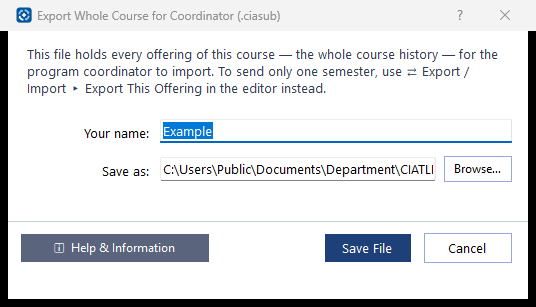
How to use it
- Check Your name: the name the coordinator sees as the sender of the file.
- Check Save as, or click Browse… to choose another place.
- Click Save File, then send the file to the program coordinator (by email or a shared folder). They bring it in under Academic Years ▸ the year ▸ Submissions and Imports.
What it means, and what to watch for
- A .ciasub holds the full course history, not only the selected semester. To send one semester, use ⇄ Export / Import ▸ Export This Offering (.ciaoff) in the editor. Ask your coordinator which they want.
- What is exported is what is in the editor now, including changes not yet saved.
- If a file with the same name is already there, you are asked before it is replaced.
- Files are saved to the Exports folder by default, and listed afterwards under Courses ▸ this course ▸ 📦 Exports.
See also
- File ▸ Export to Excel (.xlsx) — a spreadsheet copy of the course.
Export to Excel
Saves every offering of the course as an Excel workbook, one worksheet per offering.
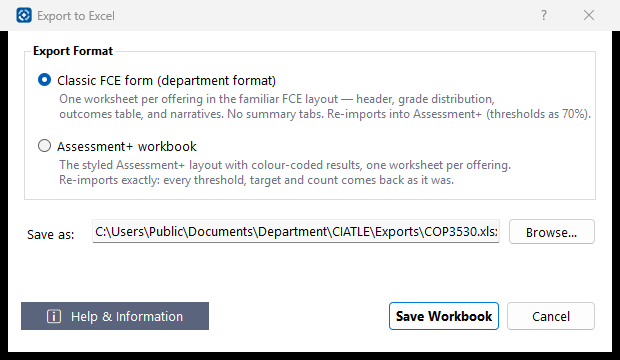
How to use it
- Choose a format: Classic FCE form (the department's layout) or Assessment+ workbook (styled, colour-coded results).
- Check Save as, or click Browse… to choose another place.
- Click Save Workbook. You are asked before an existing file is replaced; you can then open the workbook.
What it means, and what to watch for
- Both formats re-import with 📚 Courses ▸ 📥 Import from Excel… in the main window.
- The Assessment+ workbook comes back exactly: each measure's Threshold %, Target %, N, N meeting and % meeting. Its Target column says "(same as threshold)" for a measure with no target of its own, and that measure still has none after a re-import.
- The Classic FCE form is the department's layout, which records no threshold or target: on re-import every measure's counts come back, its threshold is set to 70% (the form's stated criterion) and it has no target of its own.
- What is exported is what is in the editor now, including changes not yet saved.
- The workbook is listed afterwards under Courses ▸ this course ▸ 📦 Exports.
See also
- File ▸ Export Whole Course for Coordinator (.ciasub) — the file a coordinator imports.