
Each section below is the help that screen shows in Assessment+ itself, on its ℹ Help & Information tab (or F1), so it matches what you see on screen.
Welcome
Where Assessment+ starts, and where it comes back to after you open another department folder. It says which department is open and where to begin.
How to use it
- Check the department folder named at the top. Everything in the tree on the left comes from that folder.
- Faculty: open Courses in the tree to record a semester's course evaluation.
- Coordinators: open Programs in the tree for the program outcomes, courses and reports.
What it means, and what to watch for
- A department folder holds one department's programs, courses, reports and backups. Everyone in the department points Assessment+ at the same folder, usually on a shared drive or a synced folder.
- To work on another department: File ▸ Open Department Folder, or File ▸ Recent Department Folders for one you have opened before. Nothing is copied or deleted when you switch; the folder you leave stays exactly as it was.
- To start a new department: File ▸ Open Department Folder, then make a new folder beside the current one (not inside it) and choose it. Assessment+ asks before it creates anything.
- The status bar at the bottom of the window names the department folder and the institution, and has two drop-downs: the program and the academic year. Program reports, Submissions and Imports, and the Reports and Self-Study menus work on the program and year chosen there.
- Choosing a program or an academic year in the tree also chooses it in the status bar.
- What stays with this computer, whichever folder is open: who you are (Tools ▸ Settings), your AI provider and keys (Tools ▸ AI Settings), and the courses you have highlighted. A highlighted course code is highlighted in every department that has that course.
See also
- Tools ▸ Settings: who you are, and moving this department to another folder.
- File ▸ Back Up Data: a zip of this department folder.
Who is using Assessment+
Puts your name on the work you do, so colleagues sharing the department folder can see who entered what. It is not a login and nothing is checked.
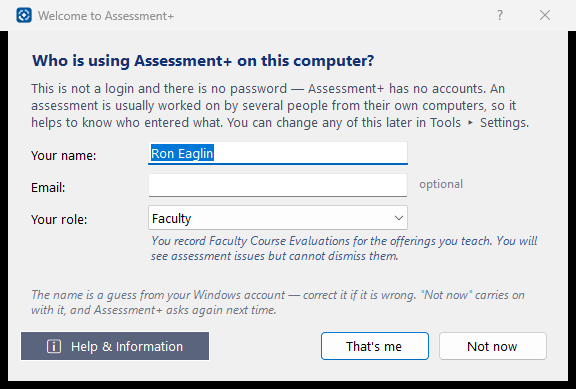
How to use it
- Check Your name — it is guessed from your Windows account — and correct it.
- Email is optional.
- Choose Your role; the line under it says what the role means here.
- Click That's me (Save, once you have changed the name). Not now carries on with the guess and asks again next time.
What it means, and what to watch for
- Faculty — records courses and offerings. Course coordinator — looks after a course taught by several people. Assessment coordinator — runs the program's assessment; only an assessment coordinator can set aside an Assessment Issue.
- This is kept on this computer only, not in the shared department folder.
See also
- Tools ▸ Settings — change your name, email or role later.
Settings
Who you are on this computer, and which department folder Assessment+ is working in.
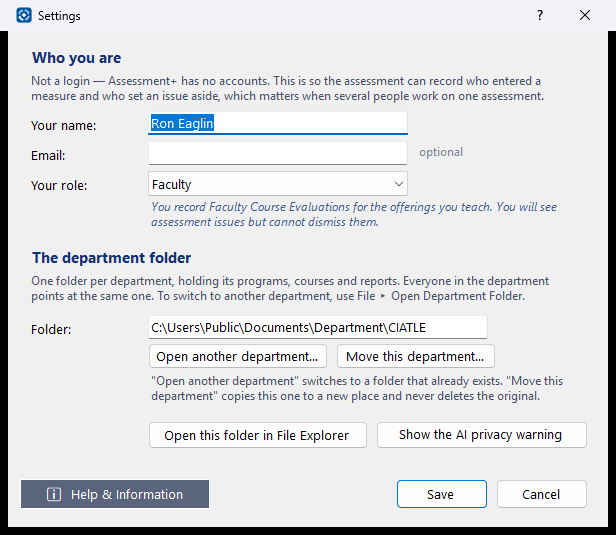
How to use it
- Type your name, optionally your email, and choose your role.
- To work in a department folder that already exists, click Open another department….
- To move this department to a new place (a shared drive, say), click Move this department… — it copies, and never deletes the original.
- Click Save.
What it means, and what to watch for
- This is not a login. Your name is recorded against measures you enter and issues you set aside.
- Role — only an Assessment coordinator can dismiss an assessment issue; everyone can see them.
- Open another department… keeps the name, email and role typed here, even without Save.
- Your name, role and AI keys stay with this computer, whichever department folder is open.
- Show the AI privacy warning again — the warning is shown the next time an AI feature is used.
See also
- File ▸ Open Department Folder.
- Tools ▸ AI Settings.