
- What Assessment+ is for
- Who does what
- The words it uses
- The department folder
- The first start
- The window and its tree
- Help on every screen
What Assessment+ is for
Every course has course outcomes — what a student should be able to do at the end of it. Every degree program has program outcomes — what a graduate should be able to do. Accreditors such as ABET ask a program to show, with evidence, how well its students meet its outcomes, and what it does about the ones they do not.
Assessment+ keeps that evidence. Each semester, faculty record for their course how many students met each course outcome, measured by real graded work, and what they will change. Because each course outcome is mapped to a program outcome, Assessment+ can add the courses up into the program's results, year by year, and build the reports and self-study sections an accreditation review asks for.
Until version 2.0 (October 2026) it was called CIATLE-FCE; the folder it keeps its files in and the file types (.ciafce, .ciasub …) keep that name, so nothing moved.
Who does what
| Role | What they do in Assessment+ | Their workflow |
|---|---|---|
| Faculty | Record their course's outcomes, and each semester its grades, measures and narratives. Send the result to the program. | The faculty workflow |
| Course coordinator | Looks after a course taught by several people: the same course record, with one offering per section or term. | The faculty workflow |
| Assessment coordinator | Runs a program's assessment: its outcomes, its courses, the yearly reports and the accreditation self-study. Only an assessment coordinator can set aside an Assessment Issue. | The coordinator workflow |
The role is chosen in Tools ▸ Settings. It is not a login and nothing is checked: it puts your name on the work you do and shapes a few screens to your role.
The words it uses
- CO — course outcome
- What a student should be able to do at the end of this course: CO1, CO2 … A number is never reused, because every semester's measures point at an outcome by its number.
- PO — program outcome
- What a graduate of the degree should be able to do. ABET calls them student outcomes; some screens and institutions say SLO or PLO. They mean the same thing.
- ILO — institutional outcome
- What every graduate of the institution should be able to do. Program outcomes are mapped to them.
- PEO — program educational objective
- What graduates achieve a few years after graduating (ABET Criterion 2).
- Mapping
- Which program outcome each course outcome supports. A course outcome that is not mapped adds nothing to the program's results.
- FCE — Faculty Course Evaluation
- A course's record, semester by semester. One file per course (
.ciafce). - Offering
- One semester's run of the course, for example 2025 Fall — its grade distribution, its measures and its four narratives.
- Measure
- A piece of graded work used as evidence for an outcome — an exam problem, a lab report, a project rubric.
- Threshold
- The score a student must reach on a measure to count as meeting it, such as 70%.
- Measure target
- Set by faculty, for one measure: the share of students expected to reach its threshold, such as 80%. The measure is met when at least that share did. Until a separate target is set, it is the same number as the threshold.
- Program outcome target
- Set by the coordinator, for one program outcome (its Target %): the share of all the students measured for it, across the courses, who must reach their measure's threshold for the program outcome to be met. This is the target the Outcome Summary compares against.
- Primary measure ★
- Where an outcome has several measures, the one the program counts. With no primary measure, all of the outcome's measures count.
- N, N Meeting (N Met)
- Students measured on a measure, and how many of them reached its threshold.
- Level: I, D, M
- How far a course takes an outcome: Introduced, Developed or Mastered. Optional; it feeds the Course-PO Matrix and the Curriculum Map.
- Program course, support course
- A program course is taught and assessed by the program; its results count. A support course is required but taught by another department; the program keeps only its description and outcomes.
- Course export (.imscc)
- The whole course from Brightspace or Canvas packaged as one file. Some course reports read it; it holds the course's content, not its grades. How to make one is on Establish outcomes and measures.
- Submission (.ciasub), offering file (.ciaoff)
- What faculty send the coordinator when they do not share a folder: the whole course, or one semester. What every file holds.
- Self-study, criterion
- The report a program writes for an ABET accreditation visit, in sections called criteria (Criterion 3 — Student Outcomes, Criterion 4 — Continuous Improvement …) and appendices.
- Academic year
- A set of terms — Fall 2025, Spring 2026, Summer 2026 — that every program uses. An offering counts in the year whose terms include it.
- Narratives
- Four short reflections on each offering: what worked, what did not, what will change, and how earlier changes turned out. Reviewers read them as evidence of "closing the loop".
The department folder
Everything Assessment+ records is kept as ordinary files in one folder, the department folder — Documents\CIATLE unless you choose another. There is no database and no server, so the folder can be backed up, synced or shared like any other.
- A department that shares one folder (a network drive, or a synced OneDrive or Teams folder) works from one set of data: what a faculty member saves is what the coordinator reports. Everyone points Assessment+ at it with File ▸ Open Department Folder.
- People on separate computers exchange files instead: a faculty member exports a submission (
.ciasub) or one offering (.ciaoff) and the coordinator imports it. What every Assessment+ file holds. - Kept on your computer only, whichever folder is open: who you are, your preferences, and your AI keys.
- File ▸ Back Up Data makes a zip of the whole folder; File ▸ Restore from Backup puts back what is missing and never overwrites. Back up and restore.
The first start
- Install Assessment+ from the Microsoft Store and open it from the Start menu.
- Who is using Assessment+ asks your name (guessed from Windows), an optional email, and your role. Click That's me. More.
- The Welcome screen names the department folder that is open. If your department already has a shared folder, choose it now: File ▸ Open Department Folder. Starting a new department? File ▸ Open Department Folder, make a new empty folder on the shared or synced drive (beside another department's folder, never inside it) and choose it; Assessment+ asks before it creates anything.
- The first time you open a program-level screen, First-Time Setup asks for the institution's name. Type it and click Create Institution (or Skip for now). More. Faculty in a shared department folder normally do not see this, because the coordinator has named the institution already; if you do, check you opened the right folder, or click Skip for now and ask your coordinator.
- Then follow your workflow: faculty or coordinator.
The window and its tree
Assessment+ is one window. The tree on the left reaches everything; the screen on the right is whatever is selected in the tree.
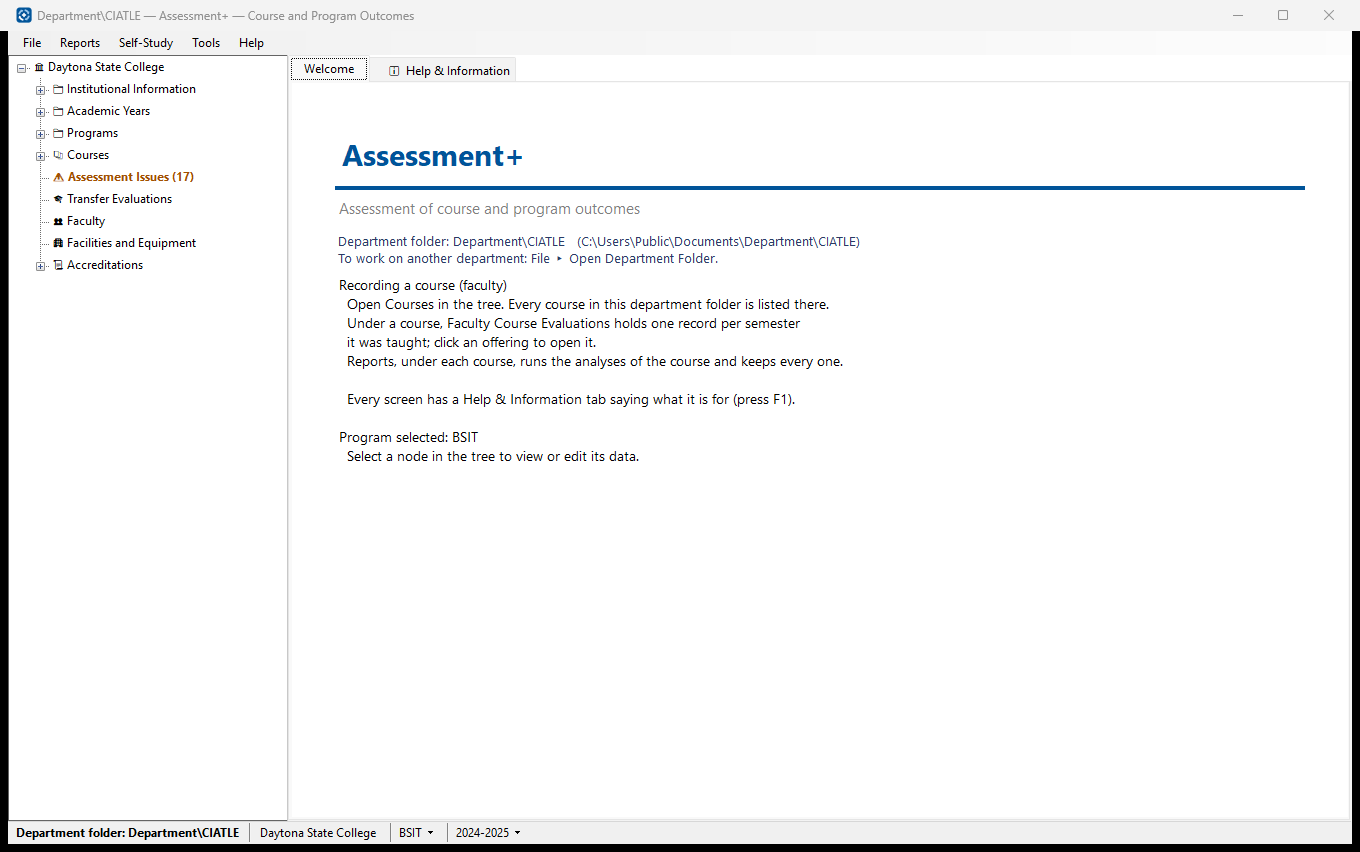
- 🏛 The institution — its name heads the tree. Institution
- 📁 Institutional Information — Institutional Outcomes (ILOs) and the Institutional Summary (a self-study's Appendix D).
- 📁 Academic Years — the terms each year covers. Academic years
- 📁 Programs — each program, with under it: Program Outcomes, Program Educational Objectives, 📋 Program Courses, 📗 Support Courses, Submissions and Imports, and 📊 Reports. Programs
- 📚 Courses — every course, with under each: 📝 Faculty Course Evaluations (📅 Offerings), 📊 Reports, 📥 Inputs and 📦 Exports. Faculty start here. Courses
- ⚠️ Assessment Issues — inconsistencies in the data that need a decision. Assessment Issues
- 🎓 Transfer Evaluations — a student's incoming courses against a program. Transfer evaluations
- 👥 Faculty and 🏢 Facilities and Equipment — for a self-study's Criteria 6 and 7. Faculty and facilities
- 📜 Accreditations — each accreditation's checklist and self-study sections. Accreditations
The status bar at the bottom names the department folder and the institution, and has two drop-downs: the program and the academic year. Program reports, Submissions and Imports, and the Reports and Self-Study menus work on the program and year chosen there. Choosing a program or a year in the tree chooses it in the status bar too.
The menus: File (department folders, Import, Export Program / Everything, Back Up Data, Restore from Backup, Assessment+ Files), Reports (the program reports), Self-Study (Criterion 3 and 4 sections, Outcome Narratives, Assessment Plan, Improvement Actions), Tools (Outcome Catalogs, Syllabus Requirements, AI Settings, AI Usage and Cost, Settings, Rename Reports) and Help.
A course's semesters are recorded in a second window, the course editor, opened from the course.
Help on every screen
Every screen in Assessment+ has a ℹ Help & Information tab beside it (or a Help button on a dialog), and F1 opens it: what the screen is for, what to do in order, and what every term on it means. The screen pages of this site are that same help, so they say what the program says.