
Each section below is the help that screen shows in Assessment+ itself, on its ℹ Help & Information tab (or F1), so it matches what you see on screen.
Program Educational Objectives
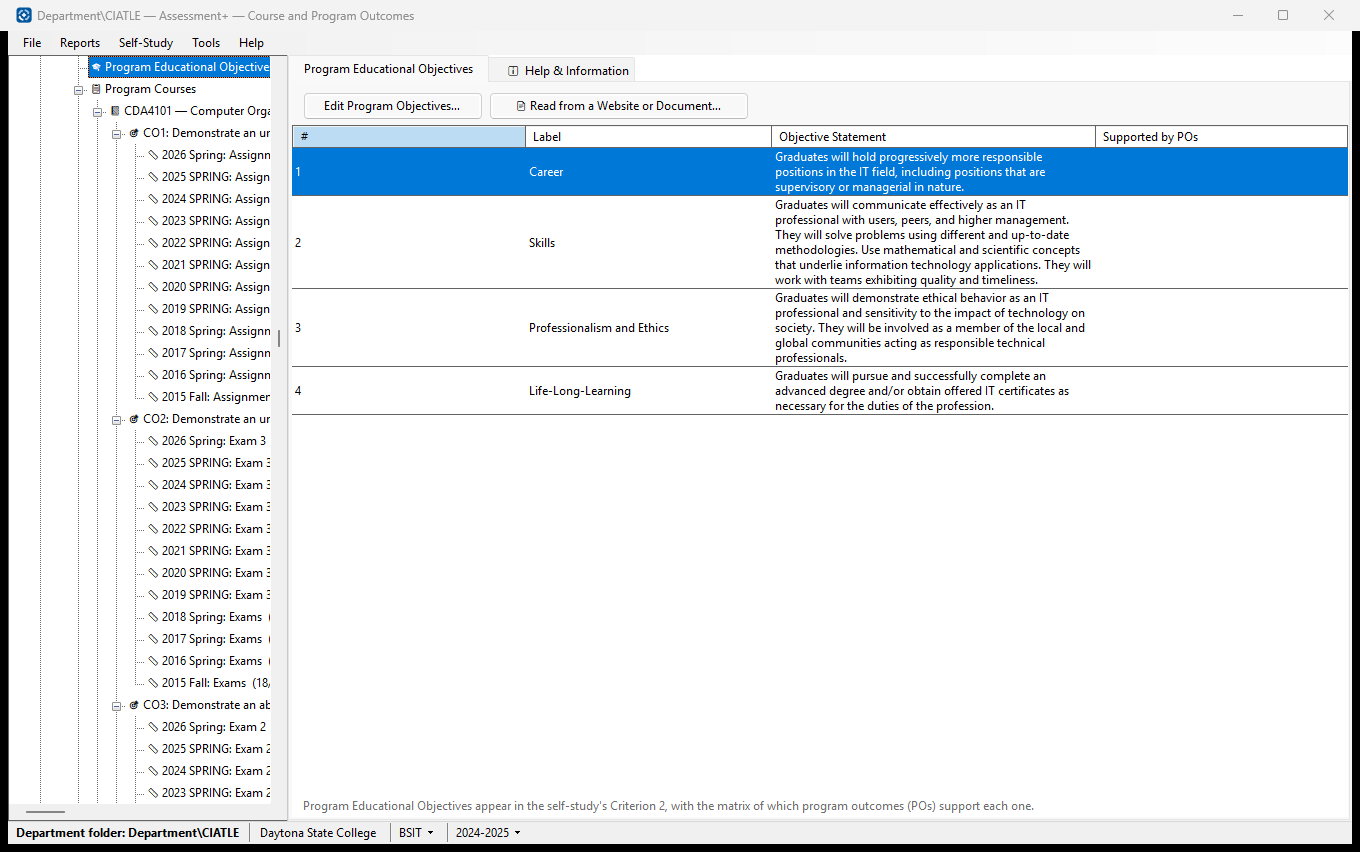
The program's educational objectives (PEOs) — what graduates achieve a few years after graduating — and which program outcomes support each one. They appear in the self-study's Criterion 2.
How to use it
- To bring the objectives in from the program's web page, catalog page, self-study or accreditation report, click 📄 Read from a Website or Document…. An AI provider reads it and you tick which objectives to add or reword; nothing is deleted or renumbered.
- To type or change them by hand, click Edit Program Objectives… (or double-click the list).
- In the top grid, type each objective's number, a short label and its statement.
- In the matrix below the list, tick which program outcomes support each objective.
- Click Save.
What it means, and what to watch for
- PEO — program educational objective, a career-level goal (ABET Criterion 2). A PO (ABET's "student outcome") is what students can do at graduation.
- Supported by POs — the program outcomes ticked for that objective.
- Rows with no statement are ignored when saving.
- Read from a Website or Document… sends the page's or document's text to the AI provider set up in Tools ▸ AI Settings, after checking it for student identifying information. It asks for the objectives only — not the student outcomes or course outcomes the same page may list.
See also
- Program Outcomes — the outcomes listed in the matrix.
- Accreditations ▸ an accreditation ▸ Criterion 2 — the section built from these.
Program Educational Objectives
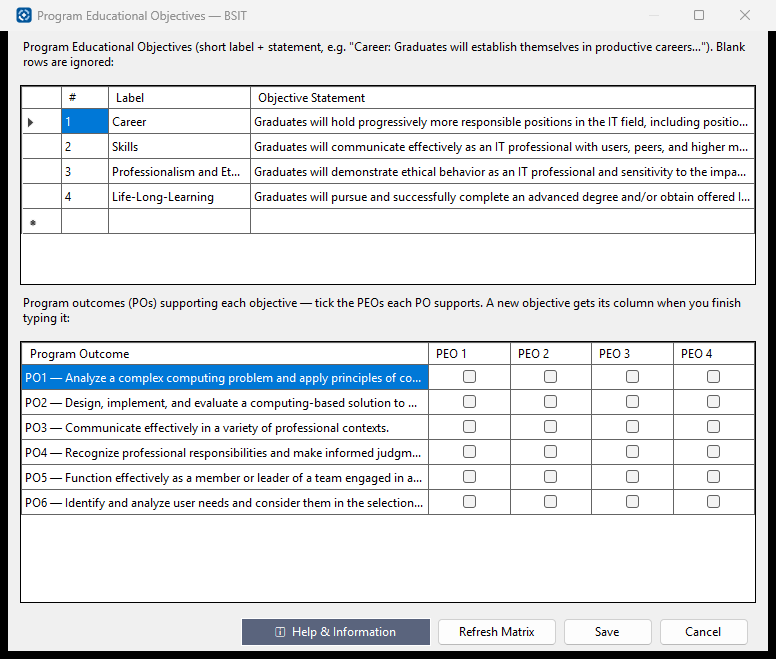
Write the program's educational objectives (PEOs) and tick which program outcomes support each one.
How to use it
- In the top grid, type each objective's number, a short label (e.g. Career) and its statement. Delete a row by selecting it (the grey box at its left) and pressing Delete.
- The matrix below gains a column for each objective as you finish typing it (Refresh Matrix does the same).
- In the matrix, tick each objective a program outcome supports.
- Click Save.
What it means, and what to watch for
- PO — program outcome, which ABET calls a student outcome.
- Rows with no statement are ignored. Cancel discards everything changed here, after asking.
- To bring objectives in from the program's web page or a document instead of typing them, close this window and click 📄 Read from a Website or Document… on the Program Educational Objectives screen. Come back here afterwards to tick the program outcomes that support any objective it added.
- An objective's number is what the matrix refers to. Changing a number here clears that objective's ticks in the matrix.
See also
- Accreditations ▸ an accreditation ▸ Criterion 2.
Read Program Educational Objectives from a Website or Document
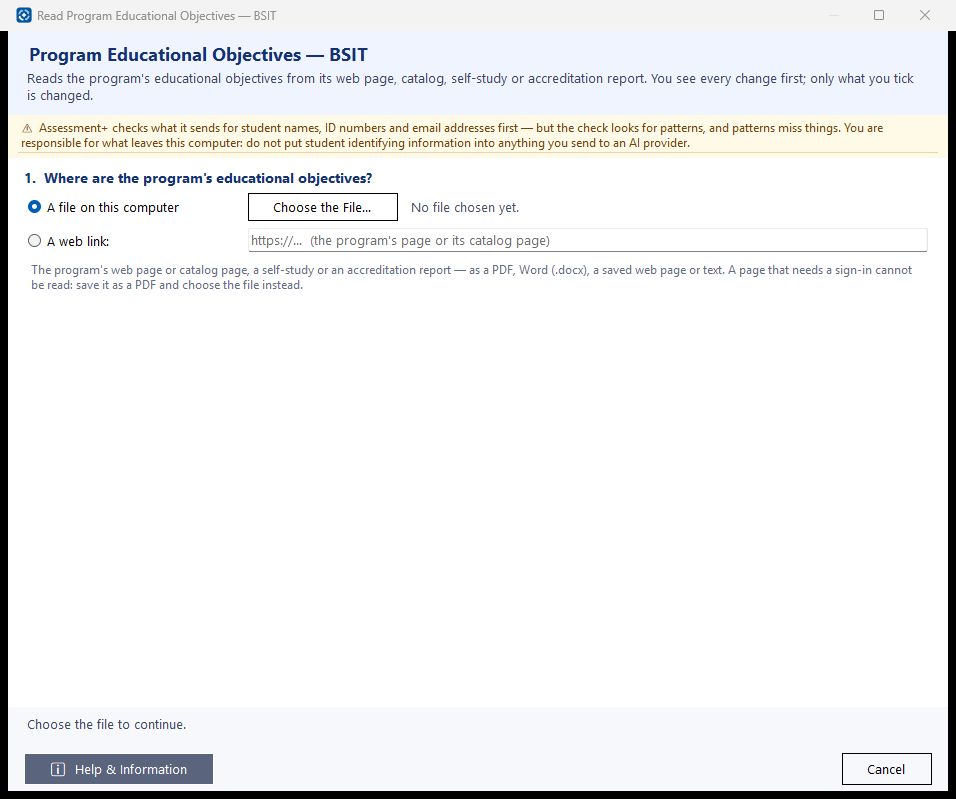
Reads the program's educational objectives (PEOs) from its web page, a catalog page, a self-study or an accreditation report, so they do not have to be typed. You see every change before it is made, and only what you tick is changed.
How to use it
- Choose where the objectives are: a file on this computer (PDF, Word .docx, a saved web page, text), or a web link to the page. The Read button appears at the bottom once one is chosen.
- Click Read the Objectives. The AI provider finds the program educational objectives; it usually takes 10 to 40 seconds. It is asked for the objectives only — not the student outcomes, course outcomes or institutional outcomes the same page may list.
- Check what was found. Tick what should change and untick what should stay as it is — each objective is a line of its own.
- Click Apply the Selected Changes. The program is saved straight away.
- Then use Edit Program Objectives… to tick which program outcomes support any objective that was added.
What it means, and what to watch for
- PEO — program educational objective: what graduates achieve a few years after graduating (ABET Criterion 2). It is not a program outcome (what students can do at graduation).
- Add — the source has an objective this program does not; it is added, with the source's number when that number is free, otherwise the next free one.
- New wording — the program has an objective with this number, worded differently; the source's wording replaces it. Program outcomes ticked against that number in the matrix would then be read against the new words, so when any are, the line is not ticked for you: tick it only where the words changed but the objective still means the same.
- New label — the same words under a different short heading; only the label changes.
- Already the same — nothing to do.
- Not in the source — the program has an objective the source does not list. It is kept: nothing is ever deleted from here. Remove one in Edit Program Objectives… if it is really gone.
- Objective numbers are never changed: the matrix of which program outcomes support each objective refers to an objective by its number.
- If the page or document seems to be for another program, you are told so and nothing is ticked.
- What is sent: the page's or document's text. It is checked for student identifying information before it is sent, and anything found is shown to you to remove first.
- A link that needs a sign-in (a college portal, Brightspace, Canvas) cannot be read. Open it in your browser, save or print it to PDF, and choose that file instead. A scanned PDF has no text to read.
See also
- Edit Program Objectives… — type objectives by hand, and tick the program outcomes that support each.
- Tools ▸ AI Settings — the provider that reads the source.