
Each section below is the help that screen shows in Assessment+ itself, on its ℹ Help & Information tab (or F1), so it matches what you see on screen.
Programs
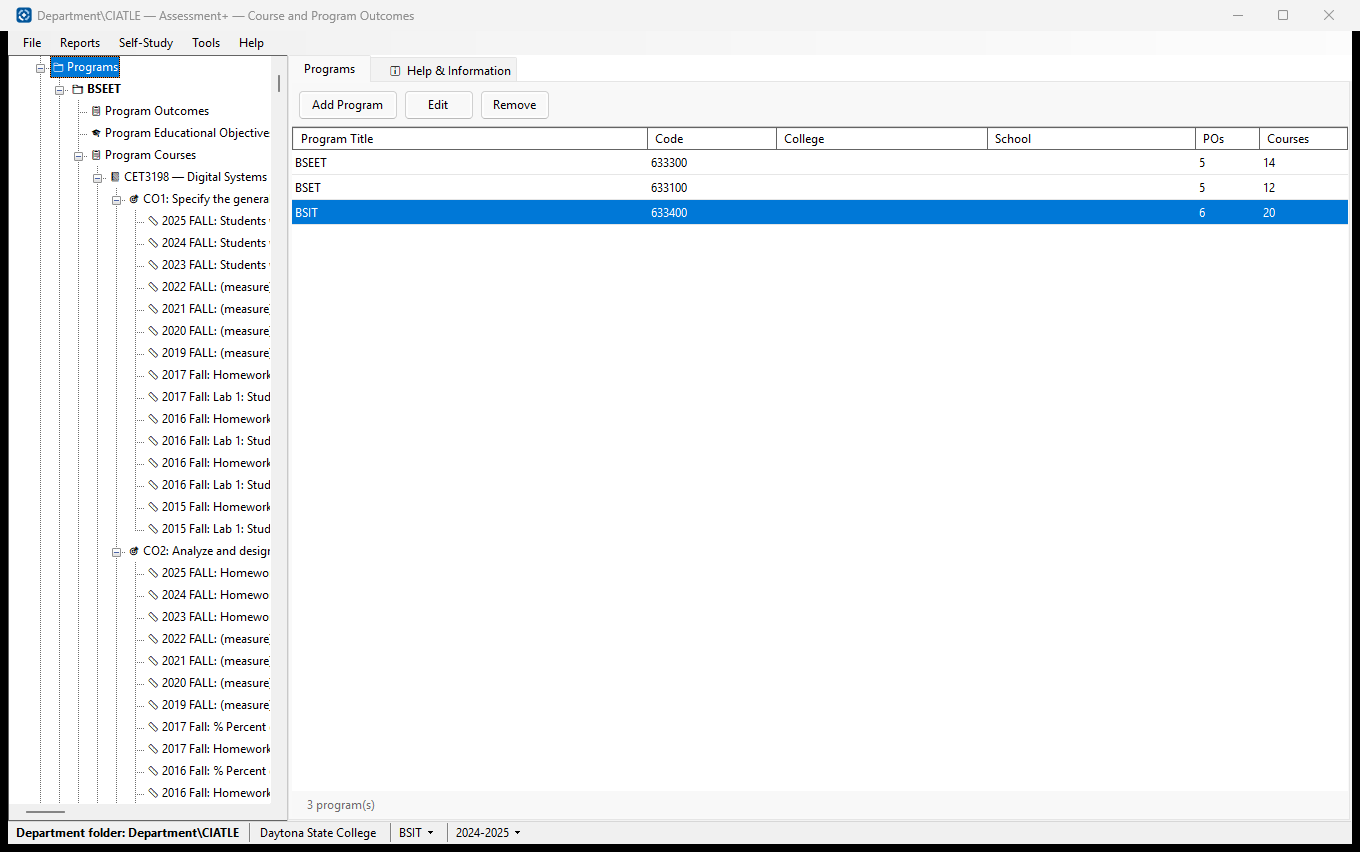
The degree programs in this department. Each program has its own outcomes, courses, reports and accreditations.
How to use it
- Click Add Program to create one: its title (required), code, college, school, mission and description.
- Select a program to make it the active program — the drop-down in the status bar at the bottom of the window shows it.
- Click Edit (or double-click a row) to change a program's details.
- Expand the program in the tree to define its Program Outcomes and its Program Courses.
What it means, and what to watch for
- Code — the program's short code, e.g. BSET; used in report file names.
- POs — how many program outcomes the program has. Courses — how many courses it lists.
- Remove takes out the program's record: its outcomes, educational objectives, course list and assessment plan. A copy of the record is kept first in the department folder's backups\Removed programs folder.
- ♻ Removed Programs… (shown once a program has been removed) brings a removed program back exactly as it was. It is refused, with the reason, if the same program — or another program with its code — is in Programs again.
- Remove does not touch the course files or the assessment data already imported for the program.
See also
- Programs ▸ the program ▸ Program Outcomes — the outcomes courses are mapped to.
- Academic Years — the years the programs are assessed in.
Program
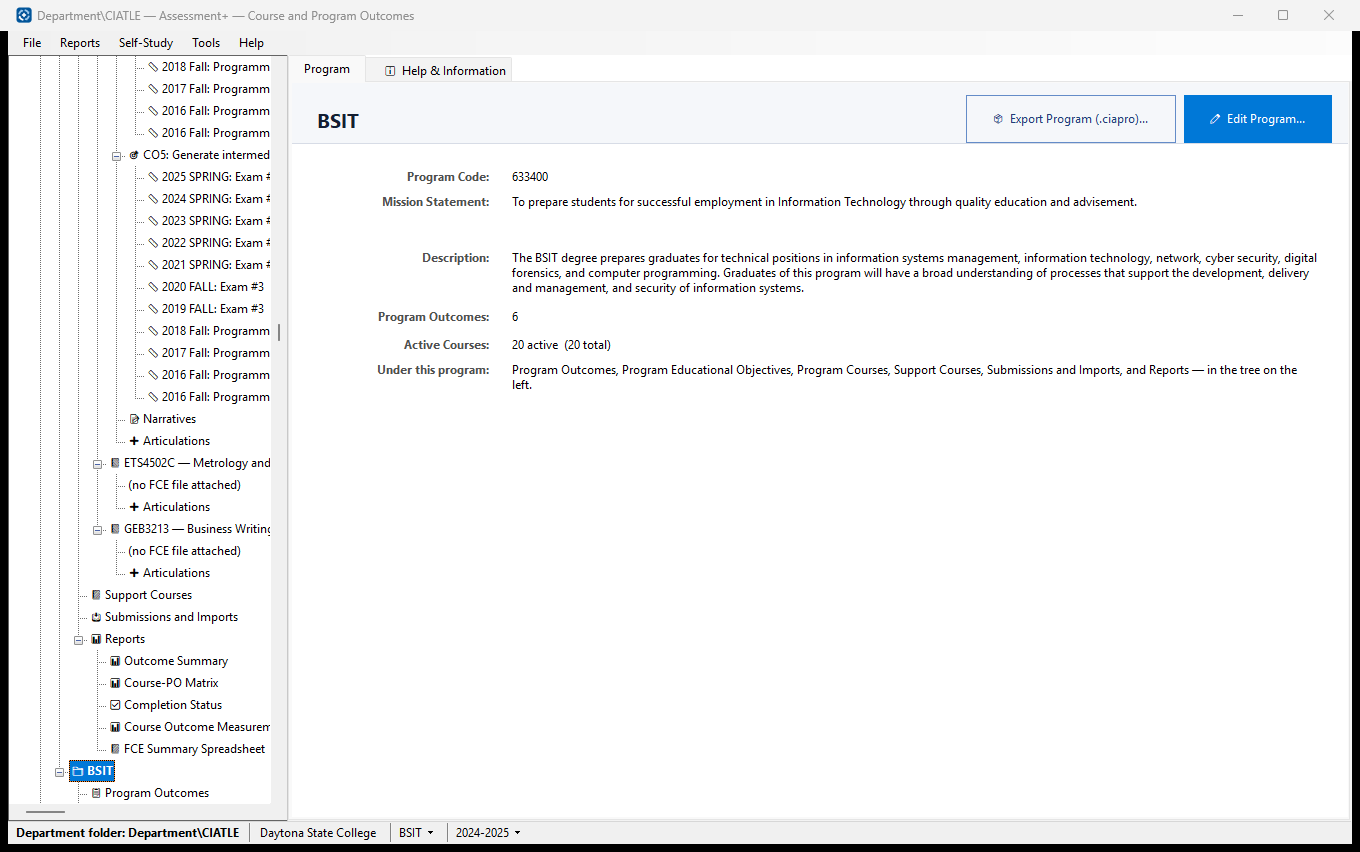
A summary of the program: code, mission, description, and how many outcomes and courses it has.
How to use it
- Check the details; click ✏ Edit Program... to change them.
- Under this program in the tree: Program Outcomes and Program Educational Objectives define what it is assessed against.
- Program Courses and Support Courses list its courses; Submissions and Imports is where faculty data comes in; Reports holds its reports.
- Click 📦 Export Program (.ciapro)... to save the whole program as one file for another computer.
What it means, and what to watch for
- Active Courses — courses currently taught in the program; an inactive course keeps its history.
- A .ciapro package holds the program record, its academic-year data and archived submissions, the academic year definitions and the attached course files. Import it with File ▸ Import ▸ Import Transfer Package.
- Selecting this program in the tree also makes it the active program in the status bar at the bottom of the window.
See also
- Reports (under this program) — Outcome Summary, Course-PO Matrix, Completion Status and more.
Program
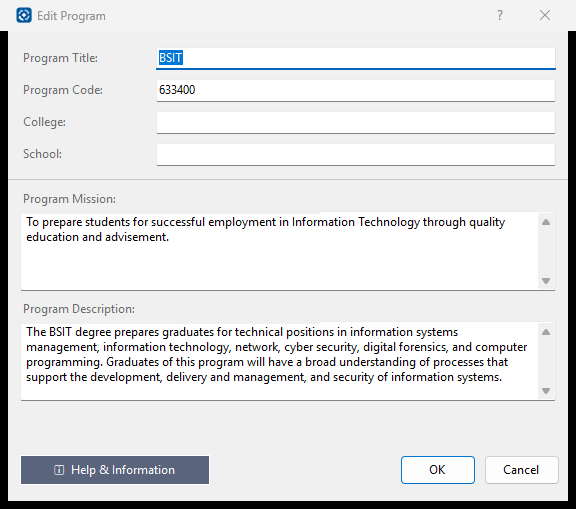
A degree program's name and details.
How to use it
- Type the program title (required).
- Add its code (e.g. BSET), college, school, mission and description.
- Click OK.
What it means, and what to watch for
- The code is used in report file names, so keep it short.
- Outcomes and courses are added afterwards, under the program in the tree.
See also
- Program Outcomes and Program Courses, under the program in the tree.