
Each section below is the help that screen shows in Assessment+ itself, on its ℹ Help & Information tab (or F1), so it matches what you see on screen.
Faculty Course Evaluations
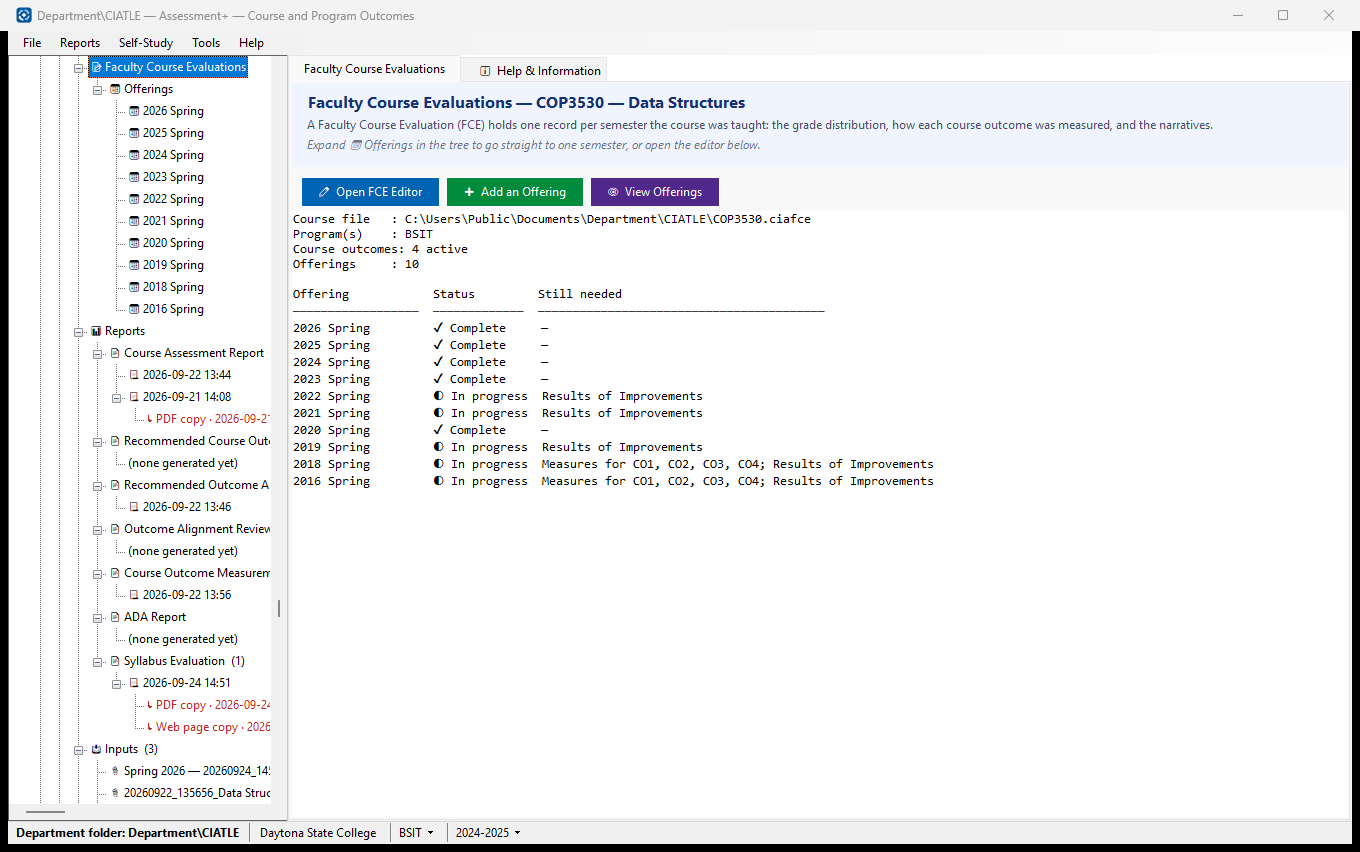
A Faculty Course Evaluation (FCE) is the record of how a course's outcomes were measured, semester by semester. One entry — an offering — per semester the course was taught.
How to use it
- If the course has no evaluations yet, click ➕ Start Evaluations — the new file opens in the editor with the course code and title filled in. Save it in the department folder.
- Expand 📅 Offerings in the tree to see the semesters already recorded; click one to open it in the course editor.
- To record a new semester, click ➕ Add an Offering. The editor opens and tells you which button to click there.
- In the editor, enter the grade distribution, how each course outcome was measured, and the four narratives. Save before closing.
- Click ✏ Open FCE Editor to open the editor on the most recent offering, or 👁 View Offerings to read every semester without changing anything.
What it means, and what to watch for
- Status — Complete means nothing is missing; In progress means some of it is recorded; Not started means the offering exists but is empty.
- Still needed — exactly what is missing before that semester can be reported to the program: the grade distribution, a measure for a particular outcome, or a narrative.
- The whole history lives in one file, so next semester starts from this one: the outcomes, the programs and the assessment methods are already there.
See also
- The course (above this node) — the programs this course is assessed under.
- 📊 Reports ▸ Course Outcome Measurement Assessment — have the AI suggest which graded items to use as measures.
Offerings
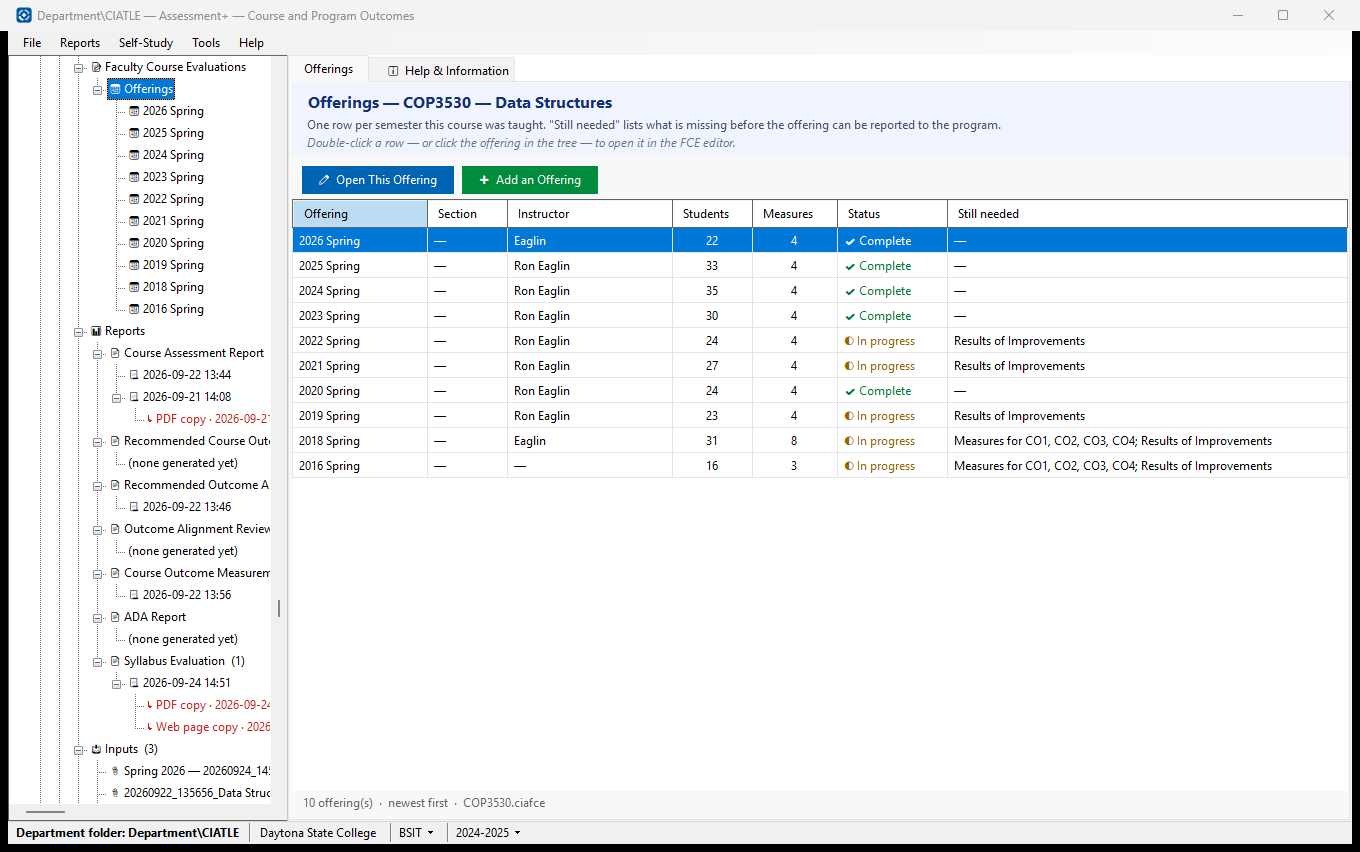
One row per semester this course was taught, and what each record still needs before it can be reported to the program.
How to use it
- Double-click a semester — or click it in the tree — to open it in the course editor.
- Work through what the Still needed column names for that offering.
- Use ➕ Add an Offering when the course runs again.
What it means, and what to watch for
- Offering — one semester of one course. "2025 Fall §01" is section 01 of the Fall 2025 offering; sections are recorded separately when they are assessed separately.
- Measures — how many outcome measures are recorded for that semester, not counting averages Assessment+ computes itself.
- Students — the total of the grade distribution (A through W). "—" means no grades have been entered yet.
- Status — ✔ Complete means nothing is missing; ◐ In progress means part of it is recorded; ○ Not started means the offering exists but is empty.
- Still needed — exactly what is missing before that semester can be reported to the program: the grade distribution, a measure for a named outcome, or a narrative.
See also
- Faculty Course Evaluations (the node above) — the summary of the whole file.
Offerings (read-only)
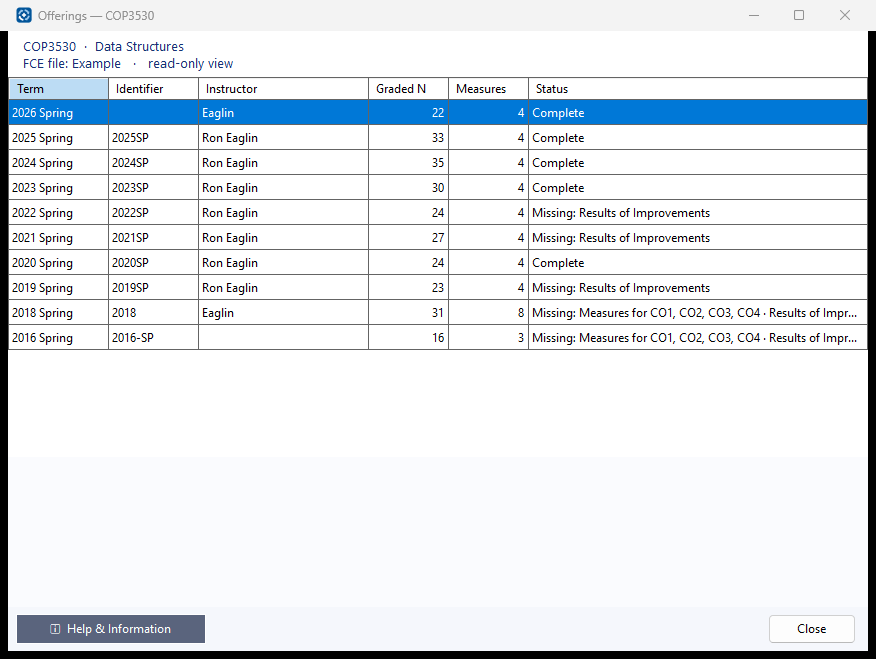
Every semester recorded in this course's FCE file, exactly as entered. Nothing can be changed here.
How to use it
- Select an offering in the top list; its grades, measures and narratives appear below.
- Drag the bar between the two halves to give either more room.
- To change anything, close this window and open the course in the FCE editor (📚 Courses ▸ the course ▸ ✏ Open FCE Editor).
What it means, and what to watch for
- Identifier — the offering's own label as entered in the file.
- Graded N — students in the grade distribution (A, B, C, D, F, FN and W). "—" means no grades are entered.
- Status — Complete, Not started, or Missing: followed by what still has to be entered.
- In the measures list: N = students measured, ≥T = students meeting the threshold, P = percent meeting, then the threshold (the score a student had to reach; 70% when none was set) and the target (the percentage of students expected to reach it; the same as the threshold unless a separate target was set). ★ primary marks the measure used when the program adds results together.
See also
- 📚 Courses ▸ the course ▸ 📅 Offerings — the same list, with a way into the editor.