
Before you start
- Get Assessment+ free from the Microsoft Store, then open it from the Start menu. It runs on Windows 10 and 11.
- Read Getting started once: the words Assessment+ uses, the department folder everyone shares, and the window's tree.
- AI is optional. Some screens can ask an AI to read a document or draft a report, with your own key. Before anything is sent it is checked for student names, ID numbers and email addresses, and you remove what was found. AI, your key and student privacy.
- Your work stays in a folder you choose — no account and no server. What every Assessment+ file holds.
Start with your workflow
Assessment+ is used by two kinds of people, and each has a path through it. Pick yours; every stage is a page of numbered steps, with links to the screens it uses.
Faculty
You teach a course and record how well its students met the course outcomes. First time? Read the faculty workflow page first: what you will need.
- Establish outcomes and measuresThe course outcomes, the program outcome each supports, and how each is measured.
- Collect measuresEach semester: the grade distribution and how many students met each measure.
- Analyze the data and give inputRead the results, compare semesters, write the four narratives.
- Send it to the programThrough the shared department folder, or as a file.
Assessment coordinators
You run a program's assessment and prepare its accreditation. First time? Read the coordinator workflow page first: five things to set up once.
- Collect measuresEvery course's semester into the program's academic year, and what is still missing.
- Establish outcomes and mappingProgram outcomes and targets, the program's courses, and which course outcome supports which.
- Generate reportsOutcome Summary, Course-PO Matrix, the annual report, trends and the institution's spreadsheet.
- Prepare accreditation documentsThe checklist to the visit and every section of the self-study.
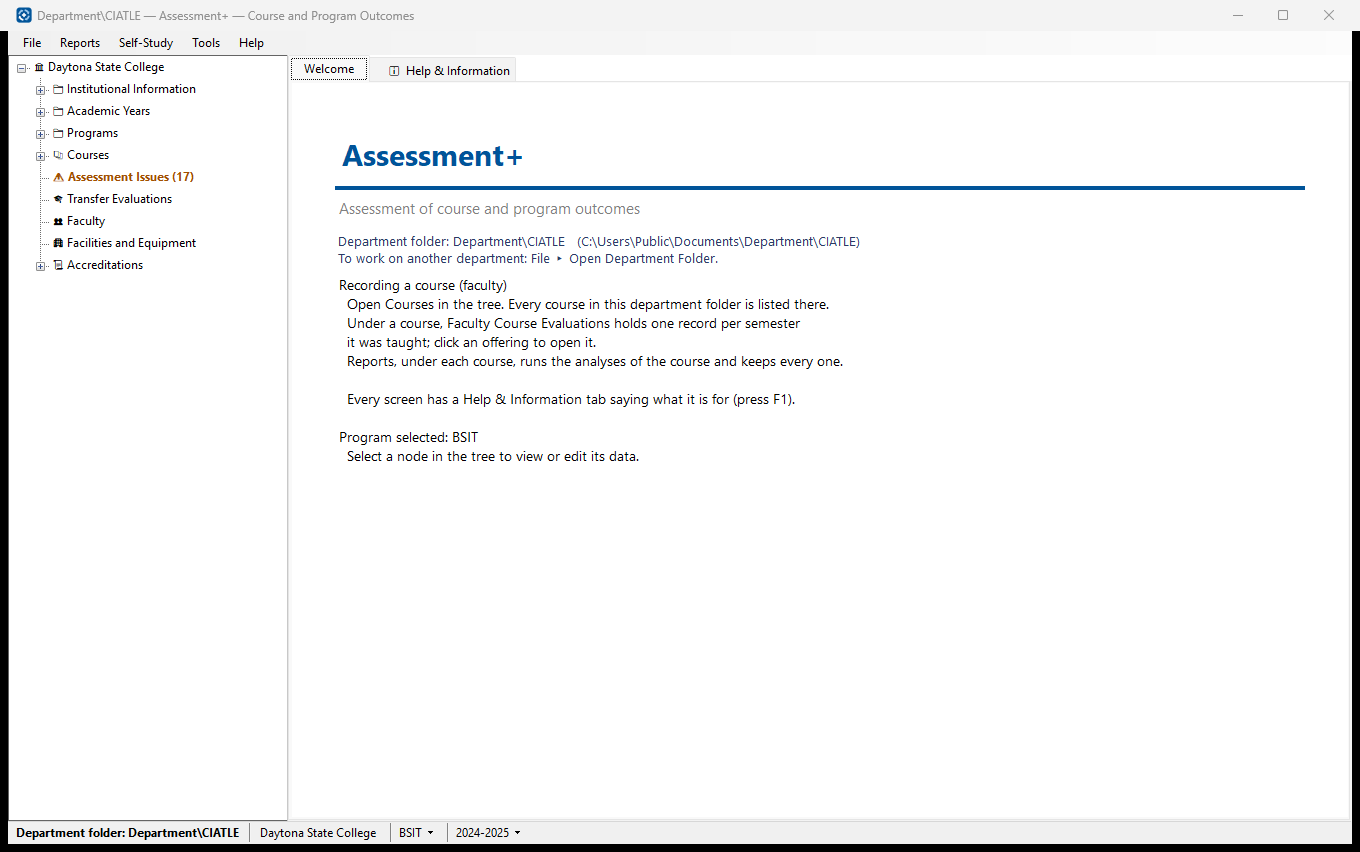
Below the workflows is help for every screen of the program — 142 of them — in the words of its own ℹ Help & Information tab. In Assessment+ itself, press F1 on any screen to read the same help there.
Getting started
What Assessment+ is for, the department folder, and finding your way around the window.
- Getting started — What Assessment+ does, who does what, the department folder, the window and its tree, and the first start.
- AI, your key and student privacy — AI is optional. What it is used for, the key it needs, and the check that keeps student information out of it.
- Settings, who you are, and the welcome screen — The first screen, who is using Assessment+ (and their role), and the department folder Assessment+ works in.
- The AI screens — The prompt preview and the student-information check every AI request goes through.
Faculty: a course's assessment
Four stages, each with its steps: outcomes and measures, collecting the results, analysing them, and sending them to the program.
- The faculty workflow — The whole of a course's assessment, from its outcomes to the file the coordinator receives, in four stages.
- 1. Establish outcomes and measures — Start the course's record, write its course outcomes, map them to the program's outcomes and choose how each will be measured.
- 2. Collect measures — Each semester: add the offering, enter the grade distribution and how many students met each measure — typed, or read from the gradebook.
- 3. Analyze the data and give input — Read the results against their targets, compare semesters, write the four narratives, and run the course reports.
- 4. Send it to the program — Give the program coordinator the semester: through the shared department folder, or as a .ciasub or .ciaoff file.
Coordinators: a program's assessment
Four stages, each with its steps: collecting the courses' measures, outcomes and mapping, program reports, and accreditation documents.
- The coordinator workflow — A program's assessment, from collecting the courses' measures to the accreditation self-study, in four stages.
- 1. Collect measures — Bring every course's semester into the program's academic year — from the shared folder or from faculty files — and track what is missing.
- 2. Establish outcomes and mapping — Program outcomes and their targets, institutional outcomes, educational objectives, the program's courses, and which course outcome supports which program outcome.
- 3. Generate reports — The program's reports for the year: Outcome Summary, Course-PO Matrix, Completion Status, the FCE Summary Spreadsheet, the annual report and trends.
- 4. Prepare accreditation documents — An accreditation record, its checklist to the visit, and every section of the self-study, built from the data and finished with narratives.
Screens: Courses
The Courses branch of the tree — every course, its evaluations, the files it read and the files made from it.
- Courses and a course — The list of every course, one course's screen, starting a new course, filling it in from a syllabus, and removing one.
- Faculty Course Evaluations and offerings — A course's semester records: what is complete, what is still needed, and a read-only view of every semester.
- Inputs, exports and course exports — The files a course's reports read (📥 Inputs), the files made from it (📦 Exports), and how to choose a course export (.imscc).
Screens: the course editor
Where a course's outcomes and each semester's grades, measures and narratives are recorded.
- The course editor — The window where a course's Faculty Course Evaluation is recorded: offerings on the left, four tabs on the right.
- Course outcomes and mapping — The Course Outcomes tab, the program outcomes (POs) a course maps to, and the mapping of each course outcome to one of them.
- Grades and outcome measures — The Grade Distribution and Outcome Measures tabs: grade counts, each measure's threshold and target, the primary measure, and the measure's documents.
- Import Grade Roster — Fill an offering's grade distribution and measures from the gradebook export, in five steps. No student row leaves the computer.
- Narratives and reviewing an offering — The four narratives, AI drafts of them, the previous semester side by side, and a printable page of the offering.
- Importing Excel evaluation workbooks — Bring older Excel Faculty Course Evaluation workbooks in, tab by tab, with optional AI help for tabs the importer cannot read.
- Exporting: to the coordinator, and to Excel — Export one offering (.ciaoff), the whole course (.ciasub), or an Excel workbook.
Screens: course reports
The seven reports Assessment+ makes about one course, and the viewer they open in.
- Course reports — 📊 Reports under a course: the seven reports, what each needs, the ones already made, and the report viewer.
- Course Assessment Report — The whole of a course's record in one report: performance, each outcome's trend, the narratives, and an analysis.
- Course Outcome Measurement Assessment — Every graded item in a course export judged as a measure of the course outcomes — and which outcomes nothing measures.
- Outcome reports: recommended outcomes and alignment — Recommended Course Outcomes, Recommended Outcome Alignment, and the Outcome Alignment Review of a recorded mapping.
- ADA Report (accessibility) — Every page, document, quiz and assignment in a course export checked against WCAG 2.1 AA, on this computer, with no AI.
- Syllabus Evaluation and Syllabus Requirements — A syllabus checked against the department's required items, with text to paste in for anything missing.
Screens: programs
A program's outcomes, objectives, courses, submissions and reports.
- Programs — The list of programs, one program's screen, and adding or editing a program.
- Program outcomes and outcome catalogs — A program's outcomes (POs, ABET's student outcomes), their targets, the institutional outcomes they support, and ready-made catalogs.
- Program educational objectives — What graduates achieve a few years out (ABET Criterion 2), and which program outcomes support each one.
- Program courses — The courses a program lists, a course as the program sees it — its attached file and the offerings counted for the year — and one outcome's history.
- Submissions and imports — Bringing faculty files and packages into a program's academic year, and filling Assessment+ in from last year's report.
- Program reports — The eleven program reports: Outcome Summary, Course-PO Matrix, Completion Status, measurement coverage, the FCE Summary Spreadsheet and the printable reports.
Screens: institution and academic years
Shared by every program in the department folder.
- Institution and institutional outcomes — The institution's details, its learning outcomes (ILOs), and the Appendix D summary every self-study needs.
- Academic years — The terms each academic year covers, so every offering is counted in the right year.
- Faculty, facilities and equipment — The records a self-study's Criterion 6 and 7, and Appendices B and C, are built from.
Screens: accreditation and self-study
The accreditation checklist and every section of an ABET self-study.
- Accreditations and the checklist — One record per accreditation effort, and its checklist of every step from the Request for Evaluation to the decision.
- Self-study sections — Each section built live from the data, the narratives only people can write, and Criterion 4's outcome narratives, assessment plan and improvement actions.
Screens: articulations and transfer credit
Is a course taken elsewhere equivalent to ours? One course, or one student's whole transcript.
- Course articulations — Is an external course — another institution's, or military training evaluated by ACE — equivalent to this one? Outcome by outcome.
- Transfer evaluations — One student's incoming courses, from a transcript or a Joint Services Transcript, screened against a whole program, with your decision for each.
Screens: keeping the data right and safe
Assessment Issues, backups, restoring, and what every Assessment+ file holds.
- Assessment Issues — The inconsistencies Assessment+ finds in the data, why each matters, and the screen where it is fixed.
- Back up and restore — A zip of the department folder, and putting files back from one without overwriting anything.
- The department folder and Assessment+ files — Where everything is kept, and what each kind of file holds — including whether it carries student information.