
Each section below is the help that screen shows in Assessment+ itself, on its ℹ Help & Information tab (or F1), so it matches what you see on screen.
AI Prompt
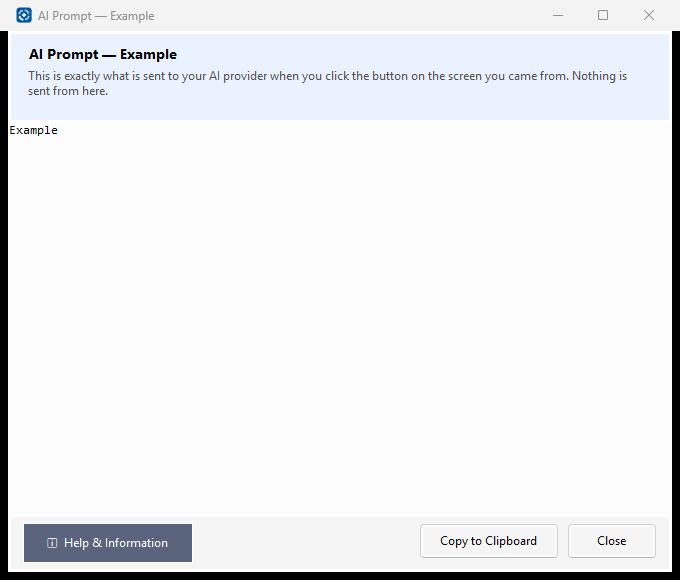
Shows exactly what the screen you came from sends to your AI provider. Nothing is sent from this window.
How to use it
- Read the text. The part under SYSTEM PROMPT is the instructions to the AI; the rest is your content.
- Copy to Clipboard copies it — for example to keep a record, or to try it in another AI tool.
- Click Close to go back. The request is sent only from the screen you came from.
What it means, and what to watch for
- Before it is sent, the content is checked for student names, ID numbers and email addresses. The check reads patterns and can miss things — read what you send.
See also
- Tools ▸ AI Settings — the provider requests go to.
Student Information Found
Before content goes to your AI provider, Assessment+ looks for student names, ID numbers and email addresses. This screen lists what it found so that it is removed before anything is sent.
How to use it
- Go down the list. Each line is one value that looks like student information, with the line of the content it is on.
- If a value is not a student — a word in an outcome that looks like a name, a course number that looks like an ID — tick Not a student. It is then sent unchanged.
- Check the preview at the bottom: it is exactly what will be sent, with every value still flagged replaced by [removed].
- Click the green button to remove the flagged values and continue, or Do not send this to send nothing.
What it means, and what to watch for
- Looks like — why Assessment+ flagged the value: a name, an identifier or an email address.
- Your own files are never changed; only the copy being sent is.
- A Not a student tick applies to that exact text only, and lasts until you close Assessment+.
- Ticking every value asks you once more before sending, because a name sent to an AI provider cannot be taken back.
- The check reads patterns and can miss things — a name in an unusual form, or a student described in a sentence. Read what you send.
See also
- Tools ▸ Settings ▸ Show the AI privacy warning again — reread what is and is not checked.