
Each section below is the help that screen shows in Assessment+ itself, on its ℹ Help & Information tab (or F1), so it matches what you see on screen.
Grade Distribution
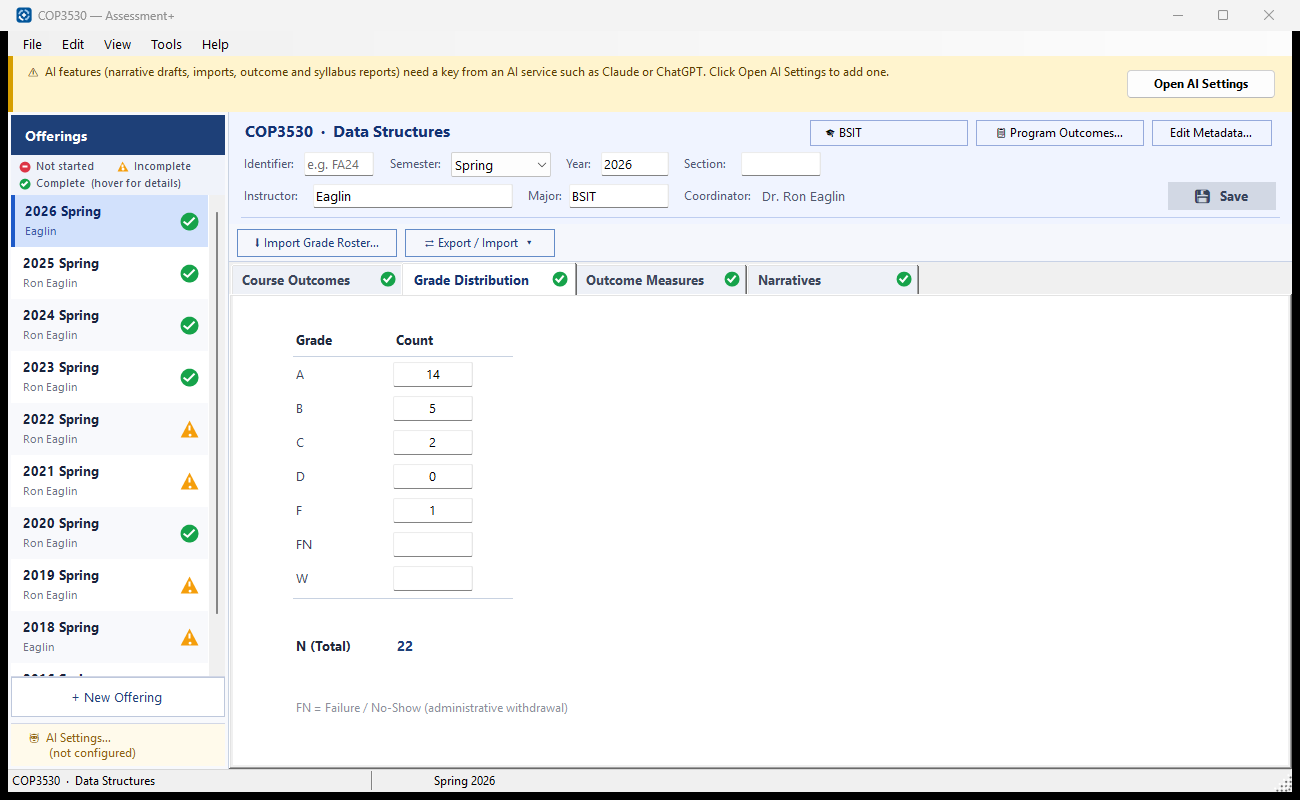
How many students in this offering earned each final grade.
How to use it
- Type the number of students who earned each grade. Leave a grade blank, or type 0, if nobody earned it.
- Check that N (Total) matches your class roster.
- Or click ⬇ Import Grade Roster… above the tabs to count the grades from your gradebook export.
- Click 💾 Save in the header.
What it means, and what to watch for
- FN — Failure / No-Show: an administrative failure for a student who stopped attending.
- W — withdrawal.
- N (Total) — every student counted on this screen, including W and FN.
- Only whole numbers can be typed.
- The grade roster import cannot tell W or FN from a gradebook; enter those two here by hand.
See also
- Outcome Measures tab — the results for each course outcome.
Outcome Measures
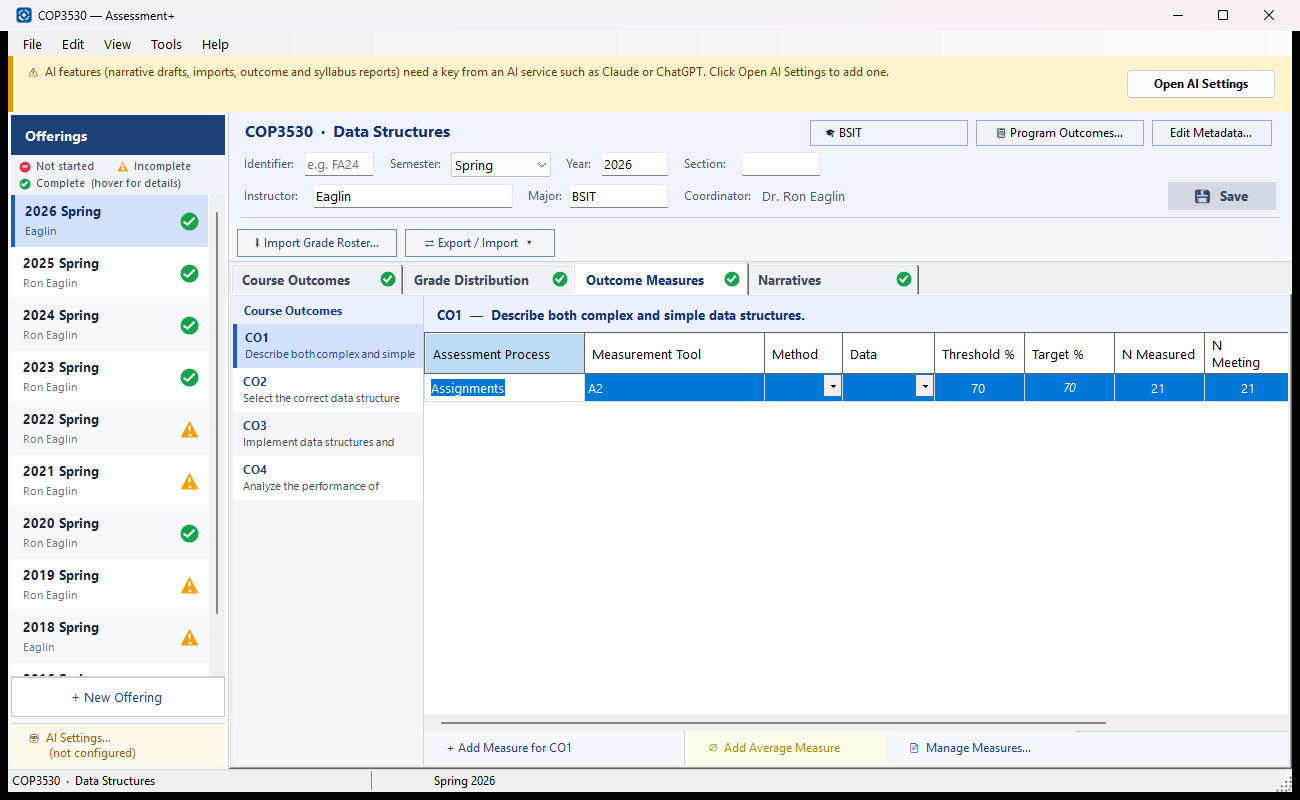
How each course outcome was measured this semester, and how many students met the standard. These are the numbers the program's reports add up.
How to use it
- Pick a course outcome in the list on the left.
- Click + Add Measure for CO… and describe the measure in Assessment Process and Measurement Tool.
- Enter Threshold %, N Measured and N Meeting; % Meeting is worked out for you.
- If the share of students you expect to reach the threshold is not the same number as the threshold, type it in Target %.
- Tick ★ on the one measure that should stand for this outcome in program reports.
- Click 📎 in the Doc column to attach the actual assignment, quiz or rubric.
- Repeat for every outcome in the list, then click 💾 Save in the header.
What it means, and what to watch for
- Measure — one piece of graded work used as evidence for an outcome, such as an exam problem or a lab report.
- Assessment Process — how the work was assessed. Measurement Tool — the instrument itself, such as an exam, rubric or project.
- Method — Direct (students' own work is scored) or Indirect (for example, a student survey). Data — Quantitative (scores) or Qualitative (judgements). Institutional outcome forms ask for both.
- Threshold % — the score a student must reach, as a percentage of the item's points, to count as meeting the measure (0–100; new measures start at 70). N Meeting counts the students who reached it.
- Target % — the percentage of measured students you expect to reach the threshold (0–100). % Meeting turns green when it reaches the target, red below it. Until you type a target it is the same number as the threshold, shown in grey; clear the cell to make it follow the threshold again.
- Example: Threshold 70%, Target 80% — the measure is met when at least 80% of the students score 70% or more.
- N Measured — students who were assessed. N Meeting — how many of them reached the threshold; it cannot be more than N Measured. Only whole numbers are accepted.
- % Meeting — N Meeting divided by N Measured.
- ★ — the primary measure: the one used for this outcome when results are combined for the program. Only one per outcome; ticking another moves the star.
- ⌀ Add Average Measure — adds a row combining this outcome's measures (it needs at least two). It totals the counts when every measure has them, otherwise averages the percentages, and updates itself.
- ✕ removes a measure after you confirm. 📄 in the Doc column means a document is attached.
- An outcome missing from the left list is not Active; turn it back on in the Course Outcomes tab.
See also
- 📄 Manage Measures… — paste the text of each measure and have an AI provider judge whether it really measures its outcome.
- ⬇ Import Grade Roster… — fill these measures from gradebook columns.
Manage Measures
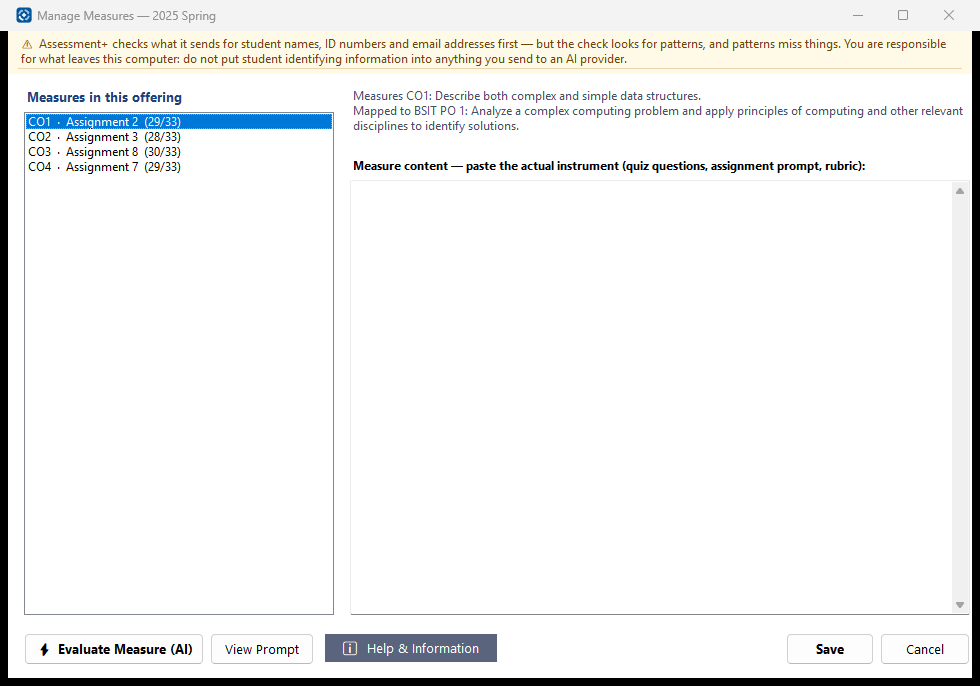
Keeps the actual content of each measure — quiz questions, an assignment prompt, a rubric — with the measure, and lets an AI provider judge whether it really measures its course outcome.
How to use it
- Select a measure in the list on the left. The lines above the box show the course outcome (CO) it measures and the program outcome (PO) that CO is mapped to.
- Paste the measure's content into the large box.
- Optionally click ⚡ Evaluate Measure (AI) for a report on alignment, cognitive level, criteria and recommendations. View Prompt shows exactly what would be sent.
- Click Save to keep the text with the measures, then click 💾 Save in the course editor to write it to the course file.
What it means, and what to watch for
- 📄 after a measure in the list means it already has content.
- Cancel (or closing the window) discards text pasted since the window opened; you are asked first.
- The evaluation sends the course code and name, the outcome, the program outcome, the measure's name, threshold and counts, and the text you pasted. Pasted text is checked for student names, IDs and emails first, and anything found is shown to you to remove before it is sent. Do not paste graded student work — paste the blank instrument.
- The evaluation needs an AI provider: Tools ▸ AI Settings.
- Without pasted content, the evaluation can only judge the measure's name, and the report says so.
- Average rows (⌀) are not listed: they are worked out from the other measures.
See also
- 📎 in the Doc column of the Outcome Measures tab — attach the measure as a file instead.
Measure Document
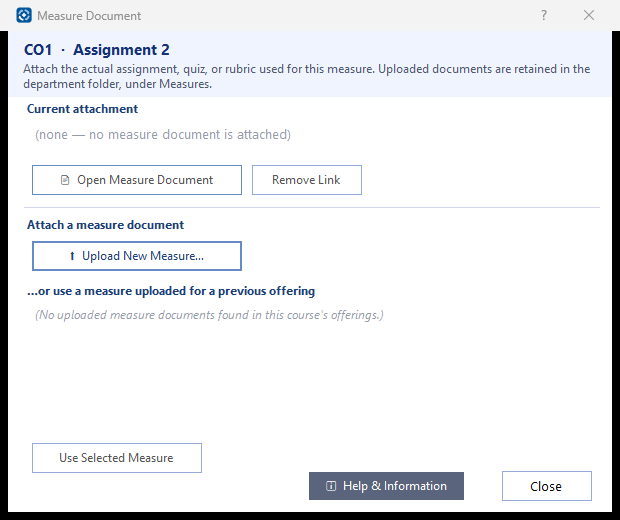
Attaches the actual assignment, quiz or rubric used for this measure, so it can be opened again later.
How to use it
- Click ⬆ Upload New Measure… and choose the file. A copy is kept in the Measures folder of the department folder.
- Or pick a document already uploaded for another measure of this course and click Use Selected Measure (or double-click it).
- Click 📄 Open Measure Document to view what is attached.
- Click Close, then 💾 Save in the course editor.
What it means, and what to watch for
- Remove Link unlinks the document from this measure; the kept copy is not deleted.
- "File not found on this machine" means the document was attached on another computer whose Measures folder is not here; upload it again.
- Reusing a document does not make another copy.
- Attach the blank instrument, not graded student work: the document stays with the course and travels with it.
See also
- 📄 Manage Measures… on the Outcome Measures tab — paste the measure's text so an AI provider can evaluate it.