
Each section below is the help that screen shows in Assessment+ itself, on its ℹ Help & Information tab (or F1), so it matches what you see on screen.
Narratives
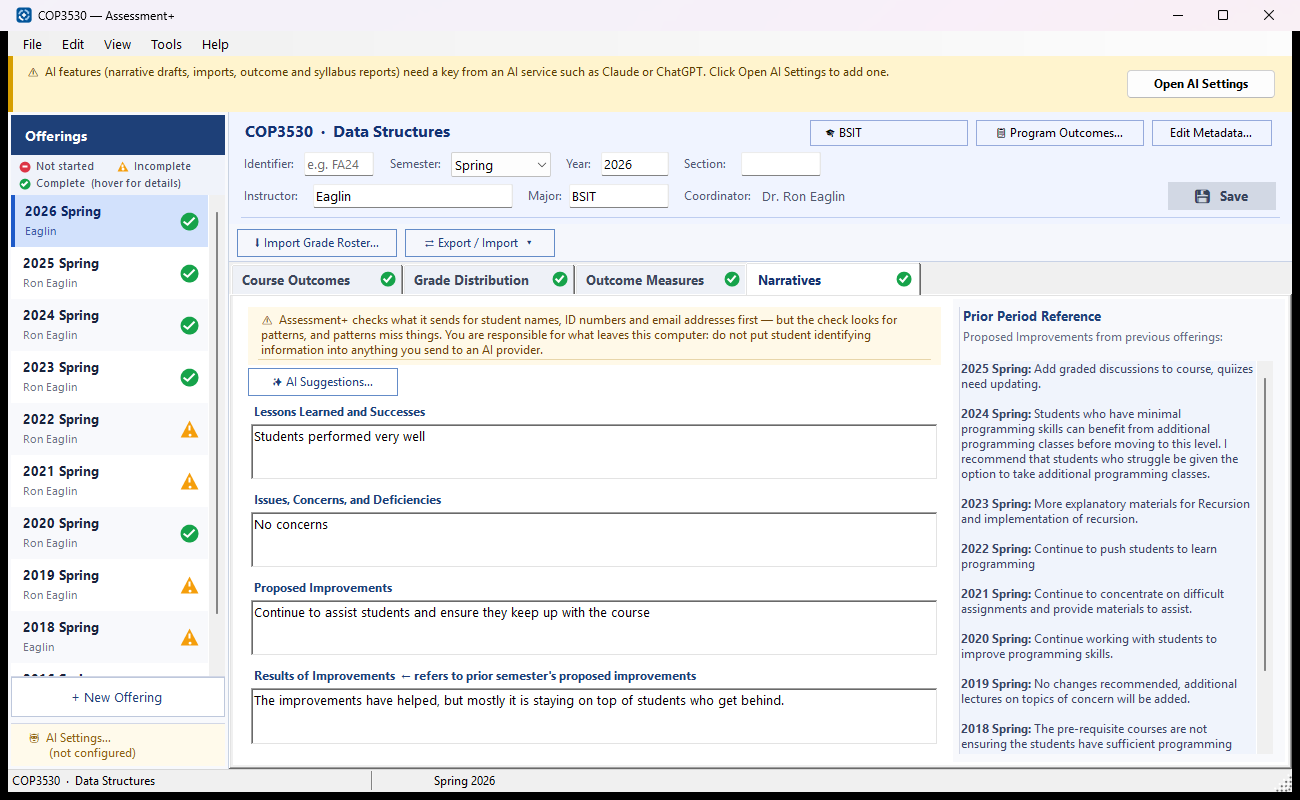
Four short written reflections on this offering: what worked, what did not, what you will change, and how the changes proposed last time turned out.
How to use it
- Write Lessons Learned and Successes.
- Write Issues, Concerns, and Deficiencies — especially for any outcome whose % Meeting fell below its target.
- Write Proposed Improvements for the next time the course runs.
- Under Results of Improvements, say what happened with the improvements proposed earlier; they are listed on the right under Prior Period Reference.
- If you want drafts, click ✨ AI Suggestions…; nothing is added unless you tick it.
- Click 💾 Save in the header.
What it means, and what to watch for
- Prior Period Reference — the Proposed Improvements written for every earlier offering, newest first. It is for reading only.
- ✨ AI Suggestions… sends this course's outcomes, grade counts, measures and the narratives of this and earlier offerings to the AI provider set in Tools ▸ AI Settings. The text is checked for student names, IDs and emails first and anything found is shown to you — but do not name students in a narrative.
- The suggestions you choose are added below any text already in the box.
- The offering is not complete until all four boxes have text.
See also
- View ▸ Prior Offering Comparison — the previous offering's narratives beside this one.
AI Narrative Suggestions
Draft text for this offering's narrative sections, written by your AI provider from the course outcomes, this offering's grades and measures, and what earlier offerings wrote. Nothing is added until you choose.
How to use it
- Read each draft. The Section column says which narrative it is for.
- Tick Apply (or double-click a row) for each draft you want.
- Click Apply n Suggestion(s). Each draft is added at the end of its section, below anything already written — nothing you wrote is replaced.
- Edit the added text on the Narratives tab so it says what you mean, then save the course file.
What it means, and what to watch for
- Lessons learned — what this offering taught you about the course. Issues, concerns and deficiencies — what did not work. Proposed improvements — what you plan to change next time. Results of improvements — what came of changes proposed in an earlier offering.
- A draft is a starting point. It can state things that did not happen; the narrative goes to the program coordinator with your submission under your name.
- What was sent: the outcome statements, grade counts, measure results, and the narratives written for this and earlier offerings — no student rows. Because narratives are your own prose, they were checked for student names first.
- Cancel adds nothing.
See also
- Narratives tab — where the text is edited.
- Tools ▸ AI Settings — the provider that writes the drafts.
Prior Offering Comparison
Shows the selected offering (left) beside the offering before it in time (right): header, grades, outcome measures and narratives.
How to use it
- Scroll each side to compare section by section.
- Drag the divider to give one side more room.
- Click Close to return to the editor.
What it means, and what to watch for
- "Before it" means the previous semester by term and year — the order of the Offerings list — not the order offerings were added to the file.
- Thresh — the score a student had to reach on the measure. Target — the percentage of students expected to reach it (the same as the threshold unless a separate target was set).
- % Met — the percentage of students who reached the threshold: green when it reached the target, red when it did not.
- A CO row with no tool means that outcome had no measure in that offering.
- Differences are not highlighted; read the two sides together.
- This screen is read-only; make changes in the editor's tabs.
See also
- Narratives tab ▸ Prior Period Reference — every earlier offering's Proposed Improvements.
Printable Review of This Offering
A page of the selected offering — header, grades, outcome measures and narratives — for checking before you export, or for filing.
How to use it
- The page opens in your web browser.
- Print it, or save it as PDF, with the browser's Print command (Ctrl+P).
- If you change the offering, click Reopen in Browser to see the changes.
What it means, and what to watch for
- The page is made from what is in the editor, including changes not yet saved.
- It is a temporary file; to keep it, save it as PDF from the browser.
See also
- ⇄ Export / Import ▸ Export — DSC CLO Assessment Form — the institutional form for this offering.