
Each section below is the help that screen shows in Assessment+ itself, on its ℹ Help & Information tab (or F1), so it matches what you see on screen.
Course Outcome Measurement Assessment — its screen under 📊 Reports
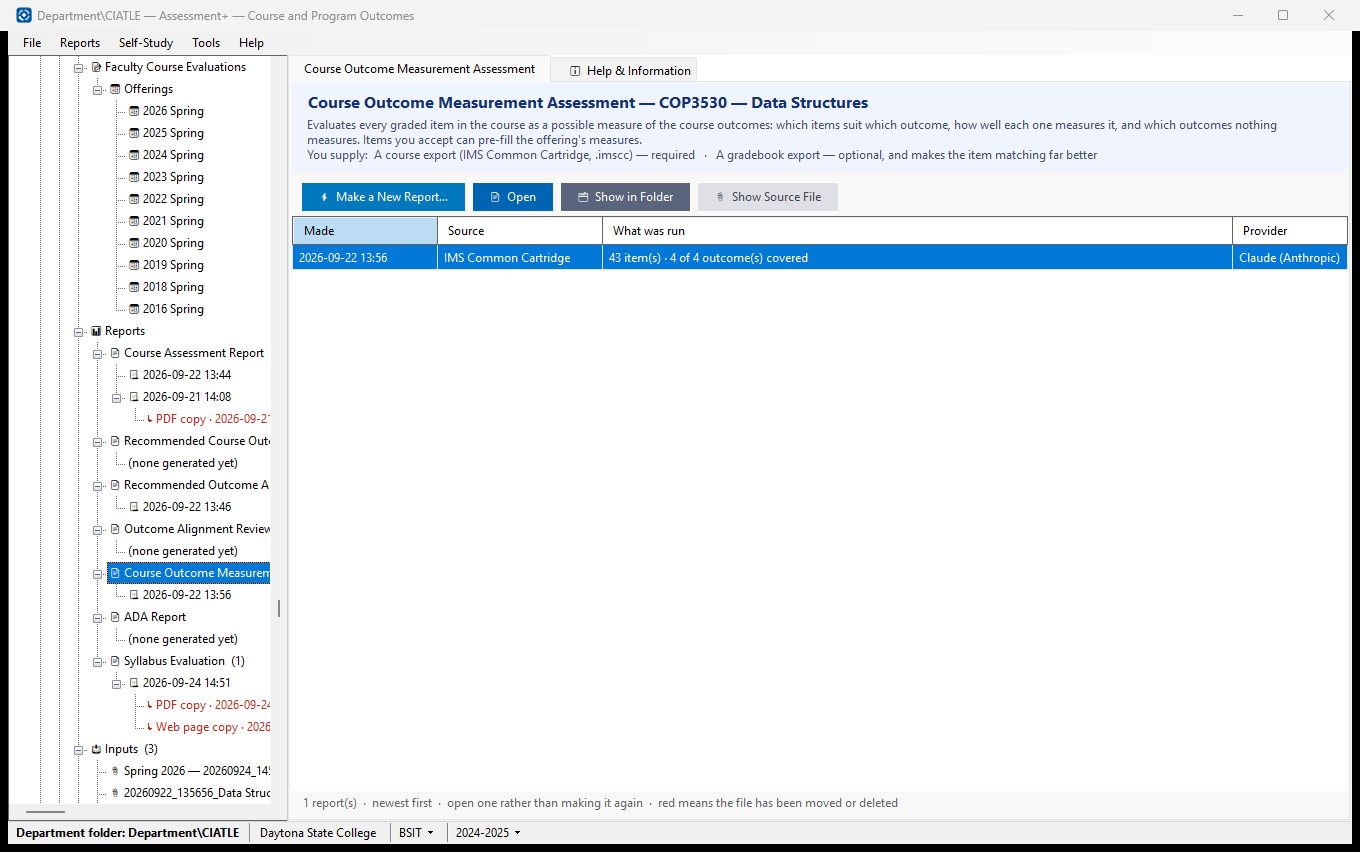
Evaluates every graded item in the course as a possible measure of the course outcomes: which items suit which outcome, how well each one measures it, and which outcomes nothing measures. Items you accept can pre-fill the offering's measures.
How to use it
- Click ⚡ Make a New Report… to run the analysis. You are asked only for what this report needs: A course export (IMS Common Cartridge, .imscc) — required; A gradebook export — optional, and makes the item matching far better.
- The report opens when it finishes, and is added to the list below and to the tree.
- To read an earlier one, select its row and click 📄 Open — or click its dated entry in the tree. 🗂 Show in Folder finds the file in File Explorer.
What it means, and what to watch for
- Made — when the report was run. Reports are never overwritten: running the analysis again adds another, so you can compare this year's with last year's.
- ↳ rows — the copies saved from the report above them (PDF, Word, web page), wherever they were saved. Select one and click Open. A report or a copy that exists never needs making again.
- Source — what the analysis read (a course export, a course file, text you pasted, or — for the Outcome Alignment Review — the course outcomes and their mapping).
- What was run — for the two outcome reports, what you asked for; for the Outcome Alignment Review, the program and the mapping it reviewed (CO1 → PO 2 …); for the Measurement Assessment, a summary of what came out. An entry marked "earlier version of this report" was produced by the report this one replaced.
- Red means the file has been moved or deleted — the entry is still listed, but there is nothing left to open. If a report has gone but a saved copy has not, Open offers the copy.
- A run keeps the file it read as well as the report: the course export is copied into the department folder's Evaluations\Sources (unless it was already kept in the department folder), so a report can still be traced back to what produced it. 📎 Show Source File opens it.
- Provider — the AI provider that produced it, recorded because different providers give different answers.
- The report is a suggestion. Nothing in the course changes unless you act on it.
- A course outcome (CO) is what a student should be able to do at the end of this course. A program outcome (PO, sometimes SLO) is what a graduate of the whole degree should be able to do. Mapping says which program outcome each course outcome supports.
- A "course export" is your course packaged as one file, in IMS Common Cartridge format (.imscc). In Brightspace: Course Admin ▸ Import / Export / Copy Components ▸ Export as Common Cartridge, selecting all components. In Canvas: Settings ▸ Export Course Content. The export is what tells Assessment+ which graded items the course has.
See also
- Reports (the folder above) — the other analyses available for this course.
- Tools ▸ AI Settings — the provider these reports use.
Course Outcome Measurement Assessment
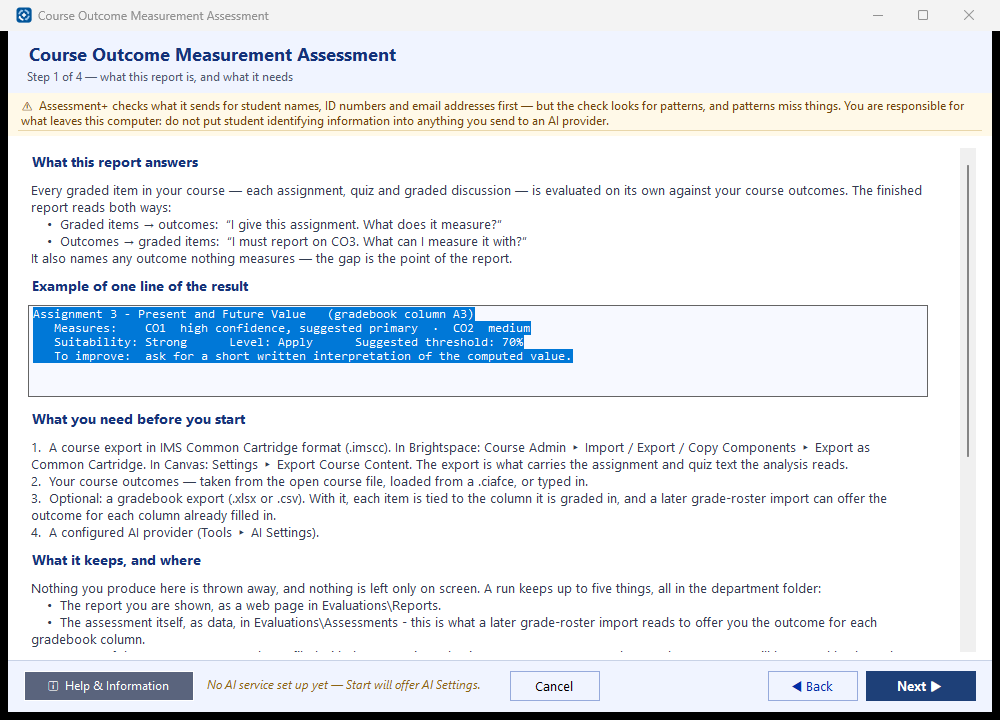
Judges every graded item in a course export — each assignment, quiz and graded discussion — as a measure of the course outcomes, and names any outcome nothing measures. It is advice for choosing measures; it reads no student results.
How to use it
- Step 1 explains the report. Click Next ▶.
- Step 2 — click Choose… and pick the course export and which offering it is of. Check the course outcomes (filled in from the course, or click Load from a course file…, or type them one per line). Optionally click Browse… and choose the gradebook export, so each item is tied to its gradebook column. Under it, leave Keep a copy in the department folder ticked to file a copy with the course for next time, or untick it to read the gradebook where it is.
- Step 3 — tick the items to analyse; each ticked item is one AI request. Change a gradebook column if the match is wrong. Click a heading row to fold or unfold its group.
- Step 4 — click ▶ Start the analysis. Stop ends after the item in progress and keeps what has finished.
- The report opens in the report viewer when the run ends — Save as PDF or Word there. It is kept under Courses ▸ this course ▸ 📊 Reports ▸ Course Outcome Measurement Assessment, with every copy you save listed under it.
What it means, and what to watch for
- Course export — your course packaged as one .imscc file. Brightspace: Course Admin ▸ Import / Export / Copy Components ▸ Export as Common Cartridge. Canvas: Settings ▸ Export Course Content.
- Gradebook export — optional. Only its column headings and point values are used; no student row is read into the analysis or sent.
- Keep a copy in the department folder (under the gradebook, and on the course-export chooser) — ticked, a copy of the file is filed under the department folder's Evaluations\Sources\<course code> and listed under the course's 📥 Inputs, so it can be chosen again. Unticked, the file is read where it is and only a note of where it was is listed. A gradebook holds student names and grades: the department folder may be shared or synced, so decide whether it belongs there. Your choice is remembered on this computer.
- Matched by — how an item was paired with a gradebook column.
- In the report: Suitability — how good the item is as evidence for an outcome. Level — the thinking it asks for (for example Apply). Suggested threshold — the score to count as meeting the outcome. Suggested primary — the item best placed to be the outcome's main measure.
- What is sent, for each item: its title, type, module and text from the course export, its gradebook column name and points, and your course outcomes. The item text is checked for student identifying information first, and you are shown anything found before it is sent.
- Each item is one request, usually 5 to 20 seconds, billed by your AI provider.
- View the AI prompt… shows the request for the first ticked item; nothing is sent from there.
- Import Grade Roster uses this assessment on its step 3 to suggest which column measures which outcome.
See also
- Courses ▸ this course ▸ 📊 Reports — this report, kept and re-readable.
- ⬇ Import Grade Roster… — turns the suggestions into measures.
- Tools ▸ AI Settings — the provider that analyses the items.
Course Outcome Measures (chosen items, or pasted text)
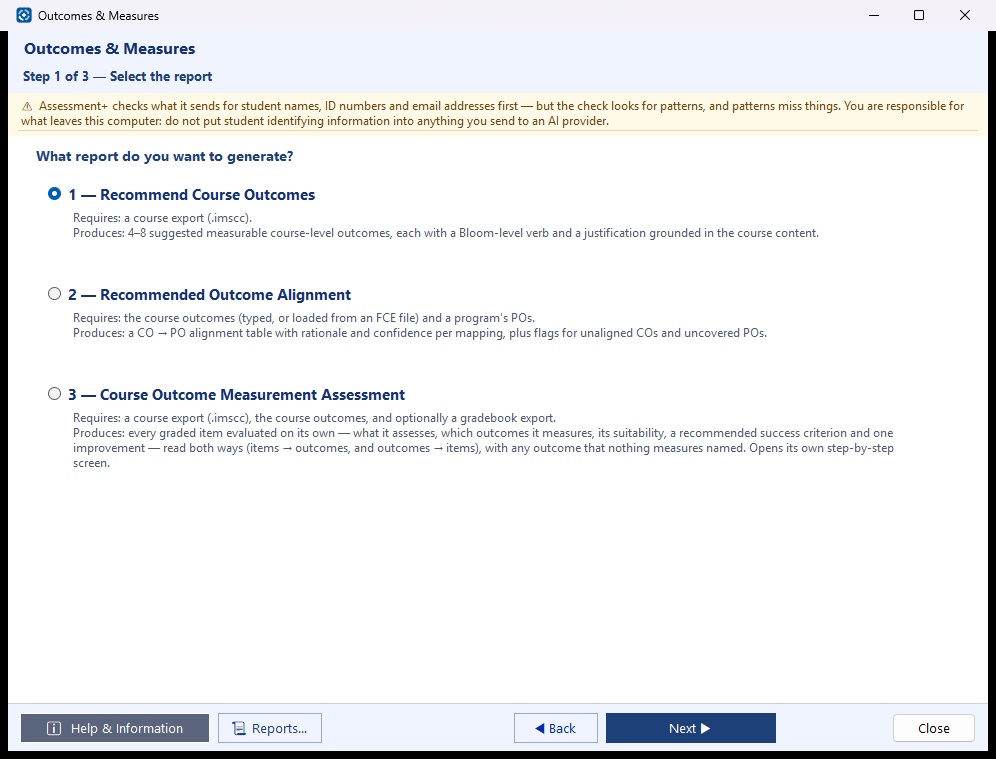
Evaluates chosen graded items from a course export, or pasted assignment text, as measures of the course outcomes.
How to use it
- Choose the source: a course export (then tick the items to evaluate) or pasted assignment text.
- Check the course outcomes; click 📁 From FCE (.ciafce)… to load them from a course file.
- Click ⚡ Generate Report.
What it means, and what to watch for
- What is sent: the course outcomes and, for each chosen item, its title, type, module and text — or the pasted text. It is checked for student identifying information first.
- To judge every graded item at once, use Courses ▸ this course ▸ 📊 Reports ▸ Course Outcome Measurement Assessment.
See also
- Tools ▸ AI Settings — the provider this analysis uses.