
Each section below is the help that screen shows in Assessment+ itself, on its ℹ Help & Information tab (or F1), so it matches what you see on screen.
Syllabus Evaluation — its screen under 📊 Reports
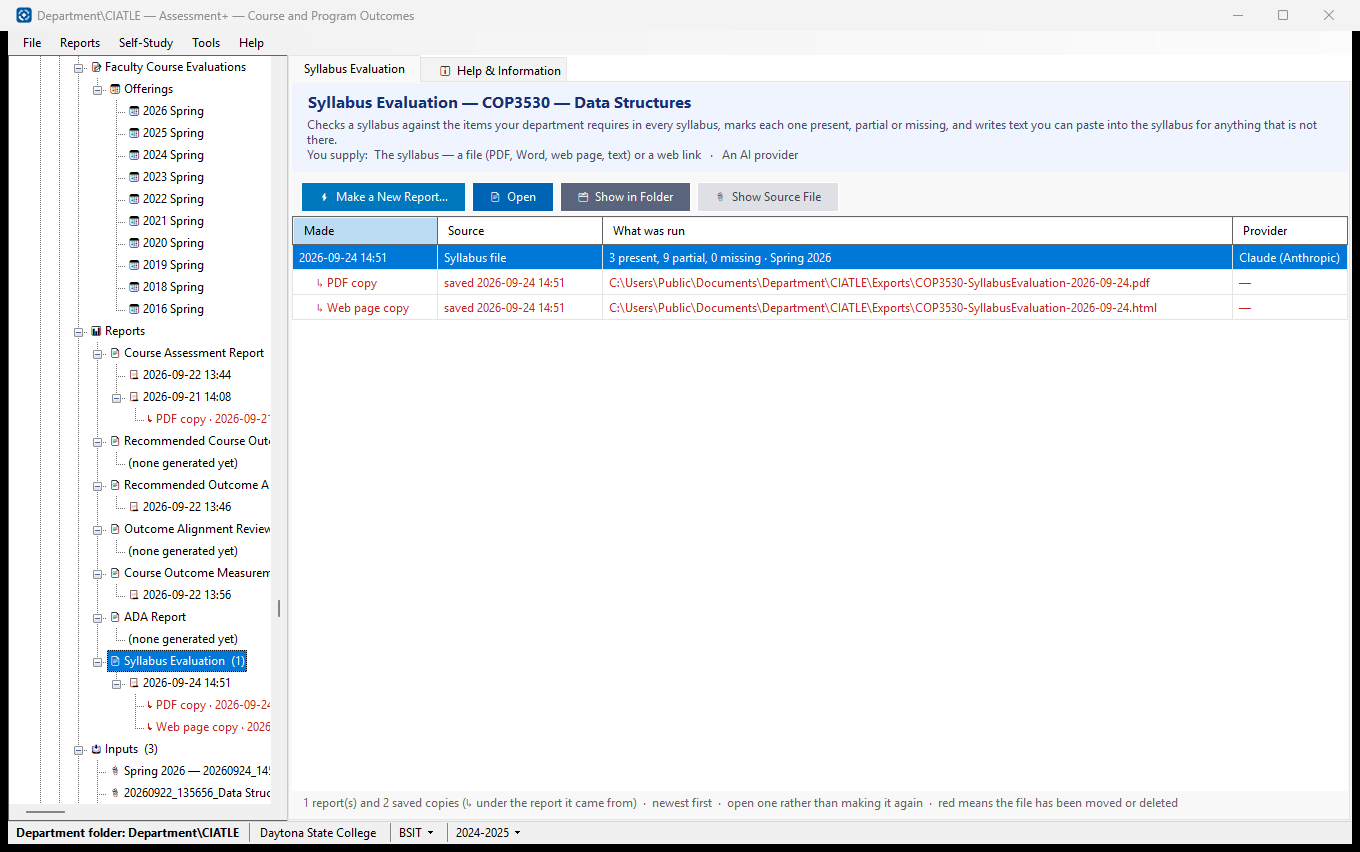
Checks a syllabus against the items your department requires in every syllabus, marks each one present, partial or missing, and writes text you can paste into the syllabus for anything that is not there.
How to use it
- Click ⚡ Make a New Report… to run the analysis. You are asked only for what this report needs: The syllabus — a file (PDF, Word, web page, text) or a web link; An AI provider.
- The report opens when it finishes, and is added to the list below and to the tree.
- To read an earlier one, select its row and click 📄 Open — or click its dated entry in the tree. 🗂 Show in Folder finds the file in File Explorer.
What it means, and what to watch for
- Made — when the report was run. Reports are never overwritten: running the analysis again adds another, so you can compare this year's with last year's.
- ↳ rows — the copies saved from the report above them (PDF, Word, web page), wherever they were saved. Select one and click Open. A report or a copy that exists never needs making again.
- Source — what the analysis read (a course export, a course file, text you pasted, or — for the Outcome Alignment Review — the course outcomes and their mapping).
- What was run — for the two outcome reports, what you asked for; for the Outcome Alignment Review, the program and the mapping it reviewed (CO1 → PO 2 …); for the Measurement Assessment, a summary of what came out. An entry marked "earlier version of this report" was produced by the report this one replaced.
- Red means the file has been moved or deleted — the entry is still listed, but there is nothing left to open. If a report has gone but a saved copy has not, Open offers the copy.
- A run keeps the file it read as well as the report: the course export is copied into the department folder's Evaluations\Sources (unless it was already kept in the department folder), so a report can still be traced back to what produced it. 📎 Show Source File opens it.
- Provider — the AI provider that produced it, recorded because different providers give different answers.
- The report is a suggestion. Nothing in the course changes unless you act on it.
See also
- Reports (the folder above) — the other analyses available for this course.
- Tools ▸ AI Settings — the provider these reports use.
Syllabus Evaluation
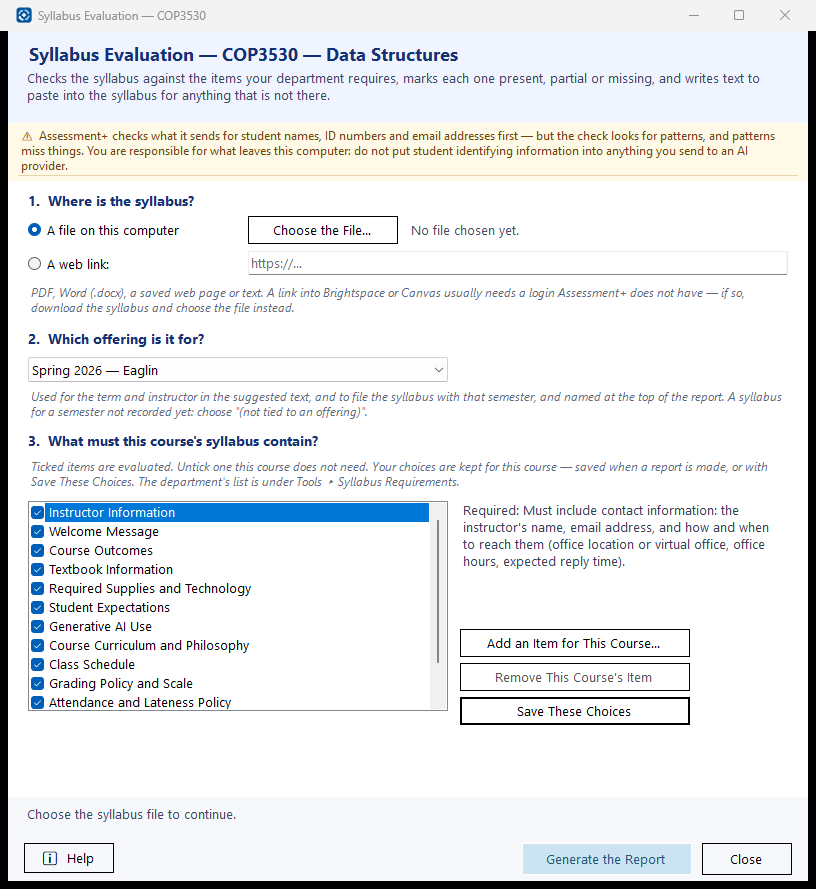
Checks a course syllabus against the items your department requires in every syllabus. Each item is marked present, partial or missing, with the words of the syllabus that show it, and for anything partial or missing the report writes text you can copy and paste into the syllabus.
How to use it
- Say where the syllabus is: a file on this computer (PDF, Word .docx, a saved web page, text), or a web link to it.
- Choose the offering (semester) the syllabus is for. It is used to fill in the term and instructor in the suggested text, and to file the syllabus with that offering.
- Check the list of required items. Untick any this course does not need; Add an Item for This Course… adds one only this course requires, and Remove This Course's Item takes it away again. These choices are kept for this course and used every time its syllabus is evaluated — saved when a report is made, or straight away with Save These Choices.
- Click Generate the Report. It usually takes 30 to 90 seconds. The report opens in the viewer, where each suggestion has a Copy this text button.
What it means, and what to watch for
- Present — the item is in the syllabus and meets what the list requires. Partial — it is there but missing part of it. Missing — it is not there.
- Suggested text — written for the syllabus, in the instructor's voice. It uses what Assessment+ knows about the course (title, catalog description, course outcomes, term, instructor); anything it cannot know is left in [square brackets] for you to fill in.
- A link into Brightspace, Canvas or another learning management system usually needs a login Assessment+ does not have. Assessment+ says so when that happens; download the syllabus (or print it to PDF) and choose the file instead.
- A scanned PDF is a picture of the pages and has no text to read. Use the original document or a PDF saved from it.
- What is sent: the syllabus text, the list of required items and the course's record (code, title, description, outcomes). The text is checked for student identifying information before it is sent — a syllabus can name teaching assistants or students — and anything found is shown to you to remove first.
- The syllabus is kept in the department folder (Evaluations\Sources) with the offering it belongs to, so the report can always be traced to what it read.
- The department's list is edited under Tools ▸ Syllabus Requirements.
See also
- Tools ▸ Syllabus Requirements — the department's list of required items.
- Tools ▸ AI Settings — the provider that writes the evaluation.
- 📊 Reports under this course — every report generated for it, kept and re-readable.
Syllabus Requirements
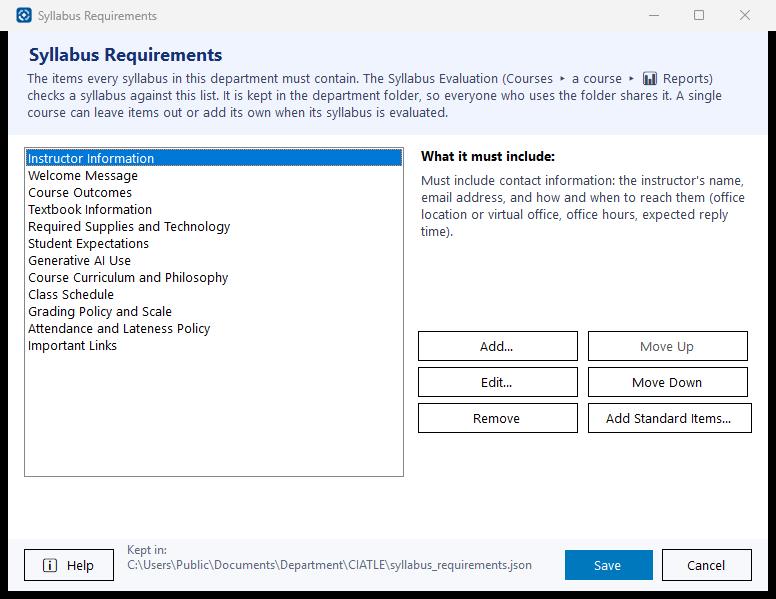
The department's list of items a syllabus must contain. The Syllabus Evaluation marks each item present, partial or missing in a syllabus, and writes text to paste in for the ones that are not there.
How to use it
- Select an item to see what it must include. Double-click it, or click Edit…, to change it.
- Add… puts a new item at the end of the list. Move Up and Move Down set the order the report uses.
- Remove takes an item off the list for every course in the department.
- Click Save. The next evaluation of any course uses the new list.
What it means, and what to watch for
- Details matter: the evaluation checks the syllabus against what you write there. "Must include contact info" gets a sharper verdict than no details at all.
- The list starts as Assessment+'s standard list of twelve items. Add Standard Items… puts back any of those twelve that have been removed, and changes nothing else.
- One course can leave items out, or add items only it requires, on its own Syllabus Evaluation screen. Those choices are kept for that course and used every time.
- The list is the file syllabus_requirements.json in the department folder, so it travels with the folder and is included in every backup.
See also
- Courses ▸ a course ▸ 📊 Reports ▸ Syllabus Evaluation — where a syllabus is evaluated.
A Required Syllabus Item
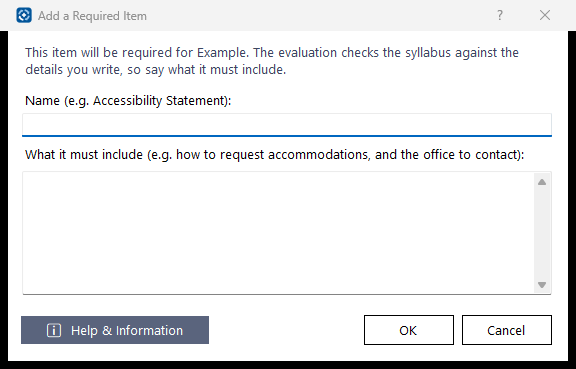
One item a syllabus must contain. The Syllabus Evaluation checks each syllabus against the items on the list, and judges each by what you write here.
How to use it
- Type a short Name for the item, e.g. "Accessibility Statement".
- Under "What it must include", say what a syllabus needs for this item to count as present — the facts, statements or links you expect to find.
- Click OK. The item joins the list on the screen you came from.
What it means, and what to watch for
- The more specific the details, the more useful the evaluation: "how to request accommodations, and the office to contact" is checked more reliably than "accessibility".
- The first line says whether the item is for the whole department or only this course.
See also
- Tools ▸ Syllabus Requirements — the department's list.
- Courses ▸ a course ▸ 📊 Reports ▸ Syllabus Evaluation — runs the check.