
Each section below is the help that screen shows in Assessment+ itself, on its ℹ Help & Information tab (or F1), so it matches what you see on screen.
ADA Report — its screen under 📊 Reports
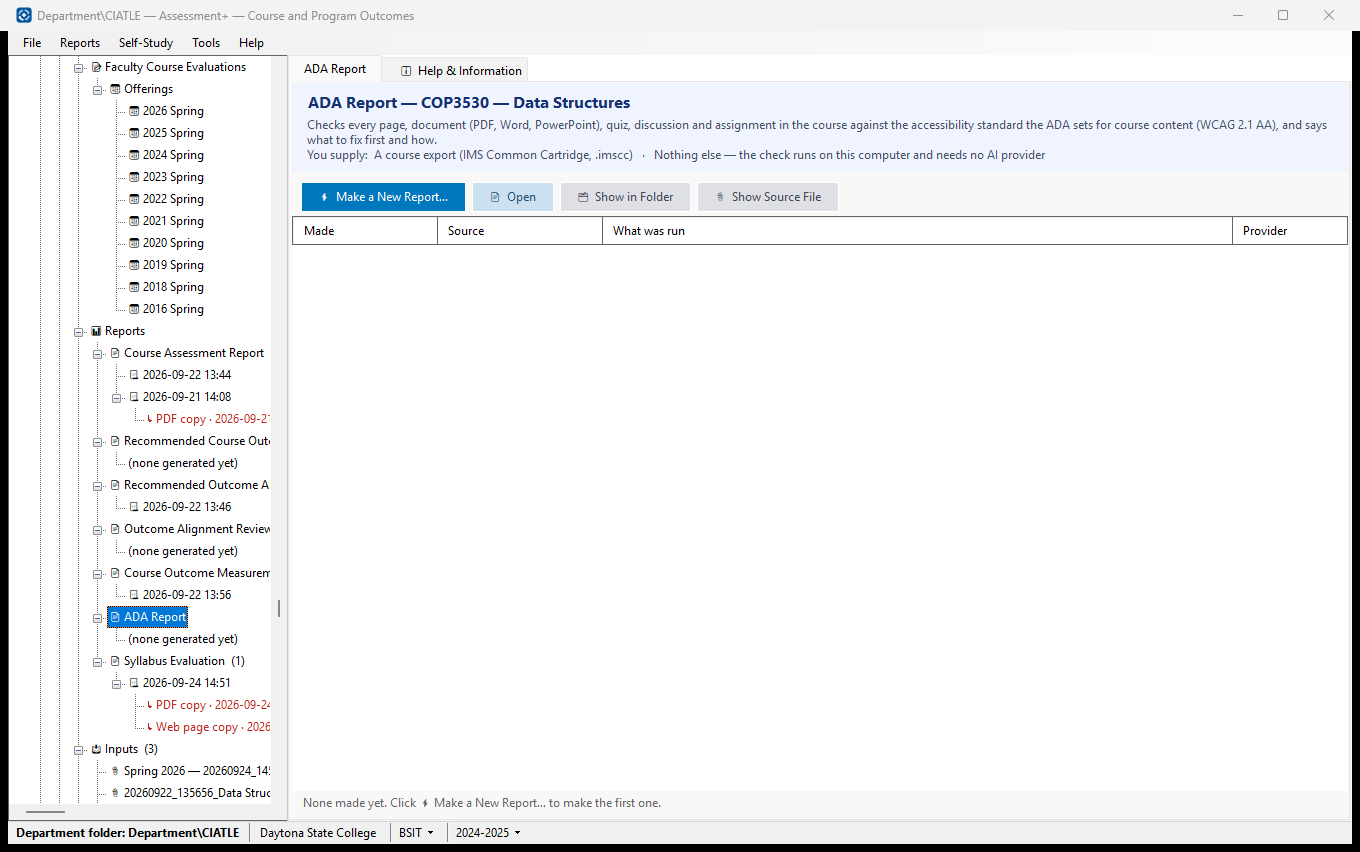
Checks every page, document (PDF, Word, PowerPoint), quiz, discussion and assignment in the course against the accessibility standard the ADA sets for course content (WCAG 2.1 AA), and says what to fix first and how.
How to use it
- Click ⚡ Make a New Report… to run the analysis. You are asked only for what this report needs: A course export (IMS Common Cartridge, .imscc); Nothing else — the check runs on this computer and needs no AI provider.
- The report opens when it finishes, and is added to the list below and to the tree.
- To read an earlier one, select its row and click 📄 Open — or click its dated entry in the tree. 🗂 Show in Folder finds the file in File Explorer.
What it means, and what to watch for
- Made — when the report was run. Reports are never overwritten: running the analysis again adds another, so you can compare this year's with last year's.
- ↳ rows — the copies saved from the report above them (PDF, Word, web page), wherever they were saved. Select one and click Open. A report or a copy that exists never needs making again.
- Source — what the analysis read (a course export, a course file, text you pasted, or — for the Outcome Alignment Review — the course outcomes and their mapping).
- What was run — for the two outcome reports, what you asked for; for the Outcome Alignment Review, the program and the mapping it reviewed (CO1 → PO 2 …); for the Measurement Assessment, a summary of what came out. An entry marked "earlier version of this report" was produced by the report this one replaced.
- Red means the file has been moved or deleted — the entry is still listed, but there is nothing left to open. If a report has gone but a saved copy has not, Open offers the copy.
- A run keeps the file it read as well as the report: the course export is copied into the department folder's Evaluations\Sources (unless it was already kept in the department folder), so a report can still be traced back to what produced it. 📎 Show Source File opens it.
- Provider — "none": this report is produced on this computer by Assessment+'s own rules.
- The report is a suggestion. Nothing in the course changes unless you act on it.
- A "course export" is your course packaged as one file, in IMS Common Cartridge format (.imscc). In Brightspace: Course Admin ▸ Import / Export / Copy Components ▸ Export as Common Cartridge, selecting all components. In Canvas: Settings ▸ Export Course Content. The export is what tells Assessment+ which graded items the course has.
See also
- Reports (the folder above) — the other analyses available for this course.
- Nothing to configure — this report needs no AI provider.
ADA Report
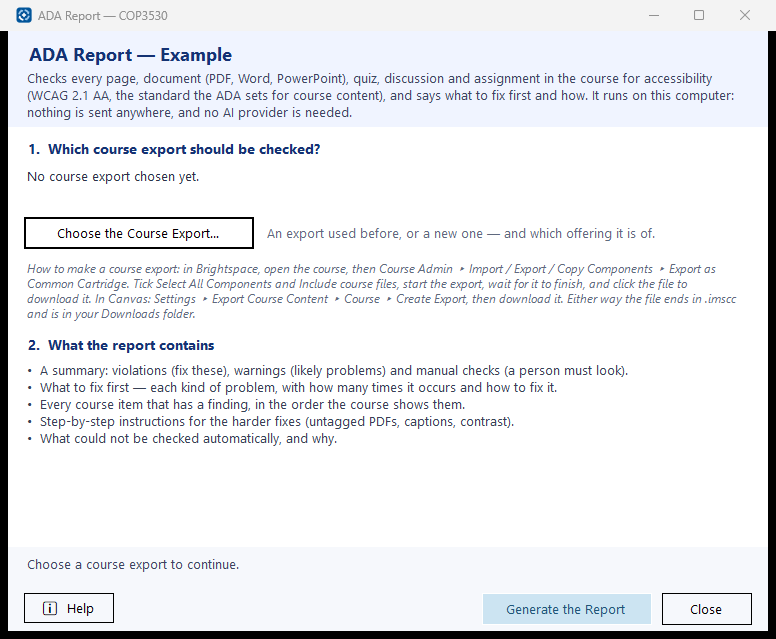
Checks a course's content for accessibility — whether students who use a screen reader, captions, the keyboard alone or large text can use it — against WCAG 2.1 Level AA, the standard the ADA Title II rule sets for the course content of public institutions. It reads the course export, so it sees what students see: every page, document, quiz, discussion and assignment.
How to use it
- Check the course export. The newest one this course has used is chosen already; click Choose the Course Export… to use another one or a new file, and to say which offering (semester) it is of — any offering, not only one measured in the course's FCE.
- Click Generate the Report. A large course (a hundred pages and documents) takes a few seconds to a minute.
- The report opens in the viewer. Start with "What to fix first": each row is one kind of problem, most serious first. Save as PDF or Word to send it on.
- Fix the items in your learning management system (or in the document's own program, then upload it again), export the course again, and run the report again to confirm.
What it means, and what to watch for
- How to make a course export: in Brightspace, open the course, then Course Admin ▸ Import / Export / Copy Components ▸ Export as Common Cartridge. Tick Select All Components and Include course files, start the export, wait for it to finish, and click the file to download it. In Canvas: Settings ▸ Export Course Content ▸ Course ▸ Create Export, then download it. Either way the file ends in .imscc and is in your Downloads folder.
- Violation — fails a requirement a program can check, such as an image with no description (alt text). These should be fixed.
- Warning — a likely problem or a breach of good practice, such as a link that just says "click here".
- Manual check — something no program can decide, such as whether a video's captions are accurate. A person has to look.
- WCAG 2.1 AA — the Web Content Accessibility Guidelines, the international standard. "AA" is the level the ADA rule requires.
- What it cannot check: tools the course links to from other vendors (LTI), the learning management system's own menus, and anything that only appears when a page runs. The report lists what it could not check and why.
- Nothing leaves this computer: the check is Assessment+'s own rules, and no AI provider is used.
- Keeping the export: in Choose the Course Export…, Keep a copy in the department folder (ticked unless you last chose otherwise) files a copy under the department folder's Evaluations\Sources\<course code>, so the report can be traced to what it read and the export used again. Untick it and the file is read where it is. A file already in the department folder is never copied again.
See also
- 📊 Reports under this course — every report generated for it, kept and re-readable.
- Course Outcome Measurement Assessment — reads the same course export for its graded items.