
Each section below is the help that screen shows in Assessment+ itself, on its ℹ Help & Information tab (or F1), so it matches what you see on screen.
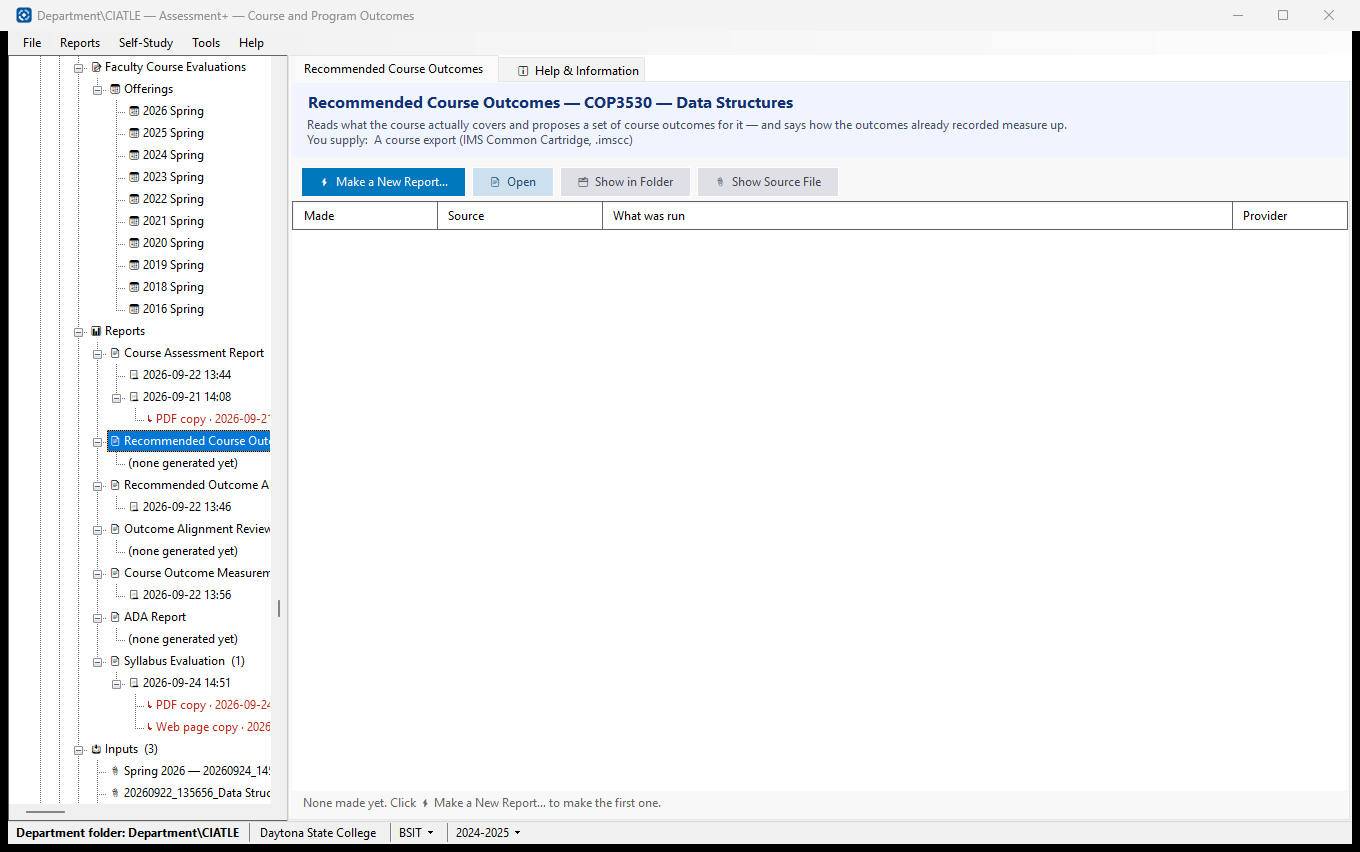
Recommended Course Outcomes — its screen under 📊 Reports
Reads what the course actually covers and proposes a set of course outcomes for it — and says how the outcomes already recorded measure up.
How to use it
- Click ⚡ Make a New Report… to run the analysis. You are asked only for what this report needs: A course export (IMS Common Cartridge, .imscc).
- The report opens when it finishes, and is added to the list below and to the tree.
- To read an earlier one, select its row and click 📄 Open — or click its dated entry in the tree. 🗂 Show in Folder finds the file in File Explorer.
What it means, and what to watch for
- Made — when the report was run. Reports are never overwritten: running the analysis again adds another, so you can compare this year's with last year's.
- ↳ rows — the copies saved from the report above them (PDF, Word, web page), wherever they were saved. Select one and click Open. A report or a copy that exists never needs making again.
- Source — what the analysis read (a course export, a course file, text you pasted, or — for the Outcome Alignment Review — the course outcomes and their mapping).
- What was run — for the two outcome reports, what you asked for; for the Outcome Alignment Review, the program and the mapping it reviewed (CO1 → PO 2 …); for the Measurement Assessment, a summary of what came out. An entry marked "earlier version of this report" was produced by the report this one replaced.
- Red means the file has been moved or deleted — the entry is still listed, but there is nothing left to open. If a report has gone but a saved copy has not, Open offers the copy.
- A run keeps the file it read as well as the report: the course export is copied into the department folder's Evaluations\Sources (unless it was already kept in the department folder), so a report can still be traced back to what produced it. 📎 Show Source File opens it.
- Provider — the AI provider that produced it, recorded because different providers give different answers.
- The report is a suggestion. Nothing in the course changes unless you act on it.
- A course outcome (CO) is what a student should be able to do at the end of this course. A program outcome (PO, sometimes SLO) is what a graduate of the whole degree should be able to do. Mapping says which program outcome each course outcome supports.
- A "course export" is your course packaged as one file, in IMS Common Cartridge format (.imscc). In Brightspace: Course Admin ▸ Import / Export / Copy Components ▸ Export as Common Cartridge, selecting all components. In Canvas: Settings ▸ Export Course Content. The export is what tells Assessment+ which graded items the course has.
See also
- Reports (the folder above) — the other analyses available for this course.
- Tools ▸ AI Settings — the provider these reports use.
Recommended Course Outcomes — making one
Reads a course export and proposes 4 to 8 measurable course outcomes for the course, each starting with a Bloom-level verb and pointing at the course content that supports it. It does not read the outcomes already recorded.
How to use it
- Click 📂 Choose Course Export… and pick the course export and which offering it is of.
- Optionally choose a Program, so each proposed outcome notes which program outcome it would support.
- Click ⚡ Generate Report. It usually takes under a minute; the report opens when it is done and is listed under Courses ▸ this course ▸ 📊 Reports.
- To use a proposed outcome, add it to the course's outcomes yourself — nothing changes automatically.
What it means, and what to watch for
- Course export — your course packaged as one .imscc file. Brightspace: Course Admin ▸ Import / Export / Copy Components ▸ Export as Common Cartridge. Canvas: Settings ▸ Export Course Content.
- Course outcome (CO) — what a student should be able to do at the end of this course. Bloom-level verb — a verb such as explain, apply or design that says how deep the learning is.
- What is sent: the course's title, the titles of its modules and items, the first 400 characters of up to 40 assignments and quizzes, and the chosen program's outcomes. It is checked for student identifying information first, and you are shown anything found.
- View Prompt shows the exact request; nothing is sent from there. 📜 Reports… lists every analysis run on this computer, whatever course it was for.
See also
- Courses ▸ this course ▸ 📊 Reports — where the report is kept.
- Tools ▸ AI Settings — the provider this analysis uses.
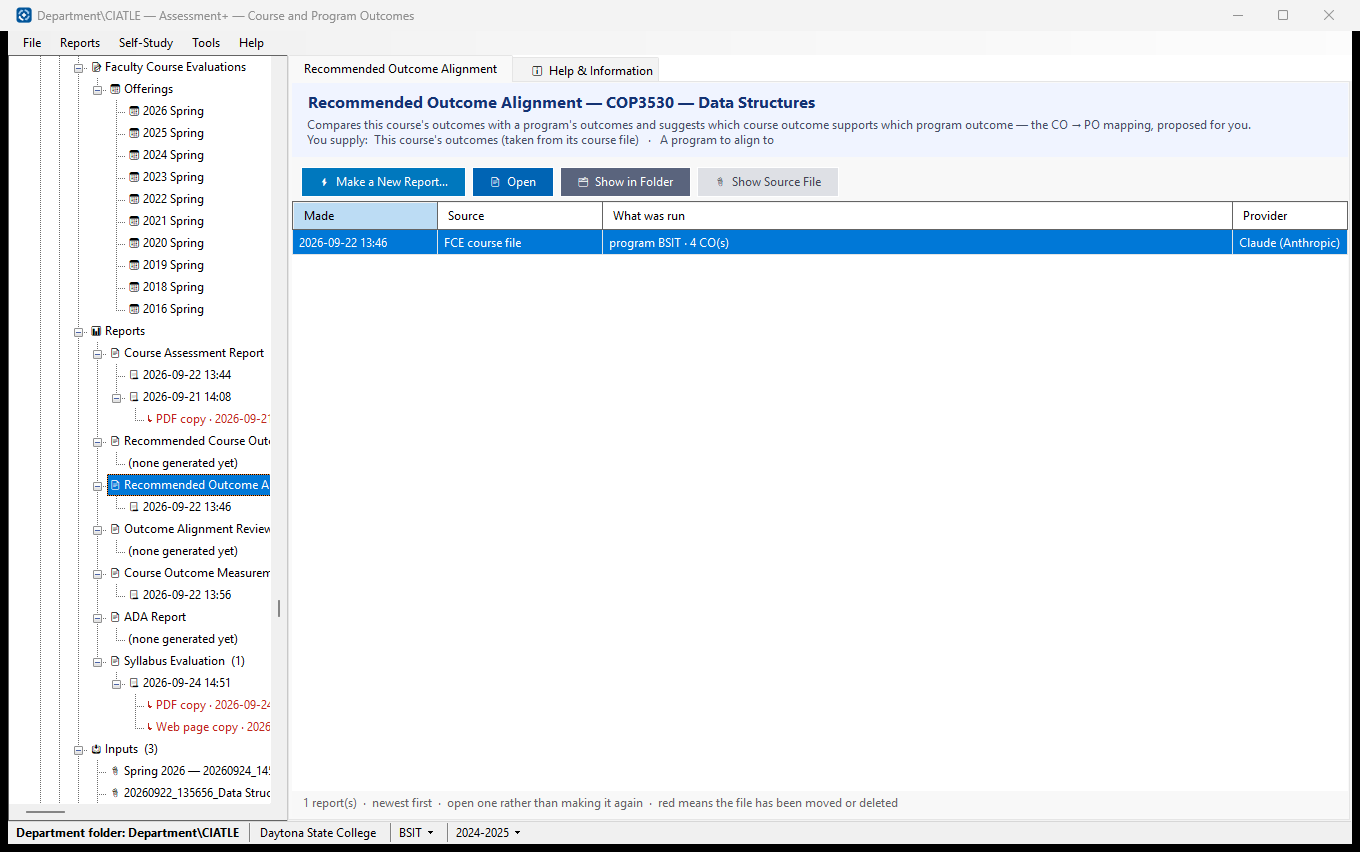
Recommended Outcome Alignment — its screen under 📊 Reports
Compares this course's outcomes with a program's outcomes and suggests which course outcome supports which program outcome — the CO → PO mapping, proposed for you.
How to use it
- Click ⚡ Make a New Report… to run the analysis. You are asked only for what this report needs: This course's outcomes (taken from its course file); A program to align to.
- The report opens when it finishes, and is added to the list below and to the tree.
- To read an earlier one, select its row and click 📄 Open — or click its dated entry in the tree. 🗂 Show in Folder finds the file in File Explorer.
What it means, and what to watch for
- Made — when the report was run. Reports are never overwritten: running the analysis again adds another, so you can compare this year's with last year's.
- ↳ rows — the copies saved from the report above them (PDF, Word, web page), wherever they were saved. Select one and click Open. A report or a copy that exists never needs making again.
- Source — what the analysis read (a course export, a course file, text you pasted, or — for the Outcome Alignment Review — the course outcomes and their mapping).
- What was run — for the two outcome reports, what you asked for; for the Outcome Alignment Review, the program and the mapping it reviewed (CO1 → PO 2 …); for the Measurement Assessment, a summary of what came out. An entry marked "earlier version of this report" was produced by the report this one replaced.
- Red means the file has been moved or deleted — the entry is still listed, but there is nothing left to open. If a report has gone but a saved copy has not, Open offers the copy.
- A run keeps the file it read as well as the report: the course export is copied into the department folder's Evaluations\Sources (unless it was already kept in the department folder), so a report can still be traced back to what produced it. 📎 Show Source File opens it.
- Provider — the AI provider that produced it, recorded because different providers give different answers.
- The report is a suggestion. Nothing in the course changes unless you act on it.
- A course outcome (CO) is what a student should be able to do at the end of this course. A program outcome (PO, sometimes SLO) is what a graduate of the whole degree should be able to do. Mapping says which program outcome each course outcome supports.
See also
- Reports (the folder above) — the other analyses available for this course.
- Tools ▸ AI Settings — the provider these reports use.
Recommended Outcome Alignment — making one
Compares this course's outcomes with a program's outcomes and recommends which course outcome supports which program outcome, with a reason and a confidence for each.
How to use it
- Check the course outcomes shown; they come from the course file. Click 📁 From FCE (.ciafce)… to load another course file's.
- Choose the Program (required).
- Click ⚡ Generate Report. The report opens when it is done and is listed under Courses ▸ this course ▸ 📊 Reports.
- To record an alignment, use 🎓 Map Outcomes to a Program… — this report changes nothing by itself.
What it means, and what to watch for
- Program outcome (PO, also called SLO) — what a graduate of the program should be able to do.
- Confidence — high, medium or low: how sure the AI is of each pairing.
- The report flags course outcomes that support no program outcome, and program outcomes nothing in this course supports.
- What is sent: the course outcomes and the program's outcome statements. No course export and no student data.
- View Prompt shows the exact request; nothing is sent from there.
See also
- 🎓 Map Outcomes to a Program… — record the mapping.
- Courses ▸ this course ▸ 📊 Reports — where the report is kept.
- Tools ▸ AI Settings — the provider this analysis uses.
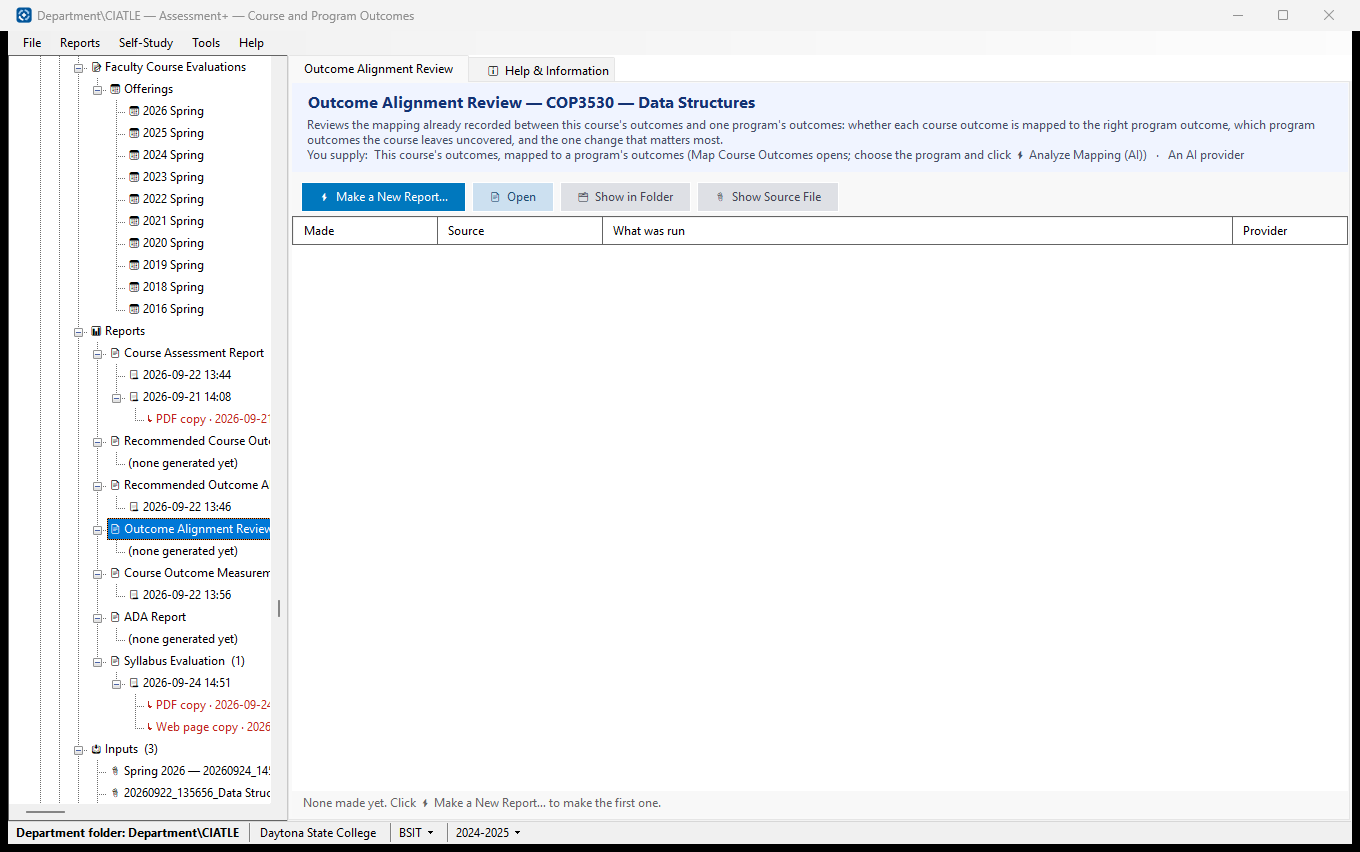
Outcome Alignment Review — its screen under 📊 Reports
Reviews the mapping already recorded between this course's outcomes and one program's outcomes: whether each course outcome is mapped to the right program outcome, which program outcomes the course leaves uncovered, and the one change that matters most.
How to use it
- Click ⚡ Make a New Report… to run the analysis. You are asked only for what this report needs: This course's outcomes, mapped to a program's outcomes (Map Course Outcomes opens; choose the program and click ⚡ Analyze Mapping (AI)); An AI provider.
- The report opens when it finishes, and is added to the list below and to the tree.
- To read an earlier one, select its row and click 📄 Open — or click its dated entry in the tree. 🗂 Show in Folder finds the file in File Explorer.
What it means, and what to watch for
- Made — when the report was run. Reports are never overwritten: running the analysis again adds another, so you can compare this year's with last year's.
- ↳ rows — the copies saved from the report above them (PDF, Word, web page), wherever they were saved. Select one and click Open. A report or a copy that exists never needs making again.
- Source — what the analysis read (a course export, a course file, text you pasted, or — for the Outcome Alignment Review — the course outcomes and their mapping).
- What was run — for the two outcome reports, what you asked for; for the Outcome Alignment Review, the program and the mapping it reviewed (CO1 → PO 2 …); for the Measurement Assessment, a summary of what came out. An entry marked "earlier version of this report" was produced by the report this one replaced.
- Red means the file has been moved or deleted — the entry is still listed, but there is nothing left to open. If a report has gone but a saved copy has not, Open offers the copy.
- A run keeps the file it read as well as the report: the course export is copied into the department folder's Evaluations\Sources (unless it was already kept in the department folder), so a report can still be traced back to what produced it. 📎 Show Source File opens it.
- Provider — the AI provider that produced it, recorded because different providers give different answers.
- The report is a suggestion. Nothing in the course changes unless you act on it.
- A course outcome (CO) is what a student should be able to do at the end of this course. A program outcome (PO, sometimes SLO) is what a graduate of the whole degree should be able to do. Mapping says which program outcome each course outcome supports.
See also
- Reports (the folder above) — the other analyses available for this course.
- Tools ▸ AI Settings — the provider these reports use.