
Each section below is the help that screen shows in Assessment+ itself, on its ℹ Help & Information tab (or F1), so it matches what you see on screen.
Self-Study Section
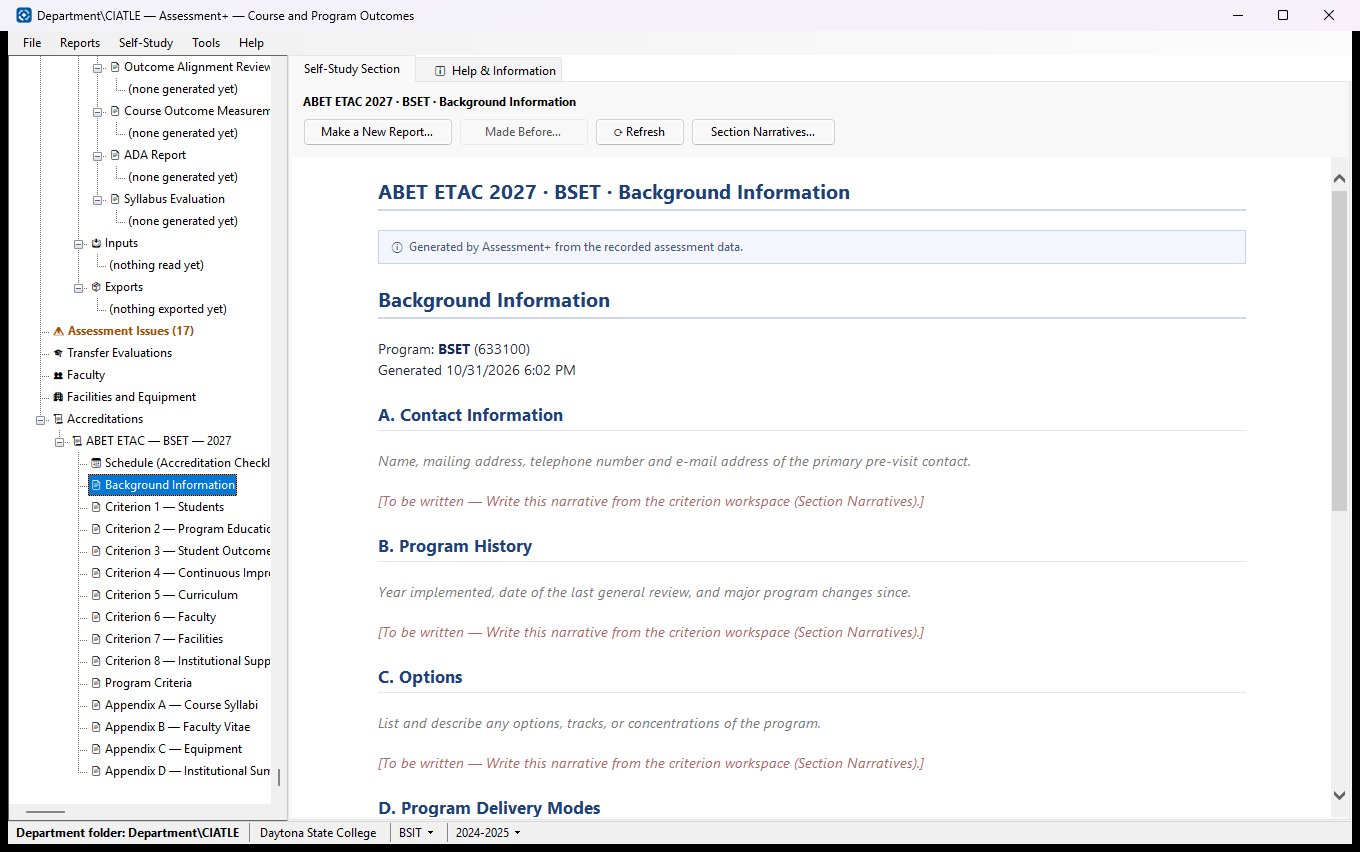
One section of the self-study, built live from the current data, with buttons to the editors that write its narrative parts.
How to use it
- Read the preview. Parts marked [To be written] still need text.
- Click Section Narratives… to write them — choose a part, type, Save.
- Criterion 2 also has Program Objectives (PEOs)…; Criterion 4 has Outcome Narratives…, Assessment Plan… and Improvement Actions….
- Click ⟳ Refresh after editing elsewhere.
- Click Make a New Report… for a printable copy made from today's data and narratives. It is kept, and opens in the report viewer, where Save as PDF and Save as Word make the copies to send.
- Click Made Before… to open a section already made (or a PDF or Word copy of one) instead of making it again.
What it means, and what to watch for
- Criterion 4 reports one assessment cycle: choose the academic year in the drop-down in the status bar at the bottom of the window. Outcome Narratives needs it too.
- Criterion 6 and Appendix B come from Faculty; Criterion 7 and Appendix C from Facilities and Equipment; Appendix D from Institutional Information ▸ Institutional Summary.
- Section narratives belong to this accreditation; another accreditation of the same program keeps its own.
- Made Before… lists the sections made for this accreditation and program — from this screen or from the Self-Study menu — newest first, with the PDF and Word copies saved from each under it. For Criterion 4 it lists those of the academic year chosen in the status bar.
See also
- Schedule (Accreditation Checklist) under this accreditation.
- Self-Study ▸ Criterion 3 and Criterion 4 in the menu bar build the same section; when the program has more than one accreditation they ask which one, so its narratives go in, and they offer the one made before first. What they make is listed here too.
Section Narratives
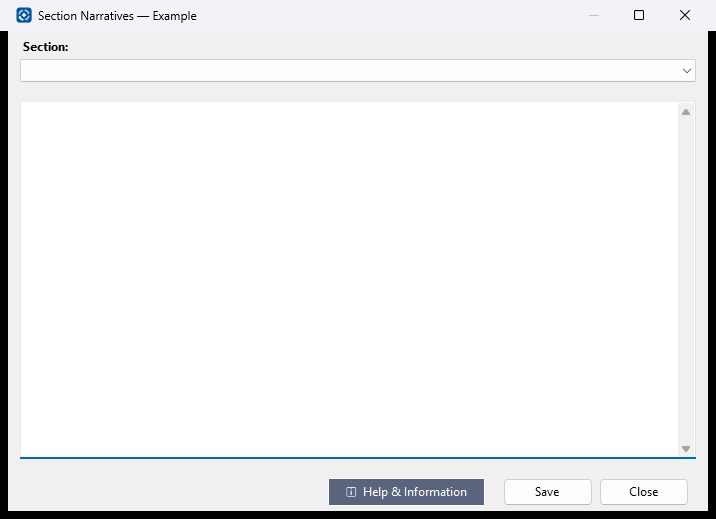
Text for the parts of a self-study section that Assessment+ cannot build from data — shown as [To be written] in the section's preview.
How to use it
- Choose a part in the Section list.
- Type or paste its text.
- Click Save before choosing the next part (the line beside it says when it was saved); Close when done.
What it means, and what to watch for
- Text belongs to this accreditation only.
- Saving an empty box removes that part's text.
- Changing part or closing with unsaved text asks whether to save it (Cancel stays).
See also
- The section's preview — click ⟳ Refresh there to see the text in place.
Which Accreditation?
A self-study section includes the Section Narratives written for one accreditation. This program has more than one, so choose the one this section is for.
How to use it
- Click the accreditation in the list. Each line shows its type and year, and how many of this criterion's narratives are written under it; the one with the most is chosen to start with.
- Click Continue. If this section was made before for this accreditation (and, for Criterion 4, this academic year) you are offered that one first. A new one is kept, and opens in the report viewer, where it can be saved as PDF, Word or a web page.
What it means, and what to watch for
- Section Narratives are the paragraphs written under Accreditations ▸ the accreditation ▸ the criterion ▸ Section Narratives…. Each accreditation keeps its own.
- The figures in the section (outcomes, results, improvement actions) come from the program and are the same whichever accreditation you choose.
- If you are not sure which holds your narratives, cancel and look at the criterion's preview under Accreditations: parts marked [To be written] have none yet.
See also
- Accreditations in the tree — each criterion there has Make a New Report…, which builds the same section without asking, and Made Before…, which lists every one kept for that accreditation.
Outcome Narratives (Criterion 4)
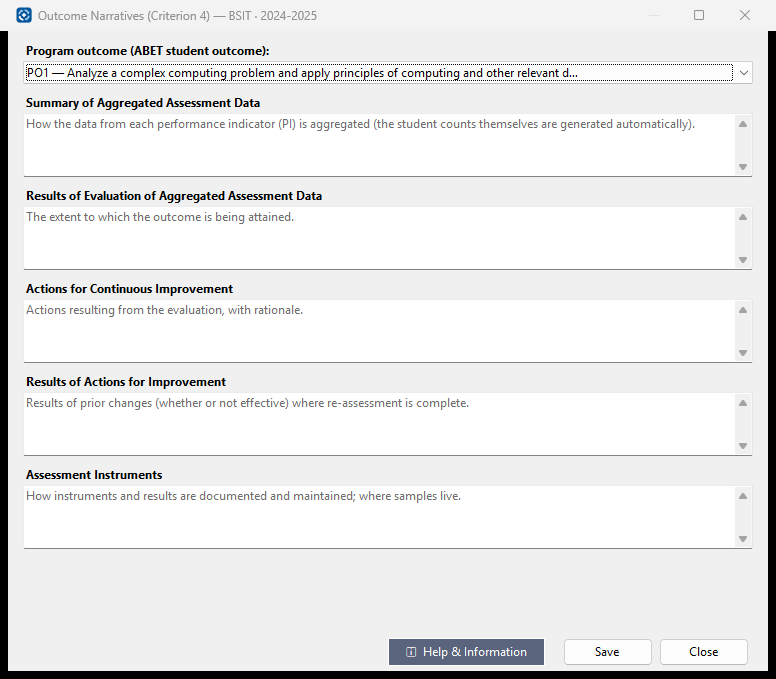
The written parts of Criterion 4 for each program outcome in one assessment cycle. The student counts are added by Assessment+; these boxes are the words around them.
How to use it
- Choose a program outcome at the top.
- Fill in the five boxes.
- Click Save (the line beside it says when), then choose the next outcome.
What it means, and what to watch for
- The cycle is the academic year named in the title bar — the one chosen in the status bar; narratives for another year are kept separately.
- Changing outcome or closing with unsaved text asks whether to save it (Cancel stays).
- PI — performance indicator: one specific, measurable part of an outcome.
- PO — program outcome, which ABET calls a student outcome.
See also
- Accreditations ▸ an accreditation ▸ Criterion 4.
- Self-Study ▸ Improvement Actions…
Assessment Plan & Schedule
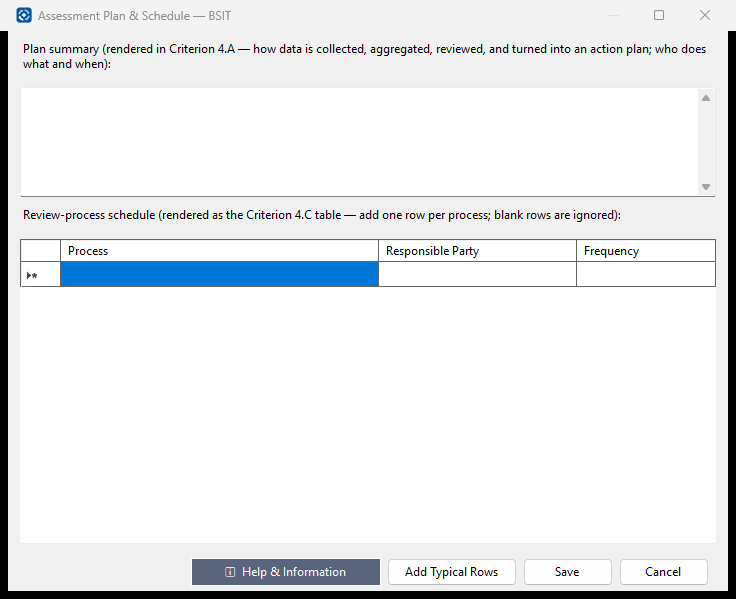
How the program collects, reviews and acts on its assessment data. It appears in the self-study's Criterion 4 (4.A the summary, 4.C the schedule table).
How to use it
- Write the plan summary: how data is collected, aggregated, reviewed and turned into actions, and who does what when.
- Fill the schedule: one row per process, with the responsible party and how often.
- Click Add Typical Rows for a starting set to edit.
- Click Save.
What it means, and what to watch for
- Rows with no Process are ignored. Cancel discards the changes.
See also
- Self-Study ▸ Improvement Actions…
- Accreditations ▸ an accreditation ▸ Criterion 4.
Improvement Actions
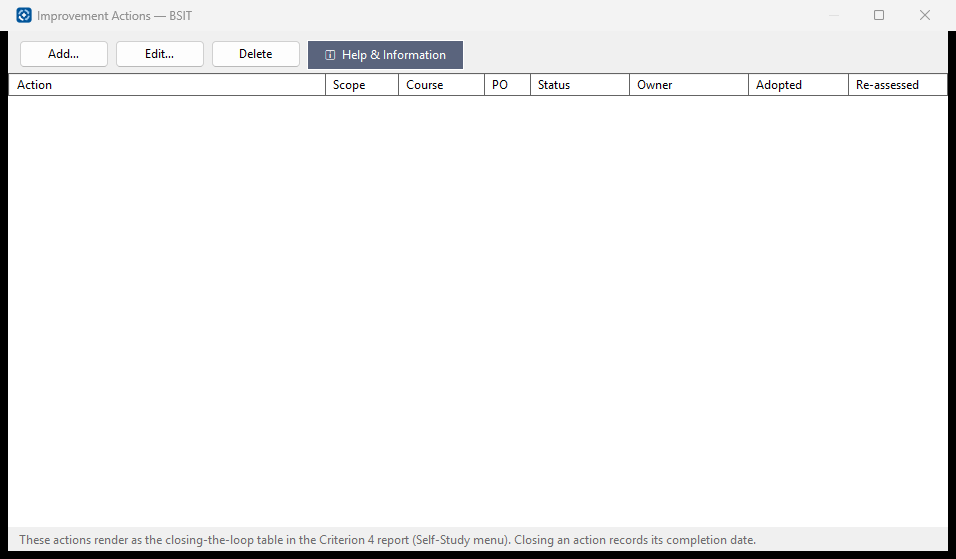
The program's continuous-improvement actions — what was decided, why, who owns it, and what happened. They form the closing-the-loop table in Criterion 4.
How to use it
- Click Add… to record an action.
- Double-click a row (or Edit…) to update its status and results as it moves on.
- Delete removes one; it cannot be undone.
What it means, and what to watch for
- Status: Proposed (adopted, not yet done) → Implemented (change made) → Assessed (effect measured later) → Closed.
- Scope — Course or Program. PO — the program outcome it addresses.
- Adopted — the cycle it was decided in; Re-assessed — the cycle its effect was measured in.
See also
- Self-Study ▸ Criterion 4.
- Self-Study ▸ Outcome Narratives (Criterion 4).
Improvement Action
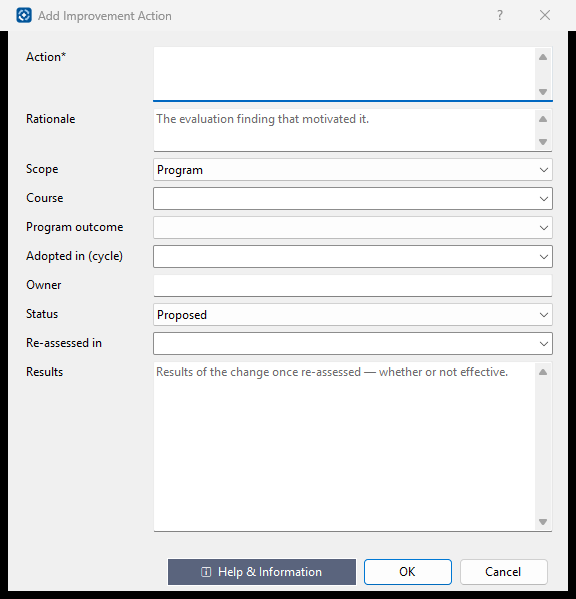
One action taken to improve the program, and its result.
How to use it
- Describe the action (required) and the finding that led to it.
- Choose Scope, and the course and/or program outcome it concerns.
- Choose the cycle it was adopted in, the owner and its status.
- When re-assessed, choose that cycle and write the results; OK.
What it means, and what to watch for
- Write the results whether or not the change worked — reviewers look for both.
See also
- Improvement Actions.