
- 1. Check the program and year
- 2. The Outcome Summary
- 3. The other report screens
- 4. Printable reports
- 5. The institution's spreadsheet (FCE Summary)
- 6. Keep and find reports
1. Check the program and year
Every program report is worked out from the courses' data for the program and year chosen in the status bar, each time it opens. There is nothing to recalculate.
- Choose them in the status bar at the bottom of the window.
- Check Completion Status first: a report made while courses are missing data shows them as missing.
2. The Outcome Summary
The program's headline: was each program outcome met this year?
- In the tree: Programs ▸ the program ▸ 📊 Reports ▸ Outcome Summary.
- Read each program outcome: the courses that contributed, students measured, students meeting, % meeting, the target, and Met (green) or Not met (red). Grey has no data.
- Select a row to see underneath every course, course outcome and measure behind its numbers.
- Read ⚠ Warnings for data that could not be used, and why.
- Click Report (PDF / Word)… for a printable copy.
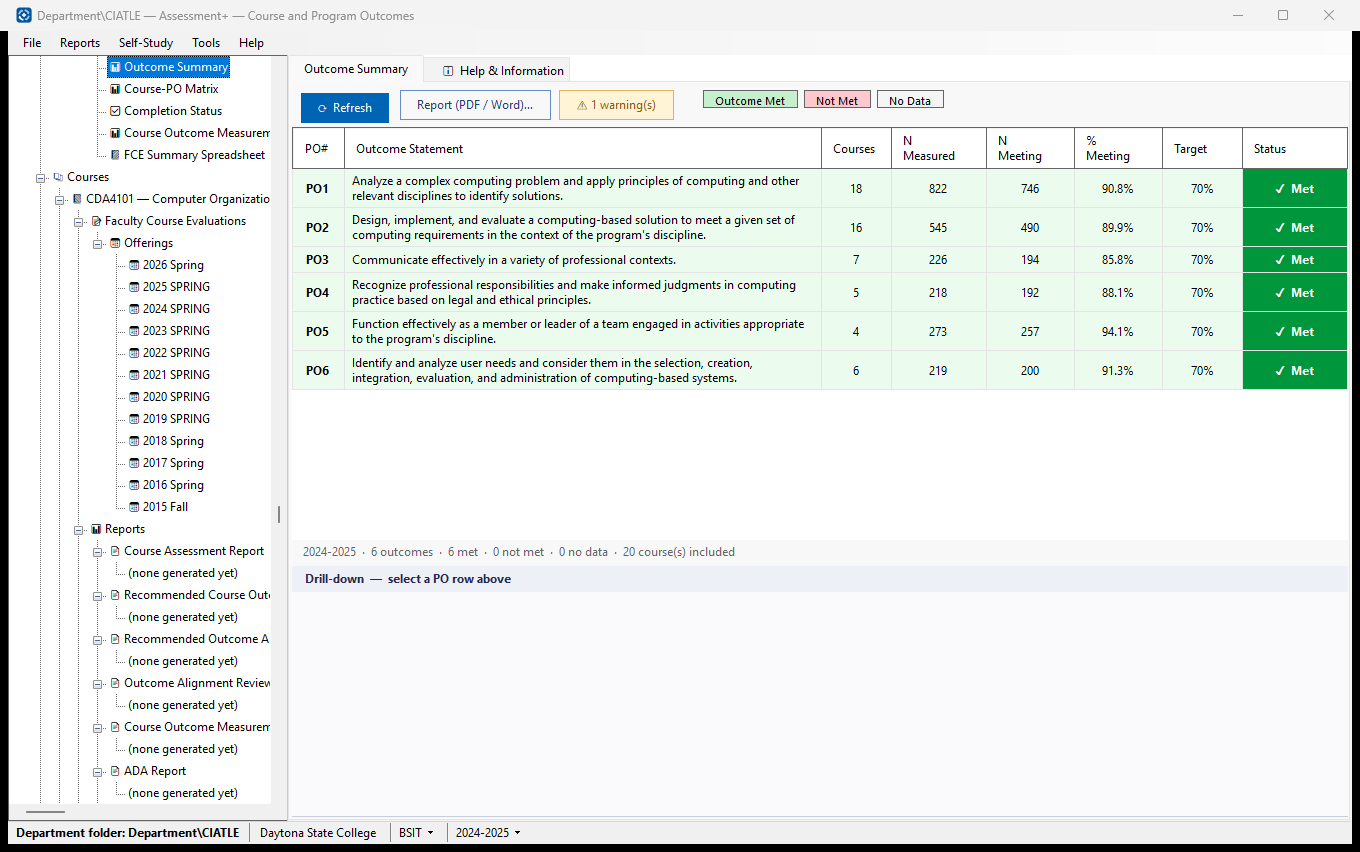
Where a course outcome has a primary measure (★), only that one counts; otherwise all its measures do. A course's numbers come from its attached course file, or from its imported submission when it has none.
Screen: Outcome Summary.
Done when: every program outcome shows Met or Not met (no grey rows), and the PDF or Word copy is saved.
3. The other report screens
- Course-PO Matrix — which courses address which outcomes, at what level, coloured by whether their measures met their target.
- Completion Status — who has finished entering the year's data.
- Course Outcome Measurement Assessments — where the courses' measurement is thorough and where it is thin.
- 📋 Program Courses ▸ 📊 Program Outcome Results… — the same figures as the Outcome Summary, or added up over all years at once.
- Each screen has Report (PDF / Word)… for a printable copy.
Screens: Program reports.
4. Printable reports
Documents to read, print or send. None uses AI, and nothing leaves the computer.
- In the tree: Programs ▸ the program ▸ 📊 Reports. The cards under Printable reports are: the Annual Learning Outcomes Assessment Report (the institution's yearly report, in the shape of its document), the Multi-Year Outcome Trend Report, Course Assessment History, Course Success Rates, Measure Coverage by Program Outcome and the Curriculum Map.
- Each card says when its report was last made. Open the Latest reads that one; Make a New Report… makes it again from today's data.
- The report opens in the viewer: 📄 Save as PDF…, 📝 Save as Word… or 🌐 Save as HTML… makes the copy to send.
- The Reports menu in the menu bar makes the same reports, for the program and year in the status bar.
Screen: Program Reports.
Done when: each report the institution or the accreditor asks for is made for the year and saved as PDF or Word.
5. The institution's spreadsheet (FCE Summary)
The institution's required Learning Outcomes Assessment sheet, filled in from the institutional outcomes, program outcomes and every course's evaluation. It uses the institution's words: ILO, PLO (program outcome) and CLO (course outcome).
- 📊 Reports ▸ FCE Summary Spreadsheet. Check the year, look over the preview (one row per measure), and read what could not be included, on the right.
- Click Create Spreadsheet (Excel)… and open it in Excel.
- A row is missing its institutional outcome? Map that program outcome to institutional outcomes under Program Outcomes (stage 2, task 2).
Screen: FCE Summary Spreadsheet.
6. Keep and find reports
- Every report is kept when it is made, and listed on its card with Reports and Copies — each with the PDF and Word copies saved from it.
- Open one already made rather than making it again, unless the data has changed since. A new one shows the data as it is today; the old one stays as it was.
- Saved copies are named program-report-year-date, for example
BSET-OutcomeSummary-AY2025-2026-2026-09-22.pdf, so a folder of them sorts by program.
Next: 4. Prepare accreditation documents — the self-study.