
Each section below is the help that screen shows in Assessment+ itself, on its ℹ Help & Information tab (or F1), so it matches what you see on screen.
Assessment Issues
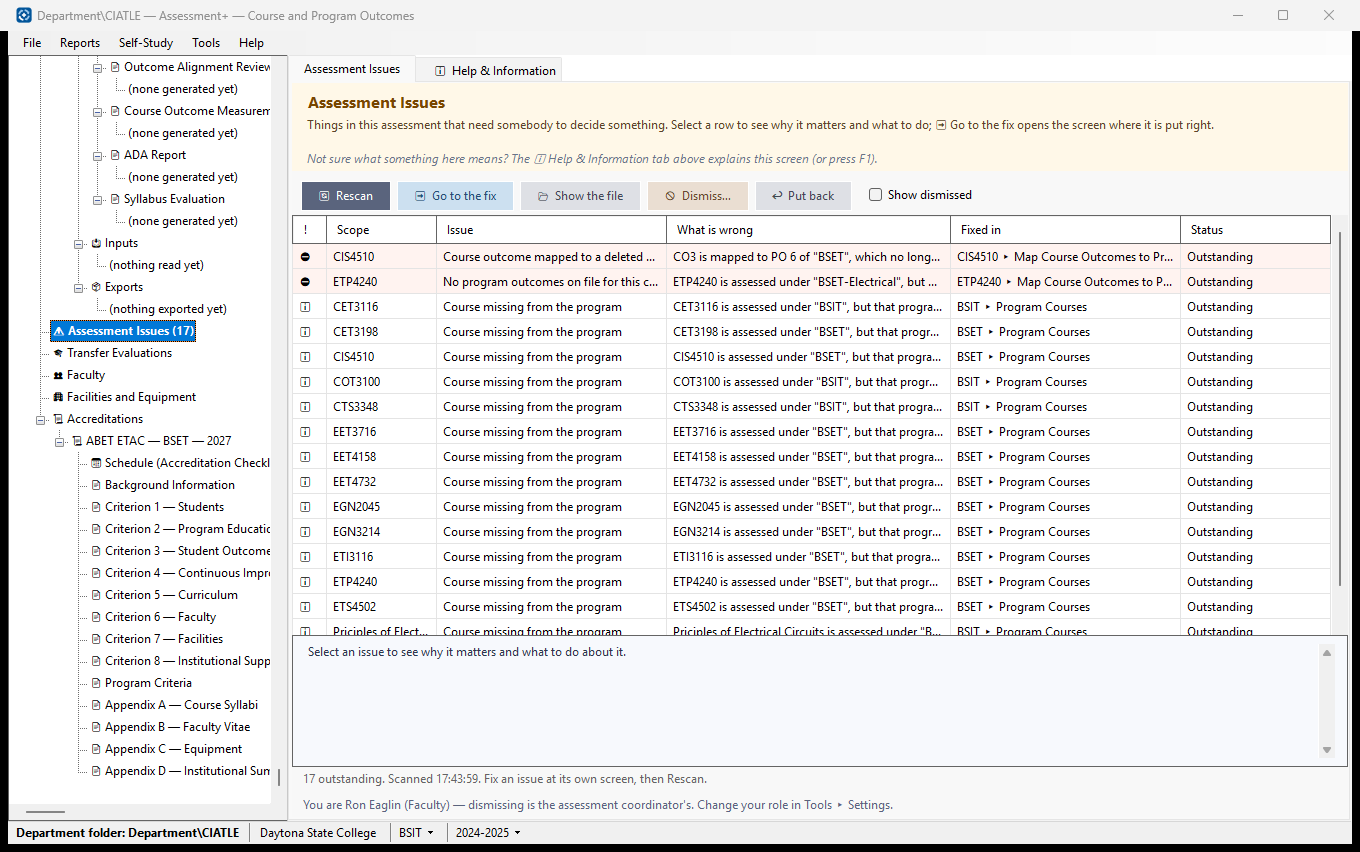
Everything Assessment+ has found in this assessment that needs somebody to decide something — a course outcome pointing at a program outcome that was deleted, a course assessed under a program with no outcomes on file, two files claiming the same course. Work through this list and the numbers in the reports can be trusted.
How to use it
- Read the list worst first. "Problem" means something will be wrong or missing in the results until it is settled; "Information" is worth knowing but the assessment still adds up.
- Select a row: underneath it, Assessment+ says why it matters and what to do about it.
- Click ➡ Go to the fix to open the screen where it is put right — the course's PO Mapping, the program's course list, and so on.
- Fix it there, come back, and click 🔄 Rescan. A fixed issue disappears by itself: this list is worked out afresh from your files each time, never stored.
- If an issue does not need fixing, an assessment coordinator can select it and click 🚫 Dismiss, giving the reason. It moves out of the way for everyone.
What it means, and what to watch for
- Issue — an inconsistency, not unfinished work. Offerings that are not filled in yet are shown by a program's Completion Status, not here.
- Scope — the course or program the issue is about.
- Student details in an articulation — a course articulation recorded from a transfer evaluation before Assessment+ 2.0 may name the student in its notes, or keep the student's whole transfer report as its source document. ➡ Go to the fix opens the articulation; clean it there and the issue disappears.
- Dismissing needs a reason because in six months nobody can tell a decision from an oversight without one. Dismissals are kept with the assessment, so everybody working on it sees the same list.
- Tick Show dismissed to see what has been set aside, and ↩ Put back to bring one back onto the list.
- Only an assessment coordinator can dismiss. Set who you are in Tools ▸ Settings.
- A dismissal disappears with its issue: once the underlying data is fixed, the issue is no longer found and the dismissal is dropped with it.
See also
- Programs ▸ the program ▸ 📊 Reports ▸ Completion Status — which offerings still need data entered.
- Tools ▸ Settings — who you are and what your role is, which decides whether you can dismiss an issue.
Dismiss an Assessment Issue
Takes an issue off the ⚠️ Assessment Issues list because it does not need fixing, and records why.
How to use it
- Read the issue shown at the top — the scope and what is wrong.
- Write why it does not need fixing, in a sentence someone else would understand.
- Click Dismiss it. Cancel leaves the issue on the list.
What it means, and what to watch for
- Dismissing is for issues that are right as they are — for example an outcome retired on purpose. An issue that should be fixed is fixed on its own screen (➡ Go to the fix on the Assessment Issues screen), and then it disappears by itself.
- The reason is kept with the department folder, so everyone working on the assessment — and a reviewer later — sees it.
- Only an assessment coordinator can dismiss an issue (Tools ▸ Settings says who you are).
- Nothing is deleted: tick Show dismissed on the Assessment Issues screen and use ↩ Put back to return an issue to the list.
See also
- ⚠️ Assessment Issues — the list, and the buttons to the screens that fix each issue.