
Each section below is the help that screen shows in Assessment+ itself, on its ℹ Help & Information tab (or F1), so it matches what you see on screen.
Import Grade Roster
Reads this offering's gradebook export (.xlsx or .csv) and fills in its grade distribution (how many A, B, C, D and F) and its outcome measures (how many students were measured on each course outcome, and how many met the threshold). The roster is read on this computer; no student row is sent anywhere.
How to use it
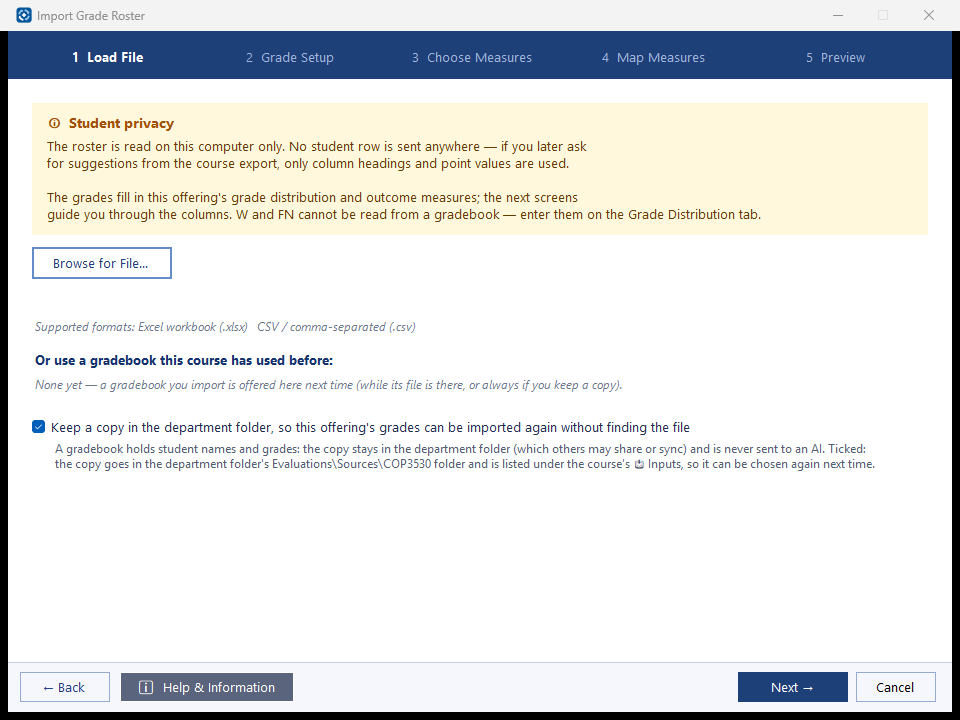
- 1 Load File — click Browse for File… and choose the gradebook export from Brightspace, Canvas or your learning management system, or pick one this course has used before and click Use This Gradebook (for re-importing an offering's grades; you are warned if it is of another semester). Leave Keep a copy in the department folder ticked to file a copy with the course for the next import, or untick it to read the file where it is.
- 2 Grade Setup — choose the column that holds the final grade. If it is points rather than a percentage, also choose the column with the points possible. Check the minimum percentage for each letter grade and how blank and zero scores are counted; the preview shows the A–F counts as you change them.
- 3 Choose Measures — say where this offering's measures come from: Use the measures from the previous offering, Choose the columns myself, or Suggest measures from the course export. Run a new assessment… makes those suggestions when the course has none yet.
- 4 Map Measures — select a course outcome on the left, then tick the gradebook columns that measure it. In the lower grid, edit Tool Name, Asmt. Process, Threshold % and Target %, and click ☆ Set to make a measure the outcome's primary one.
- 5 Preview — check N, N Met and % Met for every measure, then click Import. If a measure already has numbers you are asked whether to replace them; Cancel there changes nothing.
- Save the course file (Ctrl+S) to keep what was imported.
What it means, and what to watch for
- Grade roster — the gradebook exported from your learning management system: one row per student, one column per graded item.
- Final grade column (numerator) — the points or percentage each student earned. Denominator — the points possible; choose "(none — value is already a percentage)" when the column already holds a percent.
- Blank scores: Exclude from N leaves a student with no score out of the count; Count as zero attempt counts them with 0. Explicit 0 scores: Count as submitted keeps them in N; Treat as not submitted leaves them out. These choices and the grade cut-offs are remembered for the next import of this course.
- N — the number of students counted for a measure. N Met — how many of them reached the threshold. % Met — N Met divided by N.
- Threshold % — the score on that column a student must reach to count as meeting the outcome, as a percentage of the column's points (0–100). It is 70 unless you change it.
- Target % — the percentage of the measured students you expect to reach the threshold (0–100). It decides whether the measure was met: % Met is green when it reaches the target. Example: Threshold 70, Target 80 — the measure is met when at least 80% of the students score 70% or more.
- A Target % shown in grey italics is the threshold: the measure has no target of its own and is judged against its threshold. Type a number to set a target; clear the cell to go back to the threshold. A number above 100 is refused. The same column is on the Outcome Measures tab, where it can be changed after the import.
- Where a target comes from: a column this offering already measures starts with that measure's target; otherwise the target from last term (Use the measures from the previous offering) or from your earlier mapping of the column. It is remembered with the column for the next import.
- Primary measure (★) — the one measure per outcome the program coordinator counts.
- (Average) — added automatically when an outcome has two or more measures; only its Threshold % and Target % can be changed.
- Source — who filled a row in: From last term, AI suggestion, or Your earlier mapping. The mark clears when you edit the row.
- ADD / UPDATE on the Preview — ADD creates a new measure; UPDATE replaces the numbers of a measure this offering already has for the same outcome and column (you are asked first).
- W (withdrawn) and FN (failure – no show) cannot be read from a gradebook and are not changed; enter them on the Grade Distribution tab.
- Keep a copy in the department folder — ticked, when you click Import a copy of the gradebook is filed under the department folder's Evaluations\Sources\<course code> and listed under the course's 📥 Inputs as a Gradebook export, and the next import offers it. Unticked, the file is read where it is and only a note of where it was is listed. A gradebook holds student names and grades, and the department folder may be shared or synced, so decide whether it belongs there. It never goes to an AI. Your choice is remembered on this computer; a file already in the department folder is never copied again.
- When you choose the columns yourself, Assessment+ offers the column-to-outcome mapping you used the last time you imported a roster for this course.
- What goes to an AI provider: nothing from the roster. Only if you click Run a new assessment… on step 3 is anything sent — each graded item's title, type, module and text from the course export, with its gradebook column name and points, and the course outcomes; never a student row. It is checked for student information first.
See also
- Grade Distribution tab — enter W and FN.
- Courses ▸ this course ▸ 📊 Reports ▸ Course Outcome Measurement Assessment — the report step 3 suggests measures from.
- Tools ▸ AI Settings — needed only for suggestions from the course export.