
Each section below is the help that screen shows in Assessment+ itself, on its ℹ Help & Information tab (or F1), so it matches what you see on screen.
Courses
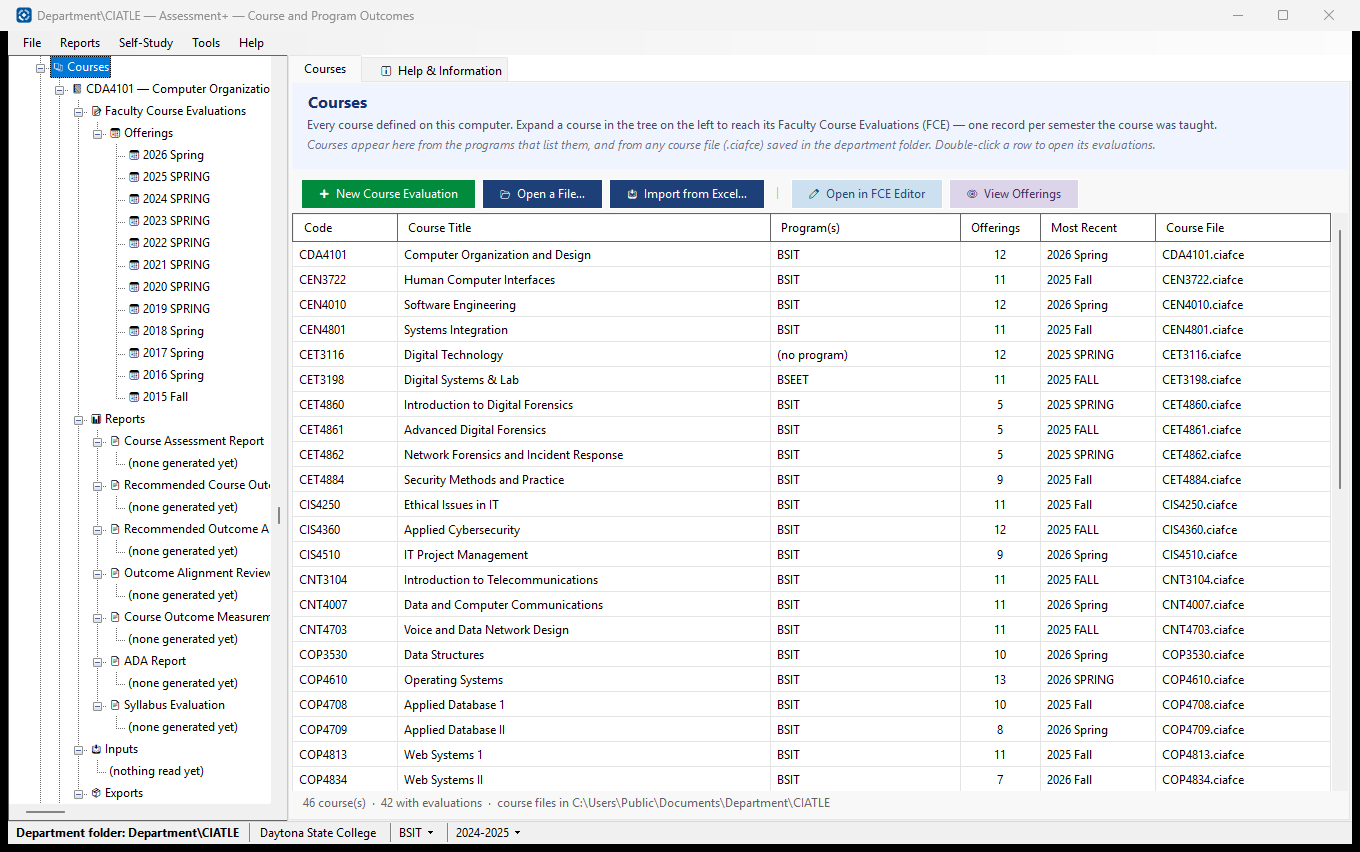
Every course defined on this computer. This is where a faculty member starts: each course holds its Faculty Course Evaluations — one record per semester it was taught — and the reports Assessment+ can produce about it.
How to use it
- Find your course in the list, or expand 📚 Courses in the tree on the left.
- Double-click a row (or select it and click ✏ Open in FCE Editor) to open its evaluations in the course editor.
- To read every semester without changing anything, select the course and click 👁 View Offerings.
- If a course is listed but has no evaluations yet, select it: the first button becomes ➕ Start Evaluations for its code, and the new file starts with the code and title filled in.
- If your course is not listed, click ➕ New Course Evaluation; if you already have its .ciafce file somewhere else, click 📂 Open a File….
- To bring in an old Excel FCE workbook, click 📥 Import from Excel… — the result opens in the editor and is not saved until you save it.
What it means, and what to watch for
- A course is listed once, however many programs it serves. It collects one set of measures; only the mapping of its outcomes to each program's outcomes differs.
- Courses appear here from two places: the programs that list them, and any .ciafce file saved in the department folder. A file saved anywhere else is not listed.
- Course File — "— none yet —" means no evaluations have been started; "file not found" (red) means one was recorded but is not on this computer any more.
- Offerings — how many semesters have been recorded. Most Recent is the newest of them.
- Program(s) — the programs whose reports this course contributes to. "(no program)" means no program lists the course, which is normal for a course you keep for yourself.
- A gray row is a course marked inactive in a program.
- To remove a course, select it in the tree and click 🗑 Remove Course… (or right-click it). Nothing is deleted; ♻ Removed Courses… — shown here once a course has been removed — brings it back as it was.
See also
- A course ▸ 📝 Faculty Course Evaluations — record a semester's grades and measures.
- A course ▸ 📊 Reports — the analyses of the course.
- Programs (in the tree) — the program-level outcomes, courses and reports.
Course
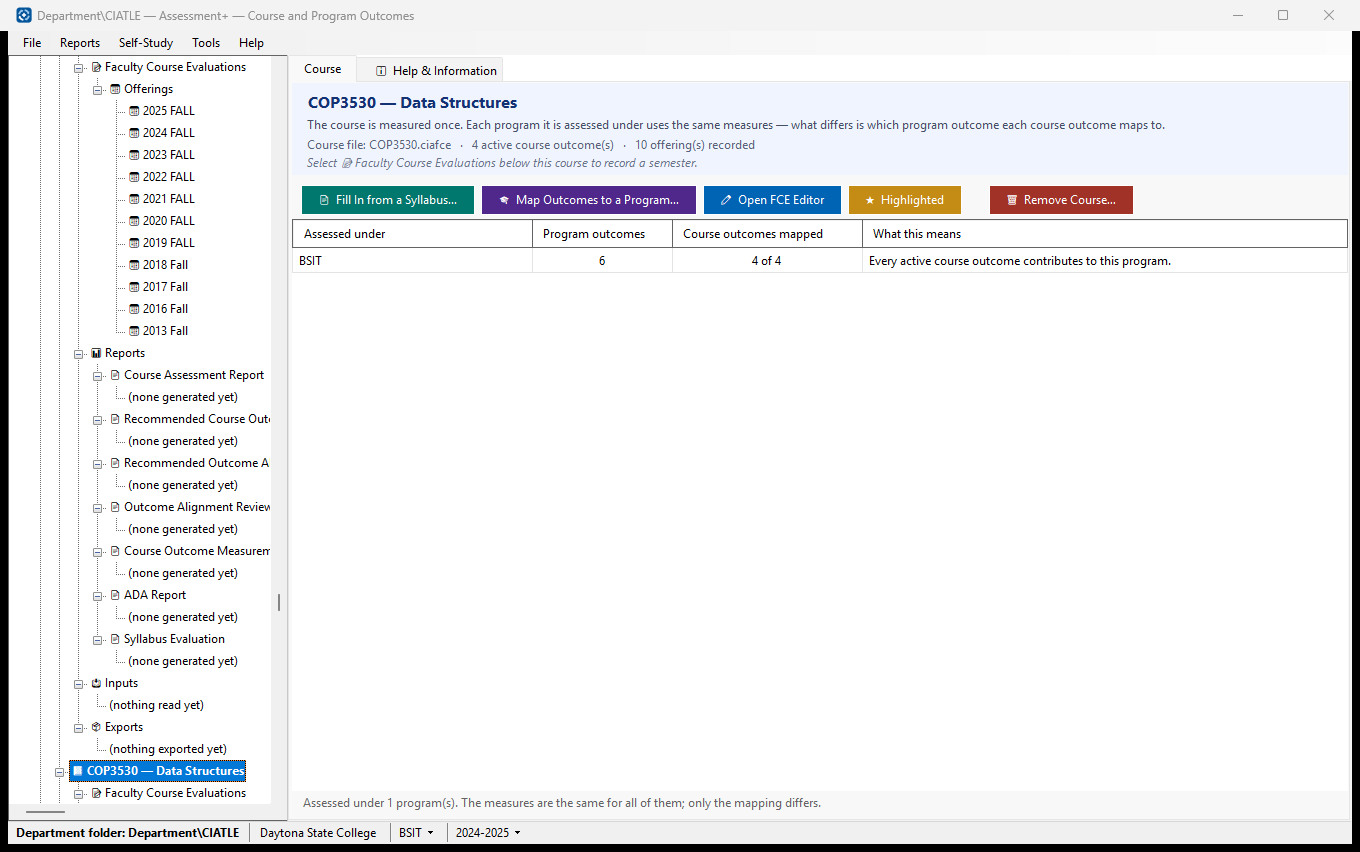
One course, and the programs it is assessed under. The course is measured once: every program it serves uses the same outcome measures, and what differs is which program outcome each course outcome maps to.
How to use it
- Read the table: one row per program this course is assessed under.
- Where a row says outcomes are unmapped, click 🎓 Map Outcomes to a Program… (or double-click the row) and say which program outcome each course outcome supports.
- If the table is empty, the course is not assessed under any program yet: click ✏ Open FCE Editor, use Edit ▸ Program Mappings… to add one, then come back and map.
- To record a semester, select 📝 Faculty Course Evaluations below this course in the tree.
- To fill in the title, description and course outcomes from the course's syllabus or master course description, click 📄 Fill In from a Syllabus… — you see every change before it is made.
- Click ☆ Highlight to make this course stand out in the Courses list; click ★ Highlighted to turn it off.
- To take the course off the list, click 🗑 Remove Course… (see below for what it keeps).
What it means, and what to watch for
- Assessed under — the programs whose reports this course contributes to. It is empty when the course file names no program yet.
- Program outcomes — how many outcomes that program has defined. "—" means none are on file for it yet, so nothing can be mapped to it.
- Course outcomes mapped — how many of this course's active outcomes are mapped to that program. Until an outcome is mapped, its measures contribute nothing to that program.
- What this means — the consequence of that row in plain terms: whether this course's measures reach that program's report, and what is missing if they do not.
- Mapping to one program never affects another: each program has its own mapping of the same course outcomes.
- Highlight is a shortcut for you on this computer; it changes nothing about the course.
- Remove Course takes the course out of every program that lists it and off the Courses list. Nothing is deleted: its course file — every semester recorded — and each program's details of the course are kept in backups\Removed courses in the data folder, and 📚 Courses ▸ ♻ Removed Courses… brings it back as it was. Reports, exports and what Program Assessment already imported for past academic years are kept. A course that is only no longer taught is better marked inactive under Programs ▸ the program ▸ 📋 Program Courses (⏸ Set Inactive).
- A course outcome (CO) is what a student should be able to do at the end of this course; a program outcome (PO, sometimes SLO) is what a graduate of the degree should be able to do.
- Articulations for this course (external courses judged equivalent to it) are under Programs ▸ the program ▸ 📋 Program Courses ▸ this course ▸ ➕ Articulations.
See also
- 📝 Faculty Course Evaluations — the semester records.
- 📊 Reports ▸ Recommended Outcome Alignment — have the AI propose the mapping for you.
New Course Evaluation
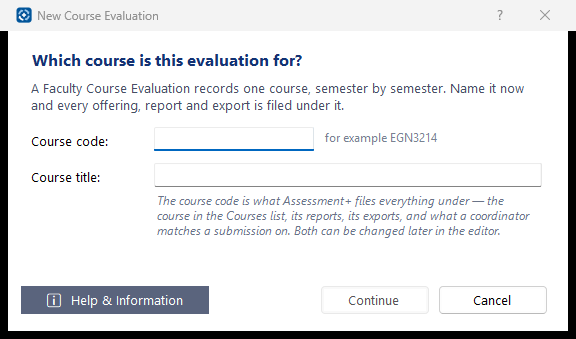
Names the course before its Faculty Course Evaluation is started, so every offering, report and export is filed under it.
How to use it
- Type the Course code, for example EGN3214.
- Type the Course title.
- Read any warning below the fields, then click Continue. The course editor opens on the new course.
What it means, and what to watch for
- Course code — what Assessment+ files everything under: the course in the Courses list, its reports and exports, and what a coordinator matches a submission on.
- If the code already has a course evaluation on this computer, you are warned: open that one instead unless you really want a second file for the same course.
- If the code is already a course in a program here, its title and outcomes are picked up when you save.
- Both fields can be changed later in the editor with Edit Metadata….
See also
- Courses — open a course evaluation that already exists.
Fill In Course Information from a Document
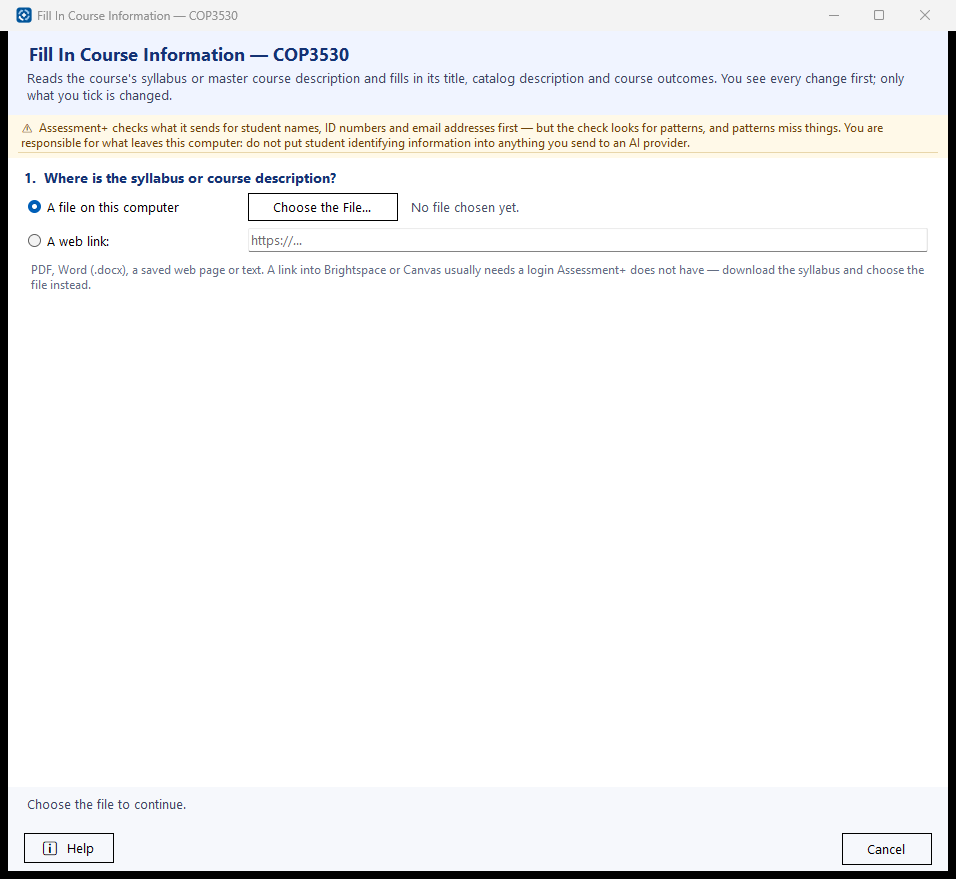
Reads a course syllabus or master course description and fills in the course's title, catalog description and course outcomes from it, so they do not have to be typed. You see every change before it is made, and only what you tick is changed.
How to use it
- Choose the document: a file on this computer (PDF, Word .docx, a saved web page, text), or a web link to it. The Read the Document button appears at the bottom once one is chosen.
- Click Read the Document. The AI provider finds the title, description and outcomes; it usually takes 10 to 40 seconds.
- Check what was found. Tick what should change and untick what should stay as it is — each outcome is a line of its own. A title or description the course already has is replaced only if you tick it.
- Click Apply the Selected Changes. The course file is saved straight away.
What it means, and what to watch for
- Add — the document has an outcome this course does not; it is added with the next CO number.
- New wording — the course has an outcome with this number, worded differently; the document's wording replaces it. Offerings already recorded measure outcomes by number, so their measures will then be read against the new wording. That is why, once a semester is recorded, new wordings are not ticked for you: tick one only where the words changed but the outcome still means the same.
- Back in use — the course has this outcome but it was marked Not Used; it is used again.
- Not in the document — the course has an outcome the document does not list. Ticking it marks the outcome Not Used for new semesters; its history is kept. Nothing is ever deleted.
- Already the same — nothing to do.
- CO numbers are never reassigned: every semester's measures refer to an outcome by its number.
- The course code is never changed from here, even when the document prints another — the code is how every file and report finds the course. If the document is for another course, you are told so.
- A course with no course file yet gets one, saved in the data folder, and the programs that list the course are pointed at it.
- What is sent: the document's text. It is checked for student identifying information before it is sent, and anything found is shown to you to remove first.
- A scanned PDF is a picture of the pages and has no text to read. Use the original document or a PDF saved from it.
See also
- ✏ Open FCE Editor ▸ Course Outcomes — edit outcomes one by one.
- 🎓 Map Outcomes to a Program… — the next step once the outcomes are in.
- Tools ▸ AI Settings — the provider that reads the document.
Removed Courses
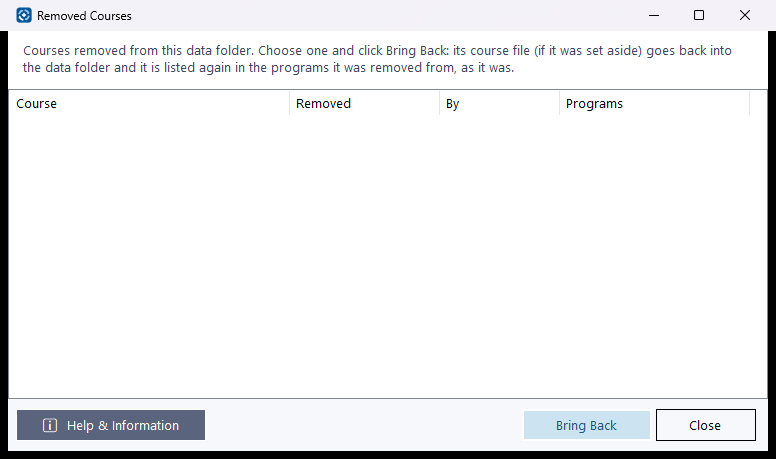
Courses taken off the Courses list with 🗑 Remove Course…, or out of one program with ✕ Remove from Program. Nothing was deleted; each can be brought back as it was.
How to use it
- Select the course to bring back.
- Click Bring Back (or double-click it). A course file that was set aside returns to the data folder, and the course is listed again in the programs it was taken out of, with its articulations.
- Click Close to leave everything as it is.
What it means, and what to watch for
- Removed — when it was removed; By — who was using Assessment+ at the time; Programs — the programs it was taken out of.
- A program that has been deleted since, or already lists the course again, is skipped; you are told which.
- A course whose file has been started again is not given its old file back, because two files for one course would split its semesters between them; you are told so.
- Removed courses are kept in backups\Removed courses in the data folder, which File ▸ Back Up Data does not include.
See also
- 📚 Courses — the list the course returns to.
- Programs ▸ the program ▸ 📋 Program Courses — where a course taken out of one program returns.