
- 1. Read the results against their targets
- 2. See the trend: the Course Assessment Report
- 3. Write the four narratives
- 4. Check the course's materials (optional)
- 5. Review the offering before you send it
1. Read the results against their targets
- On the Outcome Measures tab, read % Meeting for each measure: green when it reached its target, red below it.
- Note every outcome below its target — the narratives should say why, and what will change.
- View ▸ Prior Offering Comparison shows this semester beside the previous one: header, grades, measures and narratives.
Screens: Outcome Measures, Prior Offering Comparison.
2. See the trend: the Course Assessment Report
The one course report that needs nothing from you: it is made from the course's own record.
- Close the course editor (or switch to the main window). In the tree: 📚 Courses ▸ your course ▸ 📊 Reports ▸ Course Assessment Report, and click ⚡ Make a New Report….
- Tick the offerings it should cover — the four most recent are ticked already — and click Generate the report.
- Read it in the viewer: grades and success rates by semester, each outcome's results and which way they are moving, what was written each term, and (with an AI key) an analysis with recommendations. Save it as PDF or Word to share it; it is kept under the course's 📊 Reports either way.
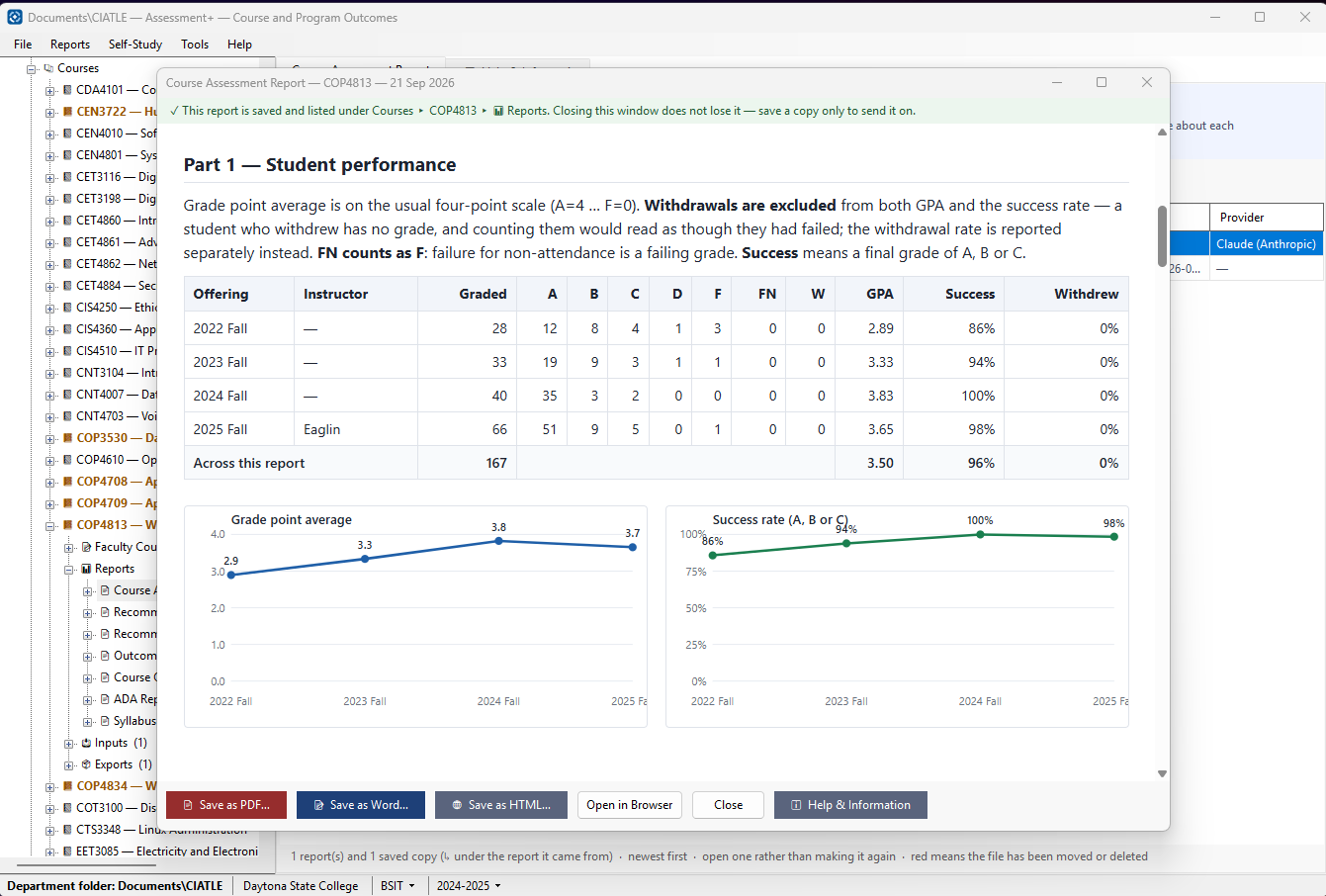
Parts 0 to 2 are Assessment+'s own arithmetic. Parts 3 and 4 are written by the AI and labelled as such — read them as a draft. No roster, no names and no individual scores are sent. Course Assessment Report.
3. Write the four narratives
The numbers say whether students met the outcomes; the narratives say why, and what you will do. Results of Improvements is the evidence of “closing the loop” that reviewers look for.
- In the course editor, open the Narratives tab.
- Lessons Learned and Successes — what this semester taught you about the course.
- Issues, Concerns, and Deficiencies — what did not work, especially for any outcome below its target.
- Proposed Improvements — what you will change the next time the course runs.
- Results of Improvements — what came of the changes proposed earlier. They are listed on the right under Prior Period Reference, newest first.
- Want a starting point? ✨ AI Suggestions… drafts text from the outcomes, grades, measures and earlier narratives. Tick the drafts you want; they are added below what you wrote, never in place of it. Edit them so they say what you mean.
- Click 💾 Save.
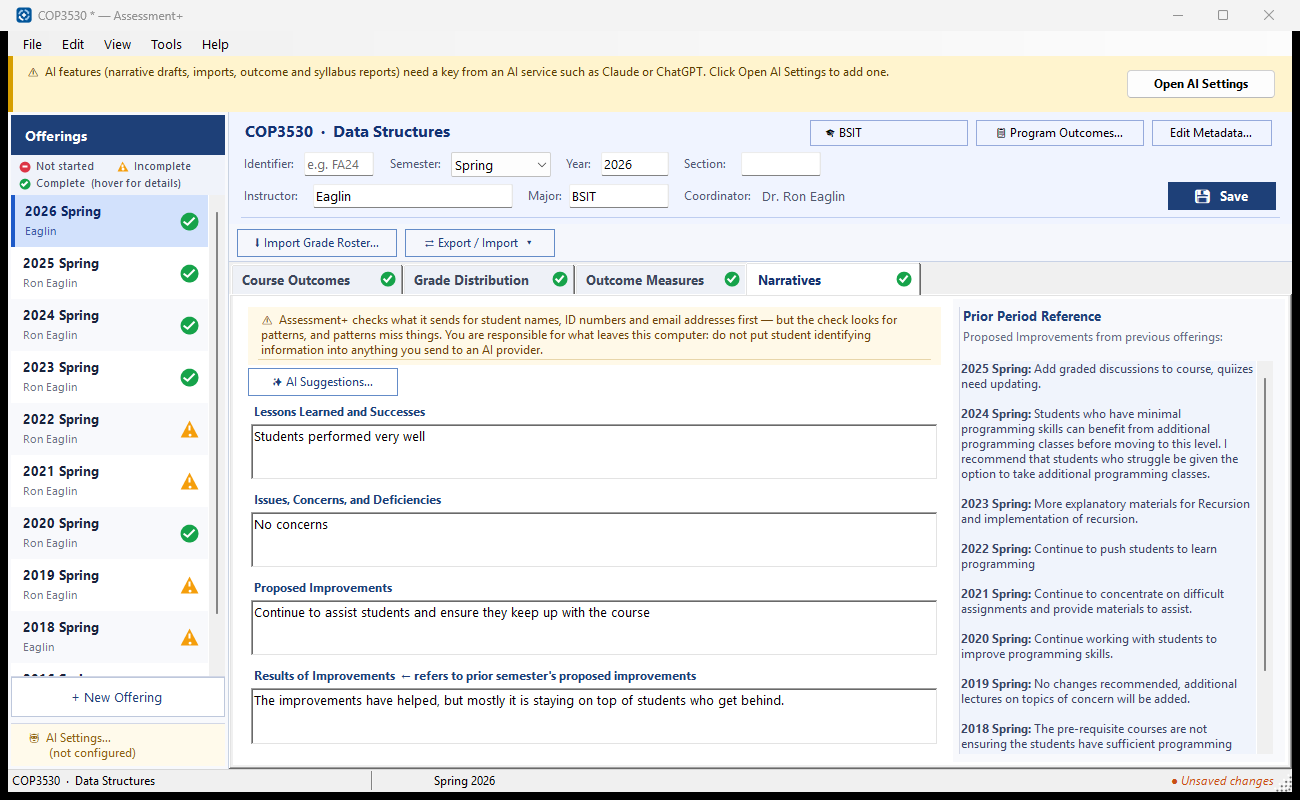
Never name a student in a narrative. Narratives go to the program under your name and may be sent to an AI; Assessment+ checks for names, but a check can miss things.
Screen: Narratives and reviewing an offering.
Done when: all four boxes have text, and the offering is marked complete.
4. Check the course's materials (optional)
Reports about the course itself rather than this semester's numbers. Each is kept under the course's 📊 Reports.
- Is each measure a good one? On the Outcome Measures tab, 📄 Manage Measures…: paste the measure's text (the blank instrument, never graded work) and click ⚡ Evaluate Measure (AI). Manage Measures.
- Is the course accessible? 📊 Reports ▸ ADA Report checks every page, document and quiz in a course export against WCAG 2.1 AA, on your computer, with no AI. ADA Report.
- Does the syllabus have everything the department requires? 📊 Reports ▸ Syllabus Evaluation marks each required item present, partial or missing, and writes text to paste in. Syllabus Evaluation.
5. Review the offering before you send it
- In the course editor: View ▸ Printable Review of This Offering. A page of the offering — header, grades, measures and narratives — opens in your web browser.
- Read it through. Print it, or save it as PDF with the browser's Print command (Ctrl+P), if you want a copy for your records.
- Correct anything in the editor, then 💾 Save.
Screen: Printable Review of This Offering.
Next: 4. Send it to the program — get the semester to your coordinator.