
Each section below is the help that screen shows in Assessment+ itself, on its ℹ Help & Information tab (or F1), so it matches what you see on screen.
Inputs
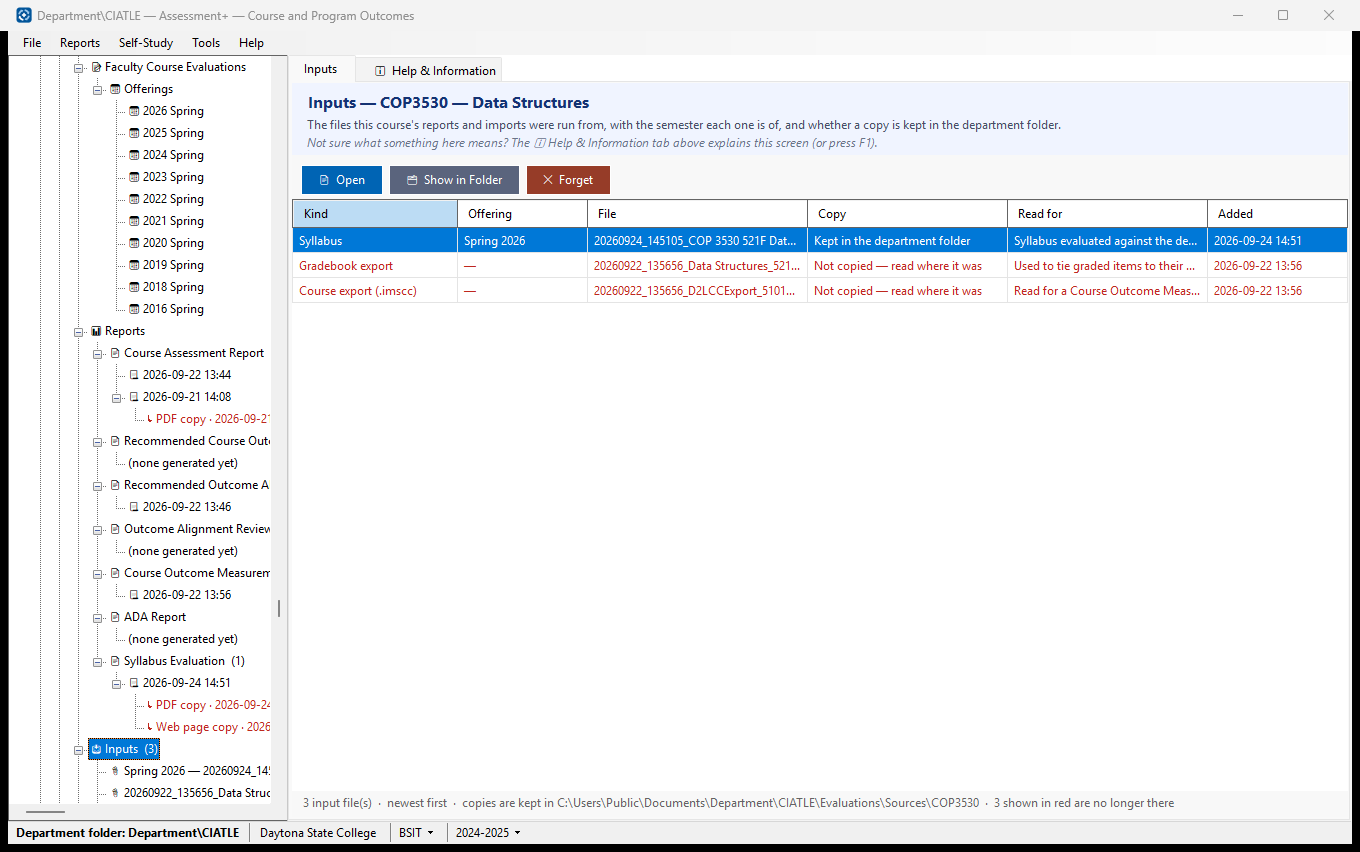
The files this course's reports and imports were run from: the course exports (.imscc), the gradebook exports, FCE workbooks and syllabi. Where you chose to keep a copy, it is filed with the course in the department folder, so a report can be traced back to exactly what produced it and the file can be chosen again.
How to use it
- Select a row and click 📄 Open to open the file, or 🗂 Show in Folder to find it in File Explorer.
- New inputs are added here whenever you run a report or an import that reads one — there is nothing to do on this screen to put them here. Whether a copy is kept is chosen at that moment, with the Keep a copy in the department folder box.
What it means, and what to watch for
- Offering — the semester (and section) the export is of, as said when the report was run. It can be any offering of the course, not only one measured in its Faculty Course Evaluation. "—" means none was recorded; choose the export in the next report that uses one to set it.
- Kind — a "Course export" is the .imscc your learning-management system produces; a "Gradebook export" is the spreadsheet of your grade book; an "FCE workbook" is an Excel Faculty Course Evaluation brought in with Import from Excel.
- Copy — "Kept in the department folder": a copy was filed in the department folder's Evaluations\Sources\<course code> folder (older copies sit in Evaluations\Sources itself). Your own file was not moved or changed, and a file already inside the department folder is left where it is. "Not copied": you chose not to keep one, so the entry points at the file where it was — it is offered again only while that file is still there.
- Keeping a copy is your choice each time you pick a file (Keep a copy in the department folder, ticked unless you last chose otherwise). A file read without a copy is copied the next time you use it with the box ticked.
- Student information: a kept gradebook lists students and their grades, and the department folder may be shared or synced. It is read on this computer only; what goes to an AI is the column headings and their point values — never student names, IDs or individual scores.
- ✕ Forget takes a row off this list. For a copy kept in the department folder it then asks whether to delete that copy too (No unless you say so) — the way to take a gradebook's student grades out of a shared folder. Your own file is never touched.
- A row in red means the file is no longer there. Opening it offers to take the entry off the list (✕ Forget does the same at any time).
See also
- 📊 Reports — the analyses these files were read for.
- 📦 Exports — the files Assessment+ produced, as opposed to the ones it read.
Exports
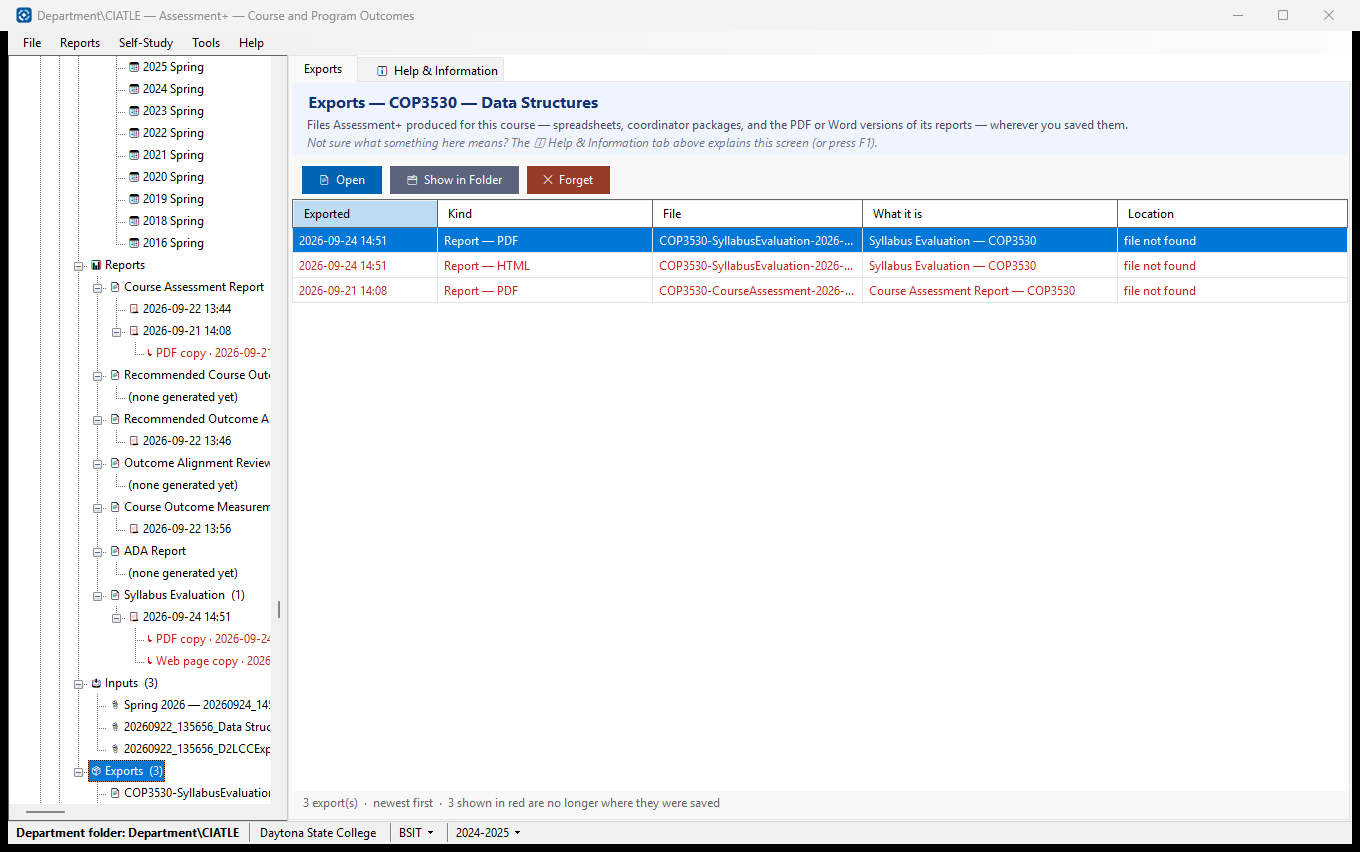
Every file Assessment+ has produced for this course: the Excel workbooks, the packages you send to a coordinator, and the PDF or Word versions of its reports. This is where to find one again without remembering where you saved it.
How to use it
- Select a row and click 📄 Open to open the file in whatever program Windows uses for it — Excel for a workbook, your PDF reader for a PDF, Word for a Word document.
- Click 🗂 Show in Folder to open File Explorer with the file selected, to copy, rename or attach it to an email.
- To make a new export: a report's PDF or Word version comes from the report viewer (open a report under 📊 Reports and use Save as PDF / Save as Word); an Excel workbook or a coordinator package comes from the course editor's File menu.
What it means, and what to watch for
- Kind — what the file is. "Excel FCE workbook" is the course's data as a spreadsheet; "Offering package" and "Submission" are what a coordinator imports; "Report — PDF/Word" is a saved copy of one of this course's reports.
- Location — where you chose to save it. Assessment+ does not move your files; it only remembers where they went.
- A row shown in red means the file is no longer where it was saved — it has been moved, renamed or deleted. Opening it offers to take the entry off the list (✕ Forget does the same at any time).
- Exporting to the same file again replaces its entry rather than adding a second one.
See also
- 📊 Reports — generate a report, then save it as PDF or Word from the viewer.
- 📝 Faculty Course Evaluations — the editor, whose File menu exports Excel and the coordinator packages.
Choosing a course export
A course export is one offering of your course — its pages, documents, quizzes and assignments — packaged from Brightspace or Canvas as one .imscc file. Reports that read the course's content ask for one. Assessment+ can keep a copy of each export it reads, filed with the course, so you can use it again for another report.
How to use it
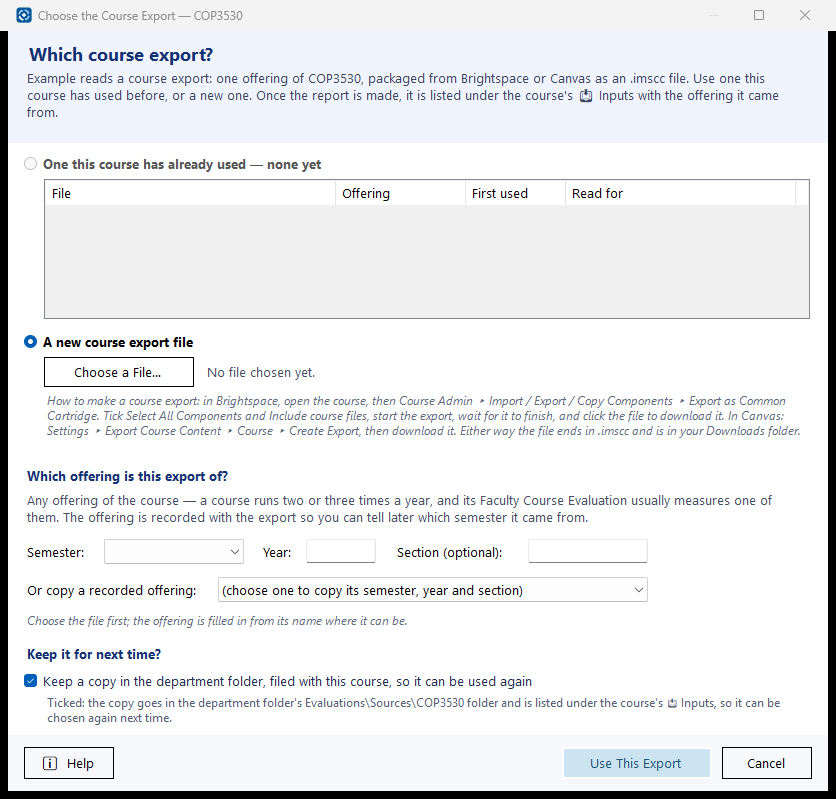
- If the course has used an export before, pick it from the list — the newest is selected already (or, when you are importing grades, the export of that offering if one is kept; otherwise A new course export file is selected).
- Otherwise choose A new course export file, then Choose a File…, and pick the .imscc file (usually in Downloads).
- Check which offering it is of. For a Brightspace export this is filled in from the file name (FA26 is Fall 2026); otherwise type the semester and year, or copy them from an offering already recorded.
- Leave Keep a copy in the department folder ticked if you may use this export again, or untick it if you will not need it after this report.
- Click Use This Export.
What it means, and what to watch for
- How to make a course export: in Brightspace, open the course, then Course Admin ▸ Import / Export / Copy Components ▸ Export as Common Cartridge. Tick Select All Components and Include course files, start the export, wait for it to finish, and click the file to download it. In Canvas: Settings ▸ Export Course Content ▸ Course ▸ Create Export, then download it. Either way the file ends in .imscc and is in your Downloads folder.
- Offering — one time the course is taught: a semester and year, and a section if there are several. It does not have to be one of the offerings in the course's Faculty Course Evaluation: a course taught three times a year is usually measured once, and an export can be of any of the three.
- Keep a copy in the department folder, filed with this course — ticked, a copy of the export goes in the department folder's Evaluations\Sources\<course code> folder, so it is still there after you tidy Downloads and can be chosen again for the next report. Not ticked, Assessment+ reads the file where it is and keeps only a note of where it was. Your choice is remembered on this computer for next time.
- Every export used is listed under the course's Inputs (📥 in the tree) with its offering, kept or not — one read where it was is offered again while the file is still there. A file already in the department folder is never copied again, and the same file chosen twice is kept once.
- Correcting the offering of an export already used: pick it, change the semester or year, and use it — the record is updated.
- Leaving the offering blank is allowed; the export is then listed as "offering not recorded".
See also
- 📥 Inputs under the course — every file its reports have read.