
Each section below is the help that screen shows in Assessment+ itself, on its ℹ Help & Information tab (or F1), so it matches what you see on screen.
Program Outcomes
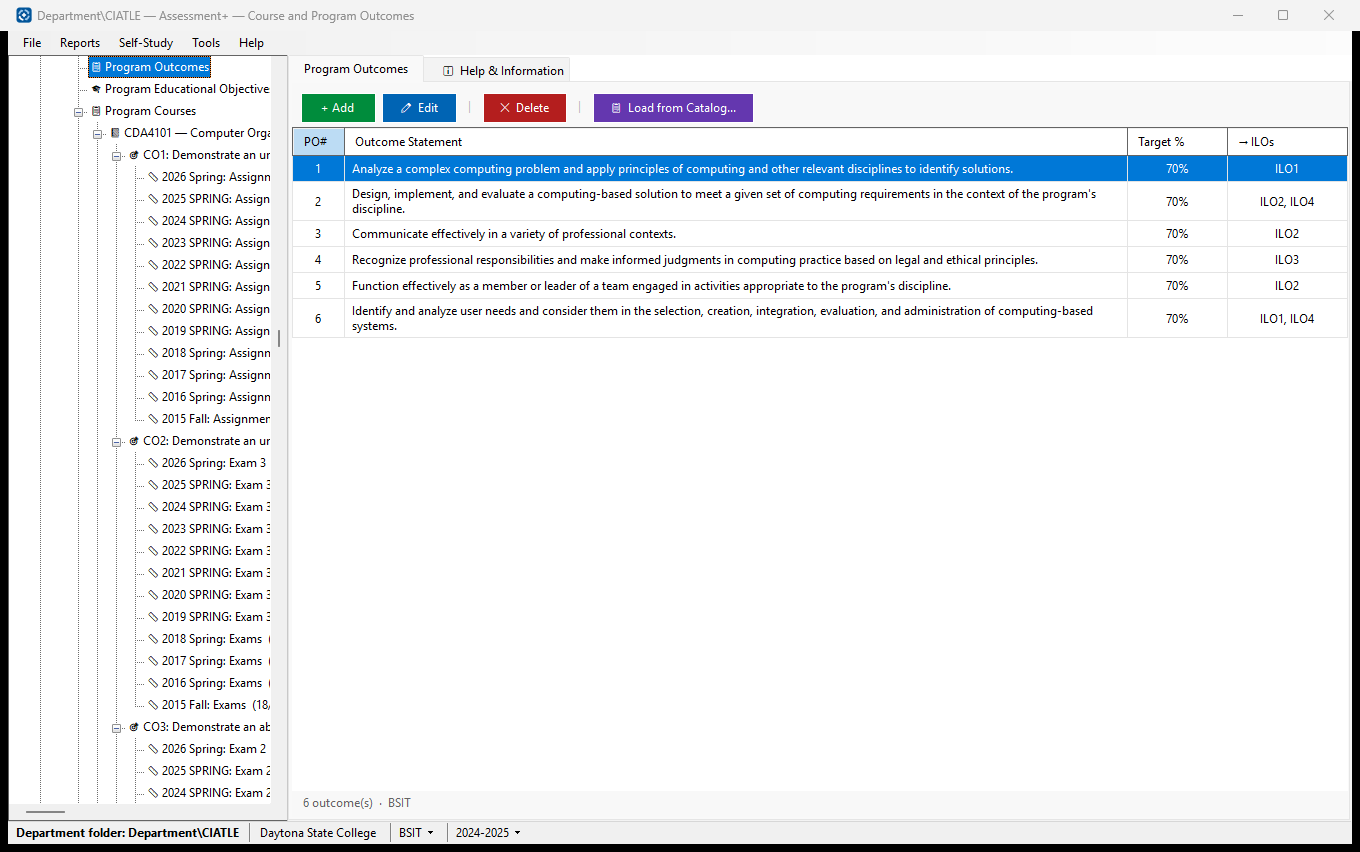
The program's outcomes (POs) — ABET calls them student outcomes. Course outcomes are mapped to these, and the program's reports say whether each one was met.
How to use it
- Click + Add to type an outcome, or 📋 Load from Catalog... to start from a ready-made set such as ABET's.
- Set each outcome's Target % — the percentage of students who must reach their measure's threshold for the outcome to count as met.
- Tick the institutional outcomes (ILOs) each PO supports, in the same dialog.
- Select a row and click ✏ Edit (or double-click) to change it.
What it means, and what to watch for
- PO# — the outcome's number. Course outcomes point at a PO by this number, so a number can be used only once, and changing one warns you first.
- Target % — e.g. 70 means the PO is met when 70% of the students measured reach the measure's own threshold. (Earlier versions called this column Threshold %; the number is unchanged.)
- Threshold — the score a student must reach on a measure to count as meeting it. It belongs to each measure, set on the course evaluation's Outcome Measures tab, as does the measure's own target.
- → ILOs — the institutional outcomes this PO maps to; the FCE Summary Spreadsheet needs these.
- Loading a catalog replaces the outcomes already here; Assessment+ asks first and keeps a copy of the old list as a catalog you can apply again (Tools ▸ Outcome Catalogs).
- Deleting a PO leaves course outcomes mapped to it pointing at nothing; ⚠️ Assessment Issues lists them.
See also
- Program Educational Objectives — which POs support each objective.
- Institutional Information ▸ Institutional Outcomes — the ILOs.
- ⚠️ Assessment Issues — mappings that point at a deleted PO.
Program Outcome
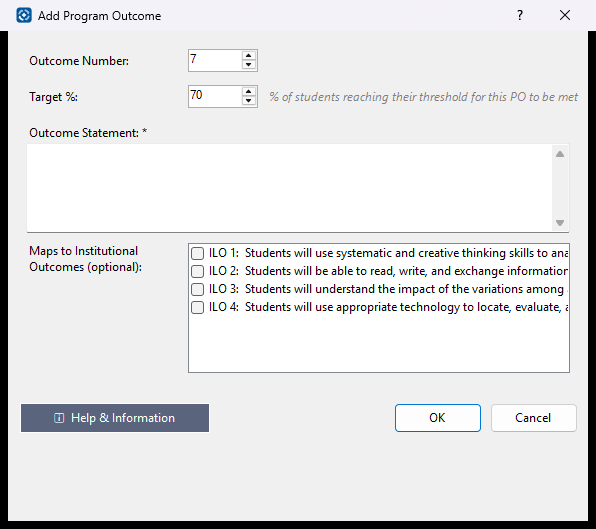
One program outcome (PO — ABET's "student outcome"): its number, wording, the share of students who must meet it, and the institutional outcomes it supports.
How to use it
- Check the Outcome Number; each number can be used only once in the program.
- Set Target % — the percentage of measured students who must reach their measure's threshold for the outcome to be met.
- Type the Outcome Statement (required).
- Tick the institutional outcomes it maps to, then OK.
What it means, and what to watch for
- Course outcomes are mapped to a PO by its number. Changing the number of an existing PO warns you, because the course mappings keep pointing at the old number; ⚠️ Assessment Issues lists any that break.
- Target % applies to the whole outcome. Each measure has its own Threshold % (the score a student must reach) and its own Target % (the share of students expected to reach it), both set on the course evaluation's Outcome Measures tab. This outcome's Target % is what decides whether the program outcome was met.
- Earlier versions called this number Threshold %. It is the same number and means the same thing; only the name changed, so that Threshold always means a student's score.
- No boxes to tick? Define the institution's outcomes first under Institutional Information ▸ Institutional Outcomes.
See also
- Program Educational Objectives — which POs support each objective.
Load Outcomes from a Catalog
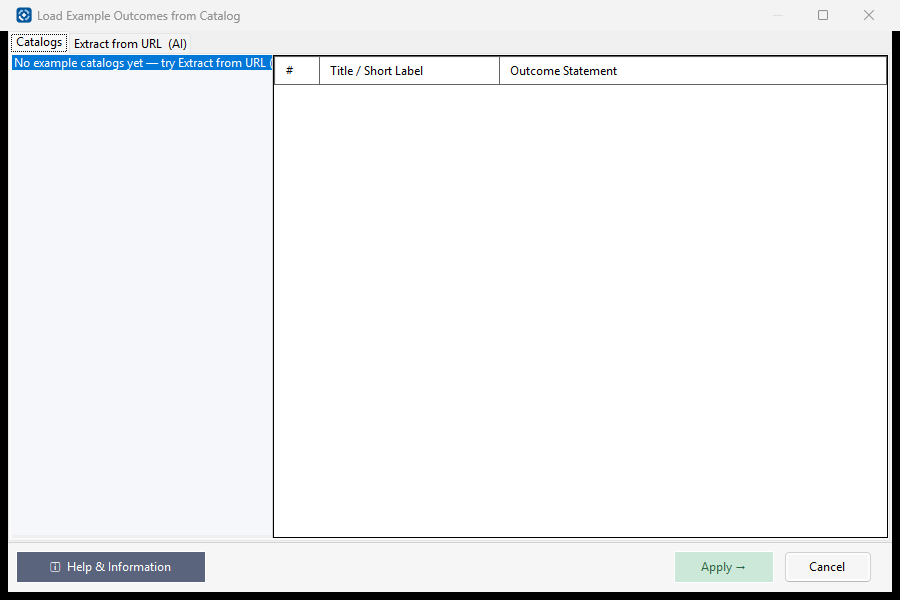
Fill in a set of outcomes from a ready-made list — a built-in catalog or one you saved — or read them from a web page with the AI.
How to use it
- On the Catalogs tab, choose a catalog on the left; its outcomes are shown on the right.
- Or, on Extract from URL (AI), paste the address of a page that lists the outcomes and click ⚡ Extract, then check the list that comes back.
- Click Apply → to use the outcomes shown on the tab you are on, or Cancel to change nothing.
What it means, and what to watch for
- A catalog with [a program type] beside it is meant for that kind of program and is listed first; the number in brackets is how many outcomes it holds. Catalogs you saved are listed with the built-in ones.
- Applying replaces the outcomes already recorded. You are asked first, and the current list is saved as a catalog so it can be put back (Tools ▸ Outcome Catalogs).
- Extract from URL sends the text of the page (the first 10,000 characters) to the AI provider in Tools ▸ AI Settings. Check the numbering and wording before applying.
- A page that needs a sign-in, or builds its content with scripts, may return nothing.
See also
- Tools ▸ Outcome Catalogs — browse, and re-apply a saved list.
Outcome Catalogs
A catalog is a ready-made set of outcomes — an accreditor's student outcomes, or an institution's learning outcomes — that you can apply instead of typing them in. This screen lists the catalogs available on this computer and what is in each one.
How to use it
- Pick a catalog on the left. Its outcomes appear on the right, exactly as they would be applied.
- Check the Kind column: "Institutional" outcomes belong to the institution as a whole; "Program" outcomes belong to one degree program and are what course outcomes are mapped to.
- Use "Apply to Institution…" or "Apply to Program…" to copy the catalog's outcomes in. Applying replaces the outcomes already there, so it is normally done once, at setup.
What it means, and what to watch for
- Kind — what level the outcomes sit at: Institutional (the whole college) or Program (one degree).
- For — the accreditation profile or program type a program catalog was written for, for example ABET-BSET. Blank for institutional catalogs.
- Source — "Built in" catalogs ship with Assessment+ and cannot be changed; "Added here" catalogs are files you or a colleague put on this computer.
- The first row is not a catalog: it is the set of institutional outcomes this institution is currently using, shown so you can compare it with a catalog before applying one.
- Applying a catalog to a program overwrites that program's outcome list. Courses already mapped to the old numbering will need their mappings checked afterwards.
See also
- Institutional Information ▸ Institutional Outcomes — edit the institution's outcomes by hand.
- Programs ▸ a program ▸ Program Outcomes — edit one program's outcomes by hand.