
Each section below is the help that screen shows in Assessment+ itself, on its ℹ Help & Information tab (or F1), so it matches what you see on screen.
Course Assessment Report — its screen under 📊 Reports
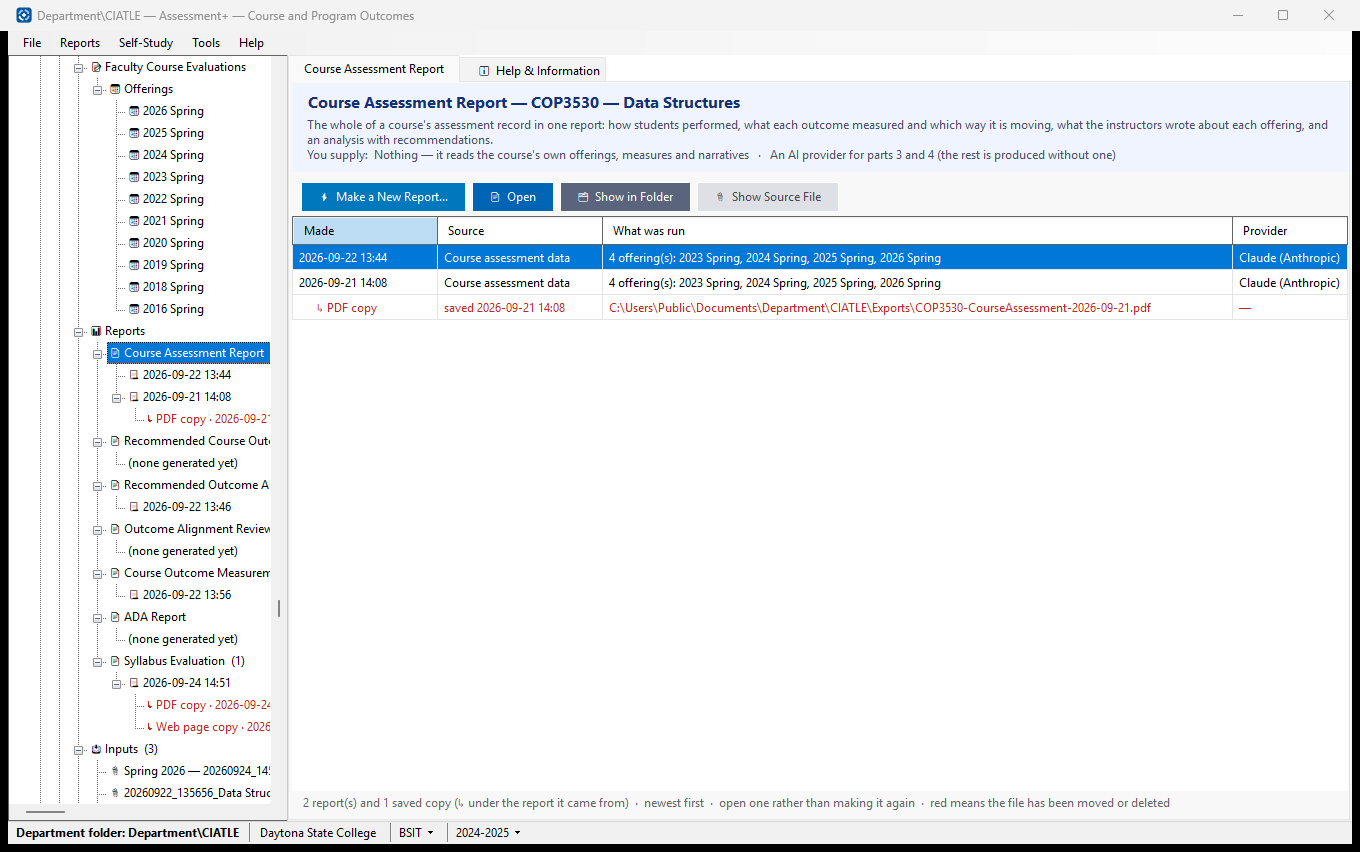
The whole of a course's assessment record in one report: how students performed, what each outcome measured and which way it is moving, what the instructors wrote about each offering, and an analysis with recommendations.
How to use it
- Click ⚡ Make a New Report… to run the analysis. You are asked only for what this report needs: Nothing — it reads the course's own offerings, measures and narratives; An AI provider for parts 3 and 4 (the rest is produced without one).
- The report opens when it finishes, and is added to the list below and to the tree.
- To read an earlier one, select its row and click 📄 Open — or click its dated entry in the tree. 🗂 Show in Folder finds the file in File Explorer.
What it means, and what to watch for
- Made — when the report was run. Reports are never overwritten: running the analysis again adds another, so you can compare this year's with last year's.
- ↳ rows — the copies saved from the report above them (PDF, Word, web page), wherever they were saved. Select one and click Open. A report or a copy that exists never needs making again.
- Source — what the analysis read (a course export, a course file, text you pasted, or — for the Outcome Alignment Review — the course outcomes and their mapping).
- What was run — for the two outcome reports, what you asked for; for the Outcome Alignment Review, the program and the mapping it reviewed (CO1 → PO 2 …); for the Measurement Assessment, a summary of what came out. An entry marked "earlier version of this report" was produced by the report this one replaced.
- Red means the file has been moved or deleted — the entry is still listed, but there is nothing left to open. If a report has gone but a saved copy has not, Open offers the copy.
- A run keeps the file it read as well as the report: the course export is copied into the department folder's Evaluations\Sources (unless it was already kept in the department folder), so a report can still be traced back to what produced it. 📎 Show Source File opens it.
- Provider — the AI provider that produced it, recorded because different providers give different answers.
- The report is a suggestion. Nothing in the course changes unless you act on it.
- A course outcome (CO) is what a student should be able to do at the end of this course. A program outcome (PO, sometimes SLO) is what a graduate of the whole degree should be able to do. Mapping says which program outcome each course outcome supports.
See also
- Reports (the folder above) — the other analyses available for this course.
- Tools ▸ AI Settings — the provider these reports use.
Course Assessment Report
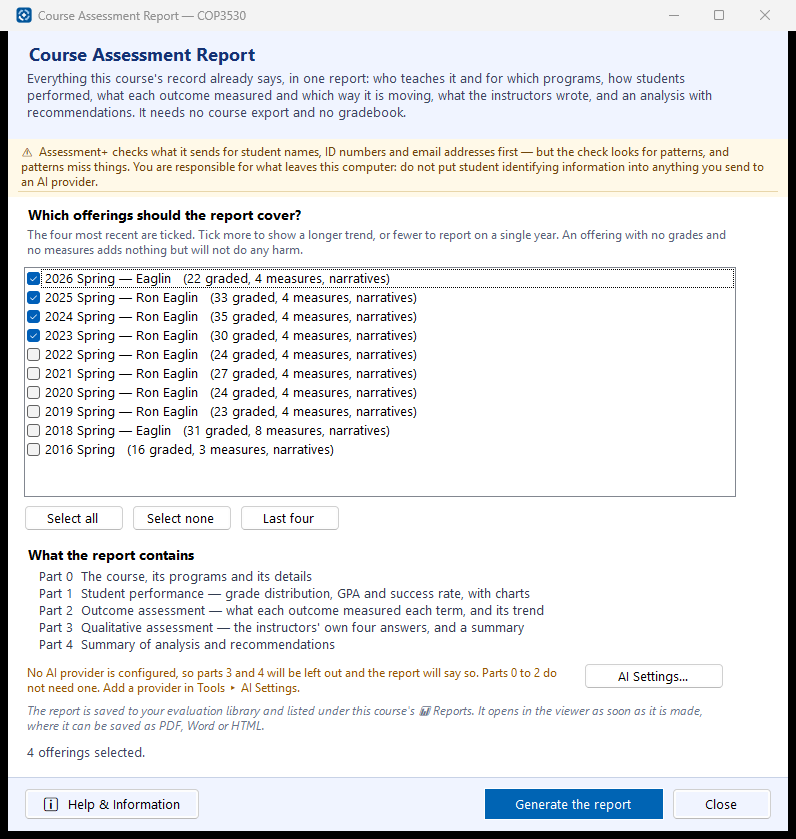
Produces one report covering everything this course's record already says: how students performed, what each course outcome measured and which way it is moving, what the instructors wrote about each term, and an analysis with recommendations. It is the one course report that needs no course export, no gradebook and no upload.
How to use it
- Tick the offerings the report should cover. The four most recent are ticked already; tick more to show a longer trend, or fewer to report on one year.
- Click Generate the report. Parts 0 to 2 are worked out immediately; parts 3 and 4 are written by your AI provider and usually take 30 to 60 seconds.
- The report opens in the viewer, where Save as PDF, Word or HTML produces a copy you can send on. The report itself is kept under this course's 📊 Reports.
- Read part 3 before sharing the report: it reproduces what instructors wrote, word for word, and only they know whether it names a student.
What it means, and what to watch for
- Offering — one delivery of the course: a semester, a section, an instructor.
- Measure — the piece of work a course outcome is judged by. Its threshold is the score a student must reach to count as meeting it, and the report gives the percentage of students who reached it. Its target is the percentage of students expected to reach the threshold: a figure at or above the target is met (green), below it not met (red). With no separate target set, the target is the threshold.
- Primary measure — where an outcome has several measures, the one the program uses when it aggregates. This report uses the same one, so the course report and the program report cannot disagree about the same number.
- Grade point average is on the four-point scale. Withdrawals are excluded from it and from the success rate, because a student who withdrew has no grade; the withdrawal rate is reported on its own. FN counts as F. Success means A, B or C.
- Parts 0, 1 and 2 are Assessment+'s own arithmetic. Parts 3 and 4 are written by a language model and are labelled as such in the report — read them as a draft.
- With no AI provider configured the report is still produced, with parts 3 and 4 left out and a line saying why.
- What is sent to the provider: outcome statements, grade counts, the computed rates and the narratives. No roster, no gradebook rows, no names or individual scores.
See also
- 📊 Reports under this course — every report generated for it, kept and re-readable.
- The course editor — where grades, measures and the four narrative answers are entered.
- Tools ▸ AI Settings — the provider that writes parts 3 and 4.