
Each section below is the help that screen shows in Assessment+ itself, on its ℹ Help & Information tab (or F1), so it matches what you see on screen.
Articulations
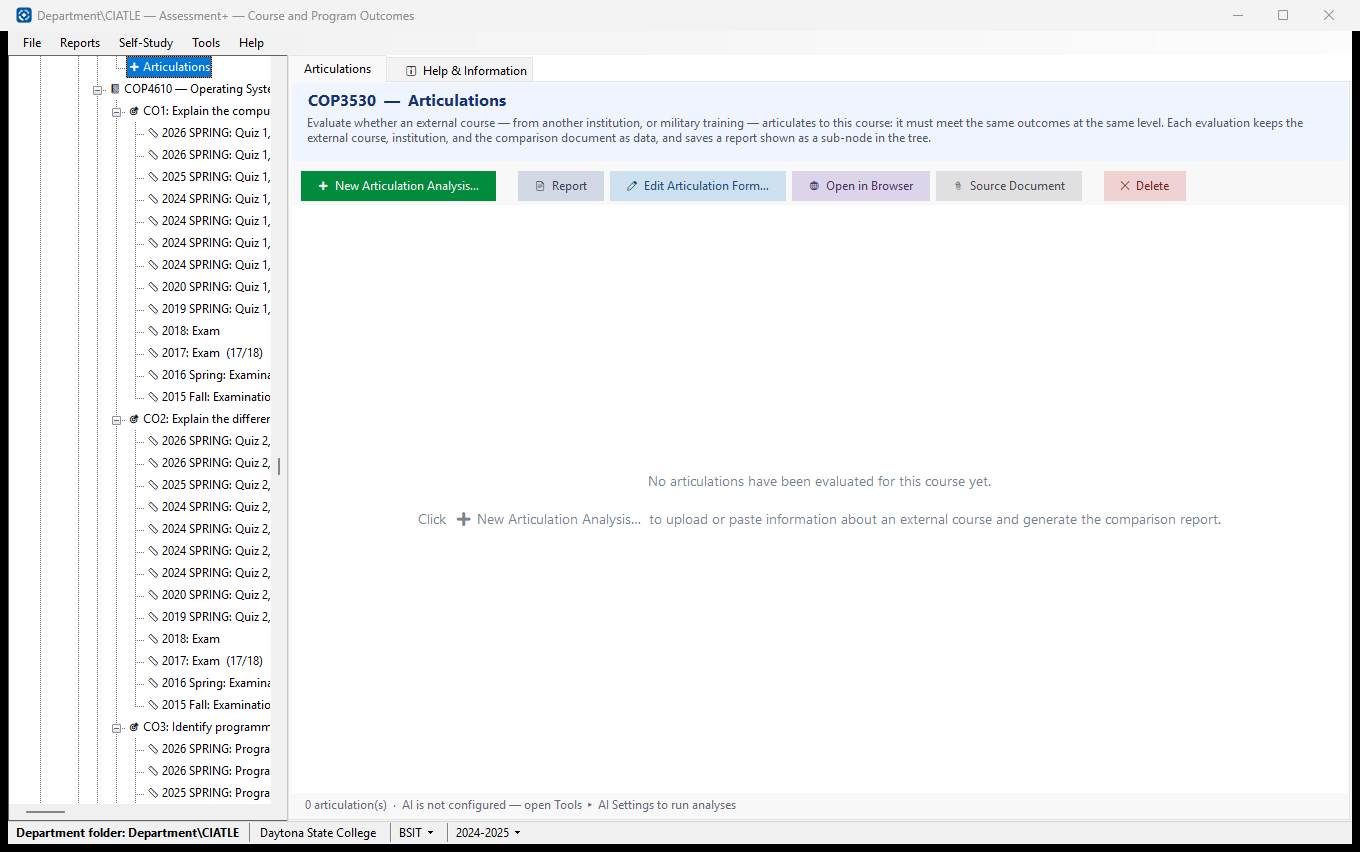
Evaluations of whether a course taken elsewhere — at another institution, or military training evaluated by ACE — is equivalent to this course: it must meet the same outcomes at the same level. Each evaluation is kept, with its report, under ➕ Articulations in the tree.
How to use it
- Click ➕ New Articulation Analysis…. The form walks you through five steps: source type, identify the course, get its source material (catalog page, syllabus or ACE exhibit), fill the form from it, then ✨ Analyze.
- Select an evaluation and click 📄 Report (or double-click it) to read the result and save it as PDF or Word.
- Click ✏ Edit Articulation Form… to correct the details or analyze again.
- Click 🌐 Open in Browser to open the report in your web browser, for example to print it.
- Click 📎 Source Document to open the document the evaluation was made from.
What it means, and what to watch for
- Rating — Recommended as Direct Equivalent (every outcome of this course fully matched), Partial Equivalent — Review Required, or Not Recommended as Direct Equivalent. Not analyzed means the record is saved but ✨ Analyze has not run.
- Matches — how many of this course's outcomes the external course fully meets, out of how many there are, and the percentage.
- Type — Academic (another institution), Military (ACE-evaluated training) or Other (any other provider).
- The comparison uses this course's active outcomes from its FCE file. A support course, or a program course with no FCE file, uses the informational outcomes recorded on the course (✏ Edit under 📋 Program Courses or 📗 Support Courses).
- The analysis is written by the AI provider in Tools ▸ AI Settings. It is a recommendation; the decision to award credit is yours.
- In the tree: 🟢 recommended, 🟡 partial, 🔴 not recommended, 📄 not analyzed yet.
- ✕ Delete removes the evaluation, its stored source document and its report, and cannot be undone.
- Articulations recorded from a 🎓 Transfer Evaluation appear here too. They describe the external course only; the student's name and grade stay in the transfer evaluation.
See also
- 🎓 Transfer Evaluations — screen all of one student's incoming courses against the whole program.
- Tools ▸ AI Settings — the provider the analysis uses.
One articulation
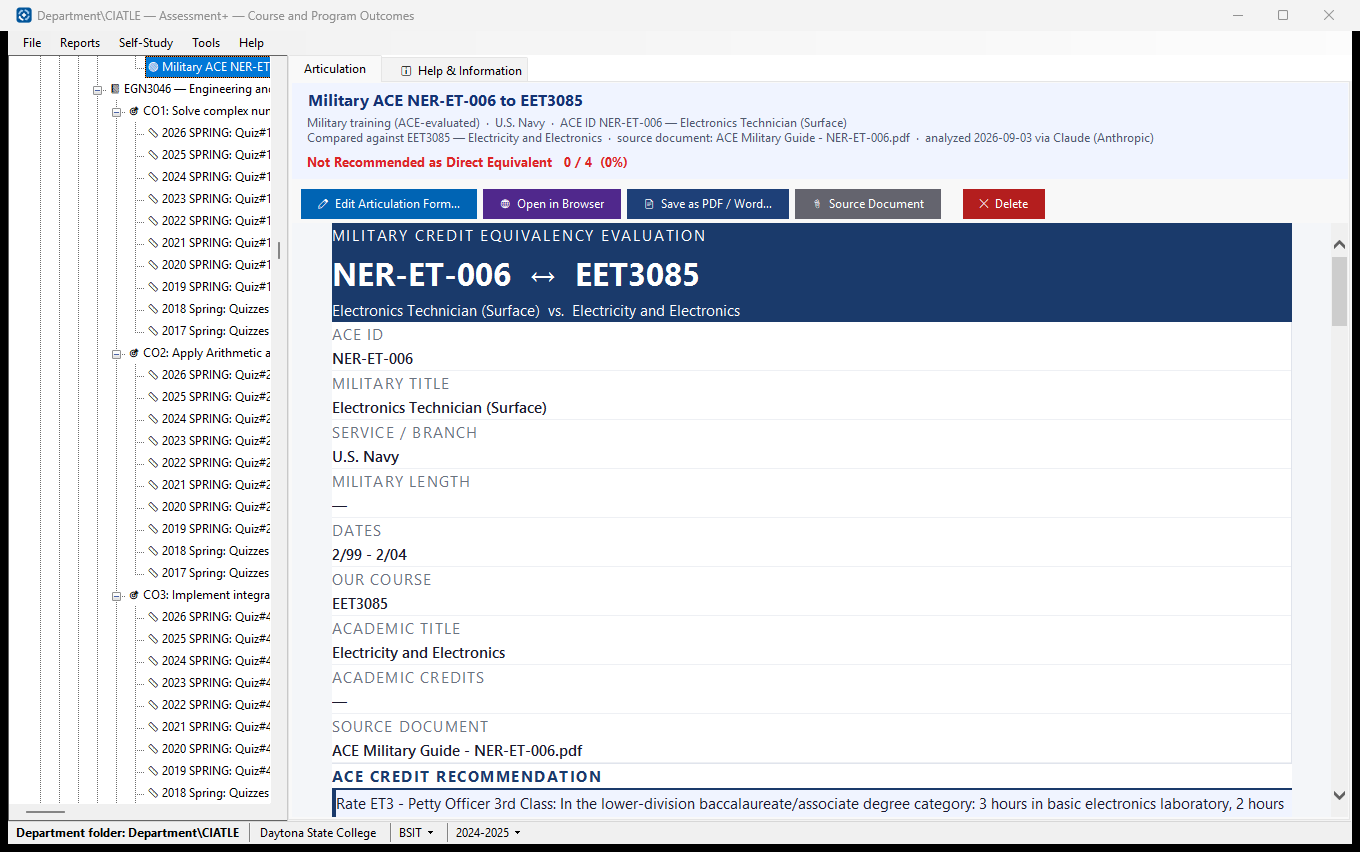
One saved articulation evaluation: the external course, the course it was compared against, the rating, and the full report.
How to use it
- Read the header: source type, institution, the external course, the course it was compared against, and when and by which AI provider it was analyzed.
- Scroll the report for the outcome-by-outcome verdicts and the reasons given.
- Click ✏ Edit Articulation Form… to correct the details or run ✨ Analyze again.
- Click 📄 Save as PDF / Word… to keep a copy (PDF, Word or web page); it is listed under the course's 📦 Exports. Or click 🌐 Open in Browser to print it.
- Click 📎 Source Document to open the document the evaluation was made from.
What it means, and what to watch for
- Rating — Recommended as Direct Equivalent, Partial Equivalent — Review Required, or Not Recommended as Direct Equivalent; the numbers beside it are outcomes fully matched out of the course's outcomes.
- Each of this course's outcomes is judged against the external course at the same level; the report gives the reason and the evidence for each.
- The report is a recommendation written by an AI provider; the decision to award credit is yours.
- ✕ Delete removes this evaluation, its stored source document and its report, and cannot be undone.
See also
- ➕ Articulations (the node above) — every evaluation for this course.
- 🎓 Transfer Evaluations — where a student's accepted courses are recorded from.
Making an articulation
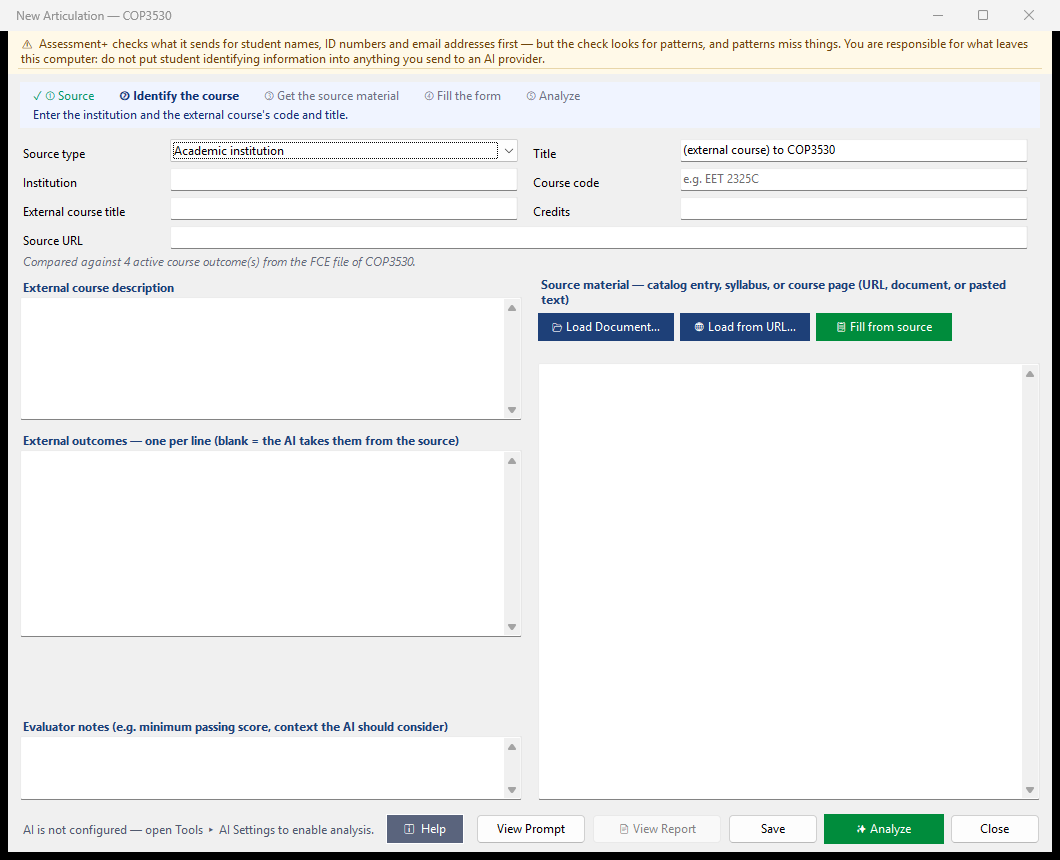
Decide whether one external course — from another institution, or military training evaluated by ACE — is equivalent to this course: same outcomes, at the same level. The AI compares them outcome by outcome and writes a report you keep.
How to use it
- ① Choose the Source type: Academic institution, Military training (ACE) or Other provider. The fields change to suit it.
- ② Identify the course: the institution and course code (or title); for military training, the ACE ID such as AR-1715-0925.
- ③ Get the source material into the box on the right: 🌐 Load from URL… (catalog or course page), 📂 Load Document… (syllabus, catalog extract, saved exhibit or JST PDF), or paste text. For an ACE ID, 🔎 Look up opens the ACE Military Guide with the ID on your clipboard.
- ④ Click 📋 Fill from source to read the facts into the fields. An ACE exhibit is read without AI; other sources use the AI. Check what was filled.
- ⑤ Click ✨ Analyze. The articulation is saved, any fields still blank are completed from the source, the outcome-by-outcome comparison runs and the report is written. The form stays open.
- Click 📄 View Report to read the result (and save it as PDF or Word), Save to keep changes without analyzing, and Close when done.
What it means, and what to watch for
- The step line at the top shows where you are (✓ done, bold = next) and the line under it says what to do.
- Title — made from the request ("{institution} {code} to {course}") until you type your own.
- External outcomes — one per line. Leave blank to let the AI take them from the source.
- Evaluator notes — context the AI should weigh, such as a minimum passing score. They are sent to the AI: never type a student's name or grade here.
- The line under the fields says what this course is compared against: its FCE file's active outcomes, or — for a support course — its informational outcomes. With neither, it can be saved but not analyzed.
- The source text and a copy of the loaded document are kept with the articulation, so it can be analyzed again later.
- ✕ Remove Stored Document — deletes the kept copy when you save (the source text stays for you to edit). Use it when the stored document is a student's transfer evaluation report: before 2.0, recording a transfer evaluation stored the student's whole report here, and ⚠️ Assessment Issues lists each articulation where that happened.
- View Prompt shows exactly what will be sent to the AI provider. Before anything is sent, the text is checked for student information and you are shown what was found.
- Close while the AI is reading or analyzing cancels it (the button reads Cancel then); the articulation data is already saved. The report is a recommendation; the decision to award credit is yours.
See also
- ➕ Articulations — every evaluation for this course.
- Tools ▸ AI Settings — the provider used for Fill and Analyze.