
Each section below is the help that screen shows in Assessment+ itself, on its ℹ Help & Information tab (or F1), so it matches what you see on screen.
Transfer Evaluations
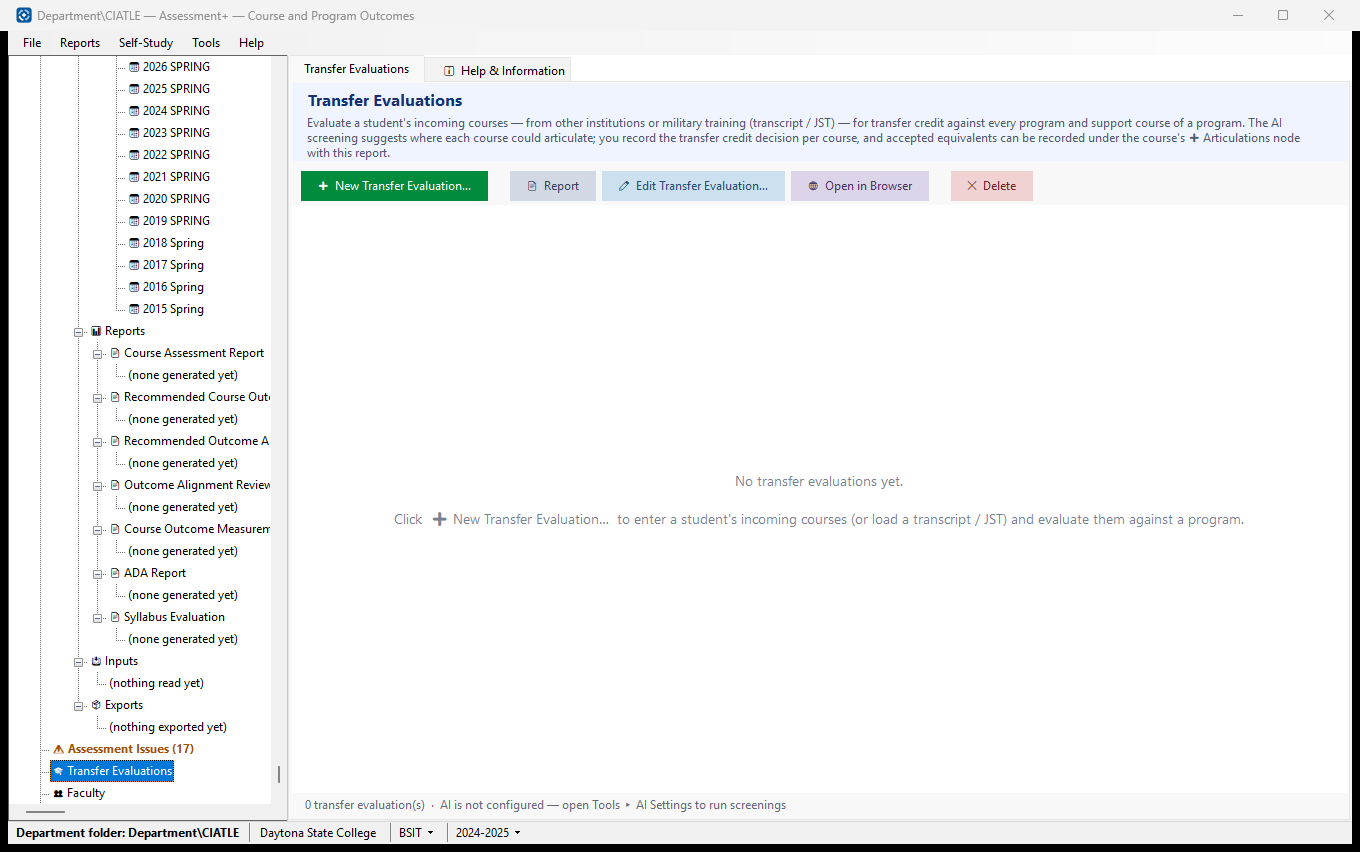
One evaluation per student: the courses a student brings from other institutions or military training, screened against every program and support course of one program, and your transfer credit decision for each.
How to use it
- Click ➕ New Transfer Evaluation… and enter the student and the program.
- Add the incoming courses one by one, or load the student's transcript or Joint Services Transcript (JST) and let Assessment+ read the courses from it.
- Click ✨ Analyze: each incoming course is screened against every active course in the program.
- Click ⚖ Decide… for each incoming course to record the transfer credit awarded.
- Click 📤 Record in Course Articulations to file each accepted equivalent under its course's ➕ Articulations.
- Back on this list, select a student and click 📄 Report to read the evaluation (and save it as PDF or Word), or ✏ Edit Transfer Evaluation… (or double-click) to continue it.
What it means, and what to watch for
- Incoming Courses — how many courses the student brings.
- Result — the decisions so far (accepted / decided of all), then the screening: how many of the program's courses at least one incoming course could cover. "not screened" means ✨ Analyze has not run.
- JST — the Joint Services Transcript, the U.S. military's record of a service member's training with ACE credit recommendations. Its ACE exhibits are read on this computer by rule; any other transcript needs an AI provider.
- A transcript holds student information. Before any of it goes to the AI provider you are shown what was found and must remove it; the transcript itself stays on this computer with the evaluation. The student's name, ID and grades are never part of the screening.
- The screening is a suggestion; the transfer credit decision is always yours.
- In the tree: 🟢 at least one strong match, 🟡 partial matches only, 🔴 no match, 📄 not screened yet.
- ✕ Delete removes the evaluation, the transcripts stored with it and its report. Articulations already recorded under courses are kept.
See also
- A course's ➕ Articulations (Programs ▸ the program ▸ 📋 Program Courses ▸ the course) — the formal per-course evaluations.
- Tools ▸ AI Settings — the provider the screening uses.
One transfer evaluation
One student's transfer evaluation: the incoming courses, where the screening suggests each could count, and the transfer credit decided.
How to use it
- Read the header: how many incoming courses, the documents stored, and when and by which AI provider they were screened.
- Read the result line: accepted / decided of all, and how many program courses the screening found covered.
- Click ✏ Edit Transfer Evaluation… to add courses, screen again, ⚖ Decide or 📤 Record.
- Click 📄 Save as PDF / Word… to keep a copy (PDF, Word or web page), or 🌐 Open in Browser to print it.
What it means, and what to watch for
- The report names the student; keep saved and printed copies with the student's record, not in shared folders.
- The screening is a suggestion; the decisions recorded are yours.
- ✕ Delete removes the evaluation, its stored transcripts and its report. Articulations already recorded under courses are kept.
See also
- 🎓 Transfer Evaluations (the node above) — every student's evaluation.
- A course's ➕ Articulations — where accepted equivalents are recorded.
Making a transfer evaluation
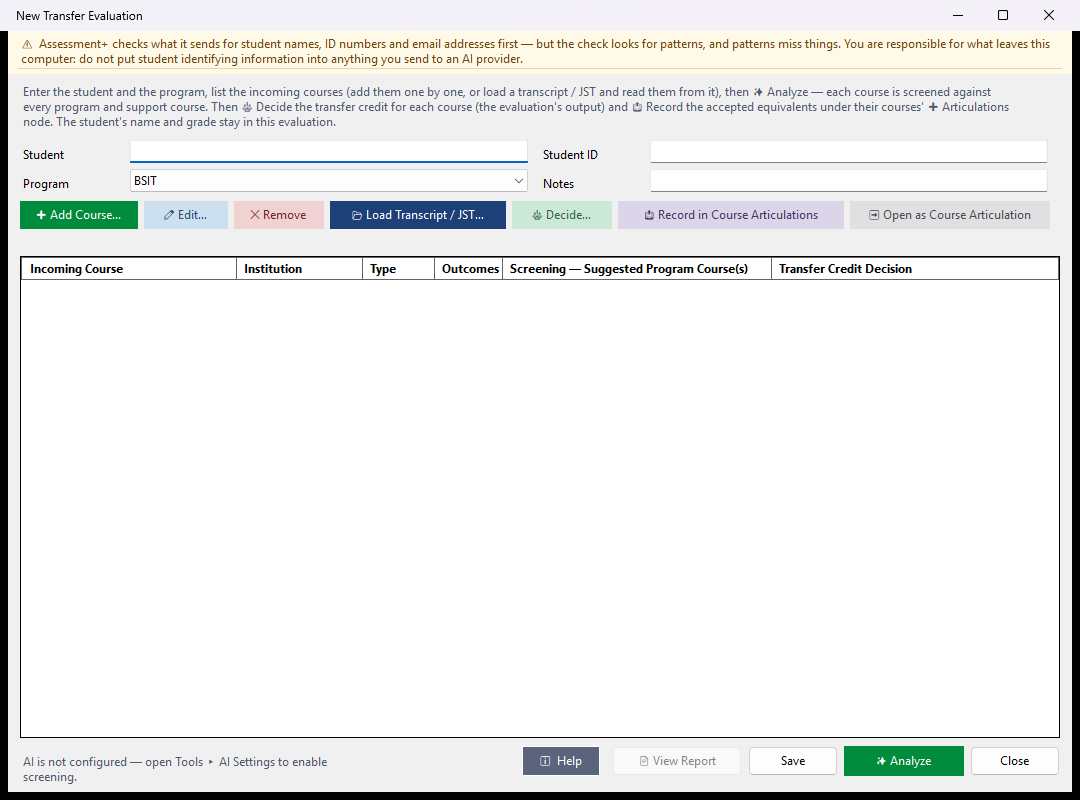
Evaluate one student's incoming courses for transfer credit against every program and support course of one program, record the decision for each, and file the accepted equivalents under their courses.
How to use it
- Enter the Student and choose the Program. Student ID and Notes are optional.
- Add the incoming courses: ➕ Add Course… one at a time, or 📂 Load Transcript / JST… to read them from a transcript.
- Check each course (select it and ✏ Edit…, or double-click it); ✕ Remove takes one off the list.
- Click ✨ Analyze. Each incoming course is screened against every active course in the program; the bar at the bottom shows how far it has got.
- Select a course and click ⚖ Decide…: accept it as equivalent to a course in the program, accept it as elective credit, or deny it, with the credit awarded and any notes.
- Click 📤 Record in Course Articulations to file every accepted equivalent under its course's ➕ Articulations. You can choose to run the formal AI analysis for each at the same time.
- Or, for one course, click ➡ Open as Course Articulation to open a formal articulation pre-filled from its best suggestion, without recording a decision.
- Click 📄 View Report to read the evaluation (and save it as PDF or Word); Save keeps your work; Close returns to the list.
What it means, and what to watch for
- Screening — Suggested Program Course(s): where the AI thinks the course could count, strongest first. "No match" means none was found. The screening is a suggestion; the decision is always yours.
- Transfer Credit Decision — Pending until you decide; "✓ recorded" means it has been filed under the course's ➕ Articulations.
- What is filed under a course is about the external course only: its description and the credit awarded. The student's name, ID, grade and your decision notes stay in this evaluation.
- A JST (Joint Services Transcript, the U.S. military's record of training with ACE credit recommendations) is read on this computer by rule. Any other transcript is read by the AI; first you are shown the student information it contains and must remove it — nothing is sent until you do.
- What is sent to the AI for screening: each incoming course's description, outcomes and source text, and the program's courses and outcomes. The student's name, ID and grade are not sent.
- The transcripts you load are kept with this evaluation on this computer.
- The screening and the decisions belong to the program they were made for: changing the Program clears them (you are asked first).
- Close during reading, screening or recording cancels it (the Close button reads Cancel then); what was already done is kept.
See also
- 🎓 Transfer Evaluations — every student's evaluation.
- A course's ➕ Articulations (Programs ▸ the program ▸ 📋 Program Courses ▸ the course) — where accepted equivalents are filed.
- Tools ▸ AI Settings — the provider used for reading and screening.
External Course
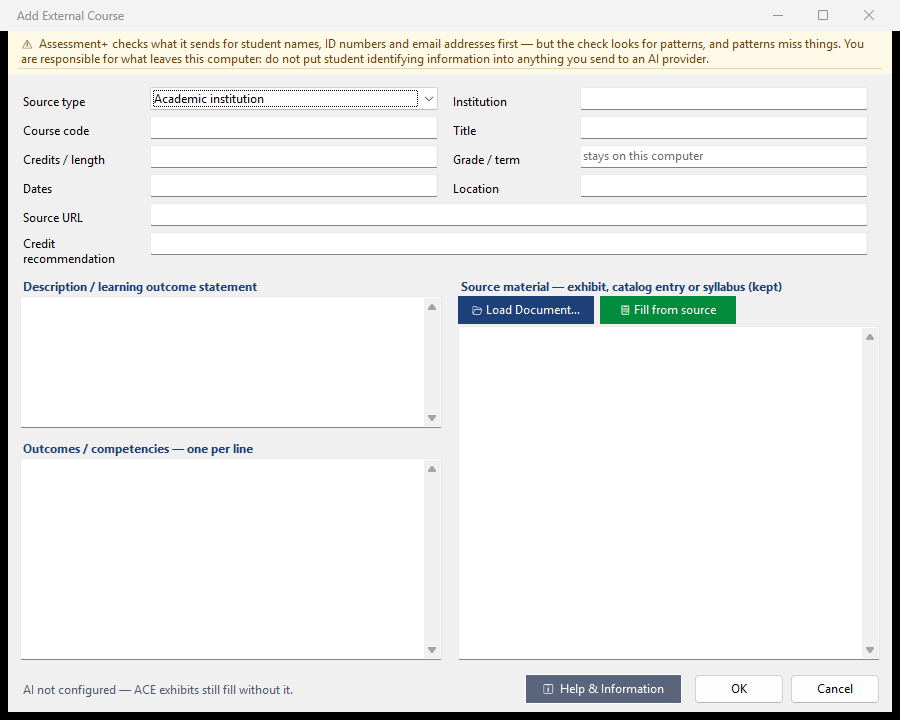
One course a student brings — from another institution, military training or another provider — described well enough to be screened against the program's courses.
How to use it
- Choose the Source type; for Military training (ACE) the code field becomes ACE ID and 🔎 Look up appears (it copies the ID and opens the ACE Military Guide, where you can find the exhibit).
- Enter the course code (or ACE ID) or its title — one of them is required — and the institution, branch or provider.
- Put the course's material in the Source box: 📂 Load Document… (Word, PDF, HTML, Markdown or text) or paste the exhibit, catalog entry or syllabus text.
- Click 📋 Fill from source to fill the blank fields from it. It never overwrites what you typed.
- Check the Outcomes / competencies (one per line), then click OK. Cancel leaves the course as it was.
What it means, and what to watch for
- An ACE exhibit is read on this computer without AI; any other source is read by the AI provider in Tools ▸ AI Settings. Before anything is sent, the text is checked for student information and you are shown what was found.
- Credit recommendation — what the source itself recommends (ACE's credit recommendation for military training).
- Grade / term — the student's result and when the course was taken, for your records. It stays on this computer and is never sent to the AI.
- If Service branch is left blank for a military course, it is taken from the ACE ID.
- The source material is kept with the course, so the screening and a later articulation can use it.
See also
- The transfer evaluation this course belongs to — ✨ Analyze screens it against the program.
- Tools ▸ AI Settings — the provider used by 📋 Fill from source.