
Each section below is the help that screen shows in Assessment+ itself, on its ℹ Help & Information tab (or F1), so it matches what you see on screen.
Faculty
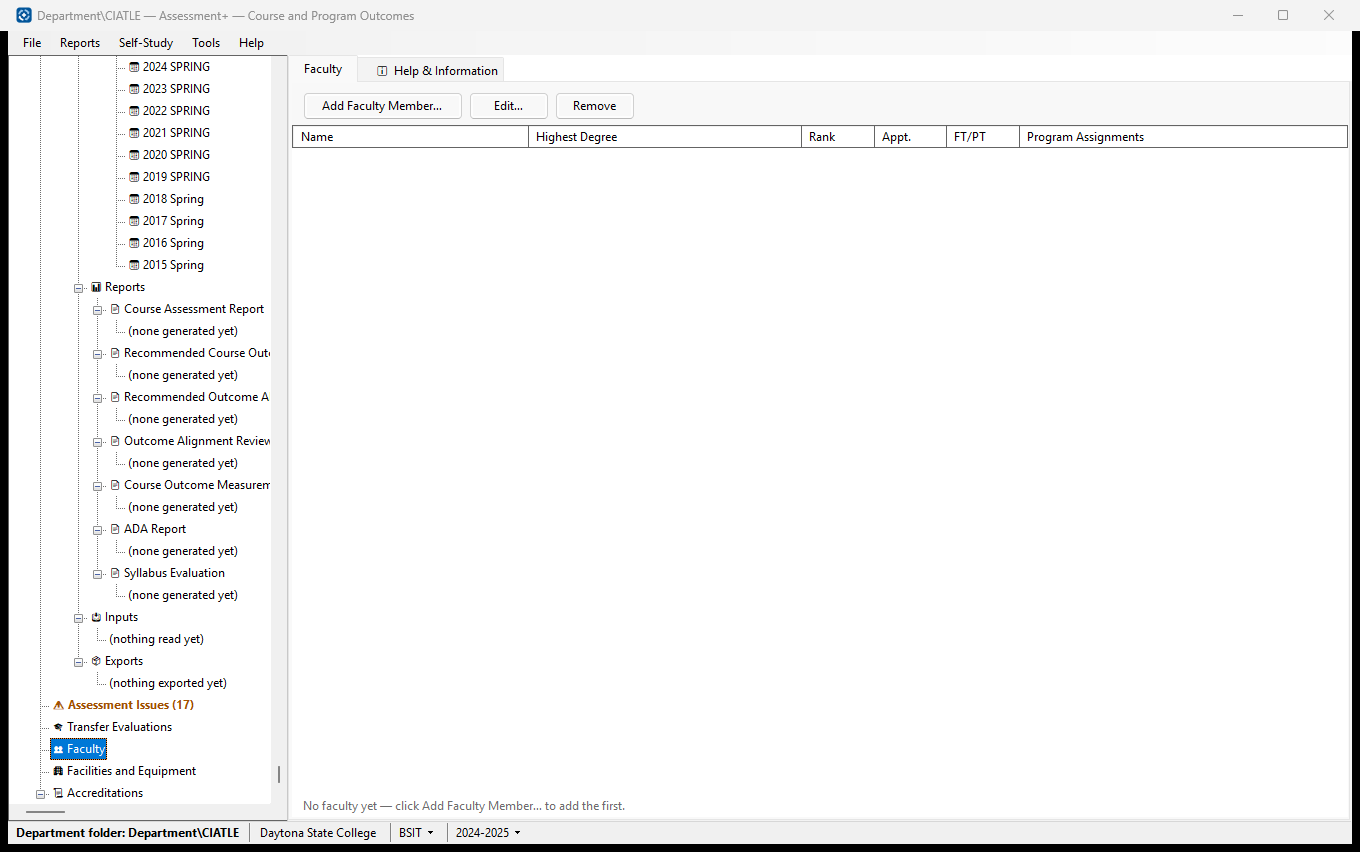
Everyone who teaches in the department's programs, with their qualifications and how their time is split between programs. The self-study's Criterion 6 tables and Appendix B vitae are built from these records.
How to use it
- Click Add Faculty Member… and fill in what you have; only the name is required.
- Under Program assignments, type the % of time for each program they teach in.
- Double-click a row (or Edit…) to update a record.
What it means, and what to watch for
- Faculty belong to the institution, not to one program; a 50/50 appointment lists both programs.
- Rank, Appt. and FT/PT use ABET's Table 6-1 codes — the edit dialog lists what each code means.
- Remove deletes the record from every program's self-study.
See also
- Accreditations ▸ an accreditation ▸ Criterion 6 — Faculty, and Appendix B — Faculty Vitae.
Faculty Member
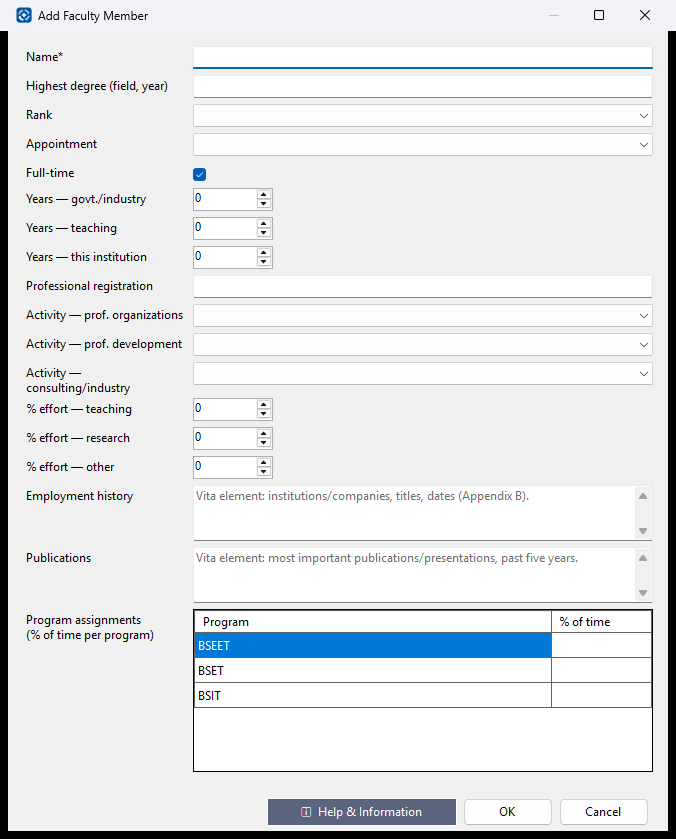
One faculty member's record for the self-study's Criterion 6 tables and Appendix B vita.
How to use it
- Type the name (required) and highest degree, with field and year.
- Choose rank and appointment, and tick Full-time if they are.
- Fill in years of experience, registration, activity levels and % effort.
- Type each program's share of their time under Program assignments, then OK.
What it means, and what to watch for
- Rank, Appointment and the activity levels are stored as ABET's Table 6-1 codes (P, ASC, AST, I, A, O; T, TT, NTT; H, M, L); the lists show what each means.
- A number left at 0 counts as not given.
- % effort (teaching, research, other) should add up to 100, and the program assignments to no more than 100; Assessment+ asks before saving figures that do not.
See also
- Criterion 6 — Faculty; Appendix B — Faculty Vitae (under an accreditation).
Facilities and Equipment
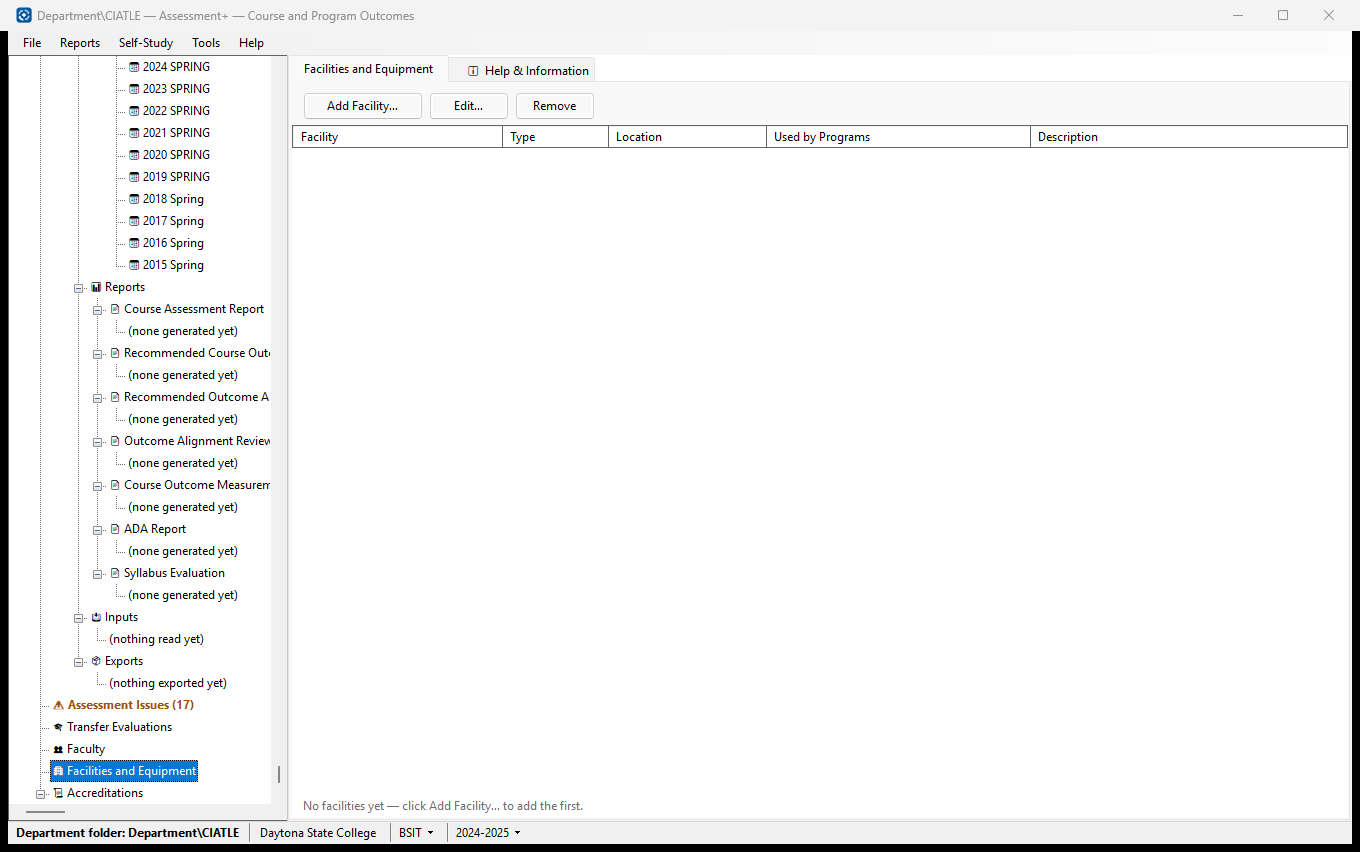
The offices, classrooms, laboratories and computing resources the programs use, with their major equipment. The self-study's Criterion 7 and Appendix C are built from these records.
How to use it
- Click Add Facility…, enter its name, type and location, and list major equipment one per line.
- Tick the programs that use it.
- Double-click a row (or Edit…) to update it.
What it means, and what to watch for
- A facility shared by several programs is entered once and ticked for each.
- A facility appears only in the self-study of the programs ticked for it.
- Remove deletes the record from every program's self-study.
See also
- Accreditations ▸ an accreditation ▸ Criterion 7 — Facilities, and Appendix C — Equipment.
Facility
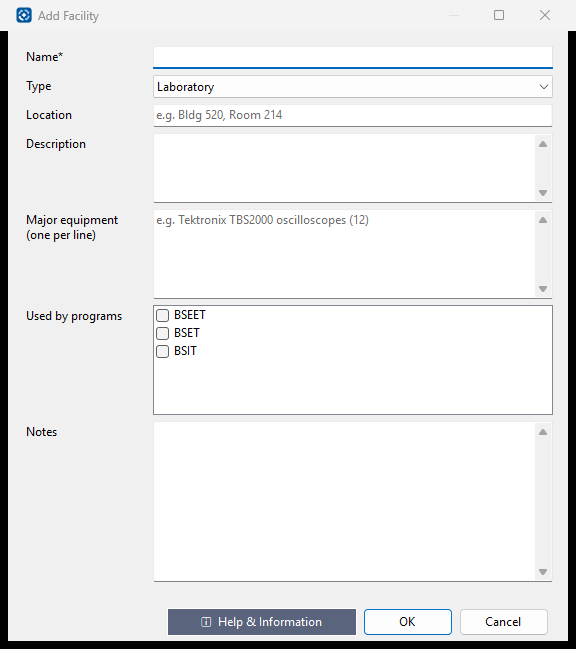
One room or resource the programs use, for Criterion 7 and Appendix C.
How to use it
- Type the name (required), choose the type and give the location.
- Describe it and list major equipment, one item per line.
- Tick every program that uses it, then OK.
What it means, and what to watch for
- Only ticked programs show this facility in their self-study.
See also
- Criterion 7 — Facilities; Appendix C — Equipment (under an accreditation).