
Each section below is the help that screen shows in Assessment+ itself, on its ℹ Help & Information tab (or F1), so it matches what you see on screen.
Course Editor — Faculty Course Evaluation
Records one course's Faculty Course Evaluation (FCE): its course outcomes and, for each semester it ran, the grade distribution, how each outcome was measured, and four written reflections. Everything here is kept in the course's .ciafce file.
How to use it
- Pick an offering (one semester's run of the course) in the Offerings list on the left; the newest is at the top. To add a semester, click + New Offering.
- Check the header: Semester, Year, Section, Instructor and Major belong to this offering. The course code, name and coordinator are changed with Edit Metadata….
- Work through the four tabs: Course Outcomes, Grade Distribution, Outcome Measures and Narratives. Help ▸ Help for the Selected Tab (Shift+F1) explains the tab you are on.
- To fill grades and measures from your gradebook instead of typing them, click ⬇ Import Grade Roster… above the tabs.
- Click 💾 Save (or File ▸ Save, Ctrl+S). Nothing is written to the course file until you save; closing the window asks first if anything is unsaved.
- Send the results to your coordinator: ⇄ Export / Import ▸ Export This Offering sends one semester (.ciaoff); File ▸ Export Whole Course for Coordinator sends every semester (.ciasub). Ask your coordinator which they want.
What it means, and what to watch for
- FCE — Faculty Course Evaluation: the semester-by-semester record of how well students met the course outcomes.
- Offering — one semester's run of the course, for example 2025 Fall. A term with several sections can have one offering per section; the optional Identifier (such as FA24) tells them apart.
- The header's 🎓 button (Map Program… until the course has a program, then the program's name) chooses the programs this course is assessed under; 📋 Program Outcomes… shows, enters or imports their program outcomes (POs).
- PO — a program outcome (some programs call it an SLO, student learning outcome). Each course outcome (CO) is mapped to the PO it supports; that mapping is how this course counts in the program's reports.
- The mark at the right of each offering, and on each tab, shows whether it is not started, incomplete or complete. Hover over an offering to see exactly what is missing.
- Complete means: a grade distribution, a result for every active course outcome, and all four narratives.
- To delete an offering, use Edit ▸ Delete This Offering… or right-click it in the Offerings list. It is removed from the file only when you save.
- ● Unsaved changes in the status bar means there are edits not yet saved.
- AI is optional. The 🤖 button at the bottom left, and the yellow banner, show whether an AI provider is set up; it is used only for suggestions, evaluations and document imports.
See also
- View ▸ Printable Review of This Offering — a page of the selected offering to print or save as PDF.
- View ▸ Prior Offering Comparison — the selected offering beside the one before it in time.
- View ▸ Course Outcome Measurement Assessment… — checks whether the course's graded items are good measures of its outcomes.
- Tools ▸ AI Settings… — add or change the AI provider key.
- Close this window to return to Courses, where the course's 📊 Reports and 📦 Exports are listed.
New Offering
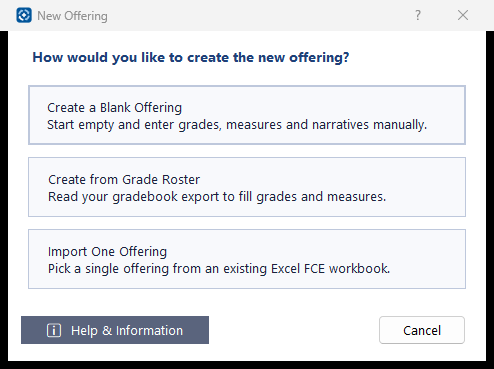
Adds a semester (an offering) to this course. Choose how its data should start.
How to use it
- Create a Blank Offering — then choose the Semester and type the Year in the header, and fill in the tabs by hand.
- Create from Grade Roster — runs the grade roster import, which fills the grade distribution and outcome measures from your gradebook export (.xlsx or .csv). The course must already have course outcomes; if it has none you are offered the chance to add them first.
- Import One Offering — choose an Excel FCE workbook, then pick the one offering in it to add to this course.
What it means, and what to watch for
- Offering — one semester's run of the course, for example 2025 Fall.
- If you cancel the grade roster import, the new offering is removed again.
- An imported offering for a term the course already has is added only after you confirm it is another section.
- Course outcomes that the imported offering's measures refer to, but this course lacks, are added to the course.
- Nothing is written to the course file until you click 💾 Save in the editor.
See also
- ⇄ Export / Import ▸ Import Offering (.ciaoff) into this Course — add an offering someone exported from Assessment+.
Edit Course Metadata
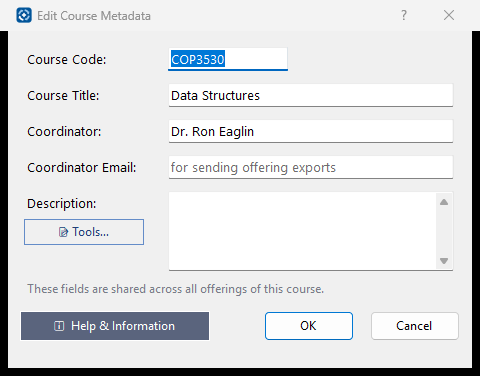
Details that belong to the course rather than to one semester, shared by every offering.
How to use it
- Correct the Course Code and Course Title if needed.
- Enter the course Coordinator and Coordinator Email.
- Type or paste the catalog Description, or click 📝 Tools… to fetch it from the catalog page or draft one from the course outcomes.
- Click OK, then 💾 Save in the editor to write the changes to the course file.
What it means, and what to watch for
- Course Code is required. Reports, exports and the coordinator's matching of submissions all go by it, so change it only to correct it; you are asked to confirm a change, and warned if another course file on this computer already uses the new code.
- Coordinator Email is offered as the address to send offering exports to.
- Cancel closes without changing anything.
See also
- 🎓 button in the editor's header — the programs this course is assessed under.
Course Description
Keeps the course's catalog description. Fetch it from the catalog web page, or have your AI provider draft one from the course outcomes. The current description is the one reports use; a proposed description is kept for a curriculum revision.
How to use it
- Type or paste the course's catalog or class page address in Catalog / class page URL.
- Click 🌐 Fetch from catalog. The text found appears under Fetched from the catalog page. If it cannot be found you are offered the AI; ✨ Extract with AI asks it directly.
- Read it, then click ◀ Use as current description.
- Optionally click ✨ Suggest description from outcomes, choose a draft from the list, and click ◀ Use as current or ▼ Use as proposed.
- You can also type in either box. Click OK to keep the changes; Cancel discards them.
What it means, and what to watch for
- Current description — used in reports and in the course's record.
- Proposed description — a draft for a future curriculum change; not used in reports.
- When the current description came from the catalog, the address and date are recorded; editing the text afterwards drops that record.
- How the current description aligns with the outcomes — the AI's notes on what the description covers and misses.
- What is sent: for ✨ Extract with AI, the text of the web page; for ✨ Suggest, the course code, title and outcomes, the current description and the fetched catalog text. No student data is read, and the content is checked for student information first.
- No AI provider yet? The ✨ buttons offer to set one up (Tools ▸ AI Settings). Fetching from the catalog works without one.
- A page built by scripts may have no readable text. Open it in a browser and paste the description into the current box.
- View Prompt shows the suggestion request; nothing is sent from there.
See also
- Tools ▸ AI Settings — the provider for extraction and drafts.
Program Mappings
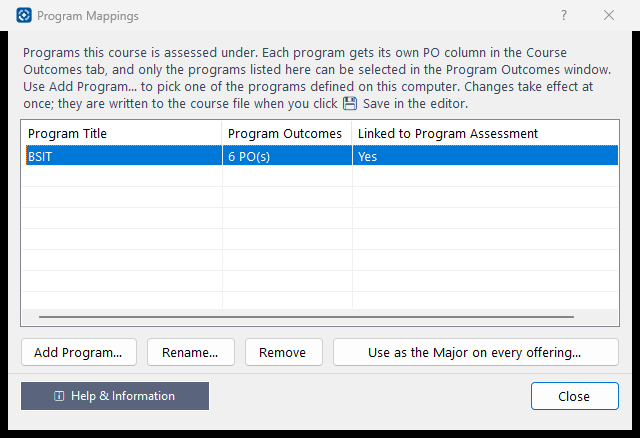
The programs this course is assessed under. Each program brings its program outcomes (POs) and adds a PO column to the Course Outcomes tab.
How to use it
- Click Add Program… and pick one of the programs defined on this computer.
- Then, on the Course Outcomes tab, map each course outcome to one of that program's POs (🔗 Map Course Outcomes to Program Outcomes…).
- Select a program and click Rename… to correct its name, or Remove to stop assessing the course under it.
- Optionally click Use as the Major on every offering… to write the selected program's name into every offering's Major field.
- Click Close, then 💾 Save in the editor.
What it means, and what to watch for
- Changes take effect as soon as you make them; they reach the course file when you save the course.
- Program Outcomes — how many program outcomes are on file for that program. "none yet" means enter or import them with 📋 Program Outcomes… in the editor's header.
- Linked to Program Assessment — Yes means tied to the coordinator's program itself. No means matched by name only, so a misspelled name is not counted in the program's reports: use Rename… and pick the defined program to link it.
- Remove clears this program's PO numbers from every course outcome (you are asked first).
- Use as the Major on every offering overwrites the Major already on each offering.
See also
- 📋 Program Outcomes… in the editor's header — see, enter or import a program's POs.
- Programs in the main window's tree — where the coordinator defines programs.
Add a Program
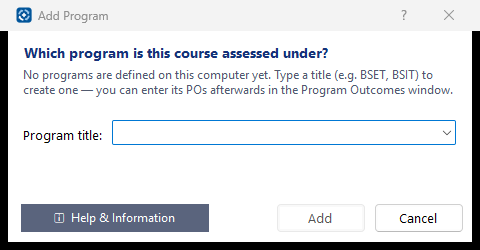
Chooses a program this course is assessed under.
How to use it
- Open the list and pick a program defined on this computer, or type a new title such as BSIT.
- Read the line under the box: it says whether the program is already defined and how many POs come with it.
- Click Add.
What it means, and what to watch for
- Picking a defined program links the course to the coordinator's program; when adding, its program outcomes are copied into this course.
- A title that is not defined here creates a separate program. You are asked to confirm, because a mistyped name is not counted in the coordinator's reports.
- Renaming does not change the POs already entered.
See also
- Programs in the main window's tree — where the coordinator defines programs.